




Keeping client documents organized used to feel like juggling too many things at once. I had files saved on my laptop, a few living inside my CRM, and the occasional papers floating in my email.
Eventually, I realized that most of the problems came from one simple issue. I didn’t have a smooth way to manage PDFs directly within the CRM.
When I paired my workflow with a reliable free PDF editor, everything clicked into place. I could update contracts in minutes, keep documents neatly attached to each client profile, and stop digging through folders for the latest version.
In this article, I’m sharing the exact structure that helped me make the whole process effortless — no extra tools, no complicated setup.
A PDF editor that fits naturally into your CRM life
After one late evening spent hunting for a contract revision I knew I’d edited somewhere, I told myself, there has to be a better way. Spoiler: there was.
Once I added a PDF editor into the mix, the chaos calmed down. I didn’t overhaul my CRM or switch to fancy new software. I simply used a tool that let me alter documents quickly, save them cleanly, and drop them into the exact record they belonged to.
Here’s what it changed for me:
- No more digging for the freshest version.
- Fast adjustments without exporting or juggling multiple copies.
- Immediate attachment to the right entry.
- Much simpler sharing when a client needs something right away.
It wasn’t about adding complexity — it was the opposite. The program filled a gap I didn’t realize was responsible for so much friction.
Small improvements in the process tend to pay off the most. This was one of them.
My simple step-by-step workflow
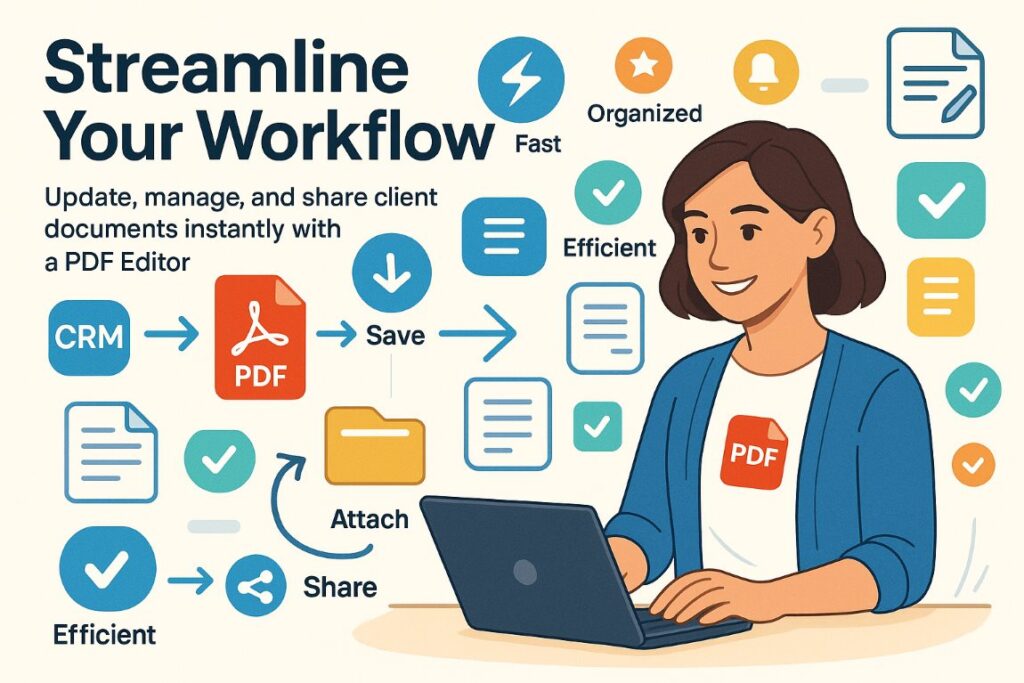
Here’s how my current system is set up. It may look straightforward, but that’s the whole point. I wanted something I could repeat without thinking.
- Step 1: Open the file directly from where it already lives
Whether it arrives by email, from a shared drive, or through a CRM attachment, I view the document in the PDF editor first. That way, I’m never duplicating something unnecessarily.
- Step 2: Make adjustments
Changes might include:
- Fixing a typo in a service description
- Updating pricing or dates
- Adding a signature field
- Merging an extra page with supplementary notes
These edits take seconds instead of a whole routine of exports and uploads.
- Step 3: Save using a consistent naming structure
This is the “secret ingredient” in my system. I keep a simple formula:
- ClientName_Project_Day-Month-Year.pdf
For instance: MartaReynolds_WebsitePlan_03-04-2025.pdf
It keeps everything predictable without being complicated.
- Step 4: Attach the updated version
I upload the result straight into the CRM profile. I don’t leave old versions lying around unless I need them for reference. If I do keep them, I move older ones to an “Archive” sub-folder so they stay available but out of the way.
- Step 5: Add a short note
It’s usually something like:
- “Updated contract with revised timeline; replaced previous version.”
This tiny habit saves future-me hours of guessing.
- Step 6: Share directly from the CRM
Since the file is already there after editing the PDF, I send it right from the client’s page. Everything remains neatly tied together.
That’s it. Once I had this loop figured out, I stopped overthinking document management entirely.
Examples of real scenarios
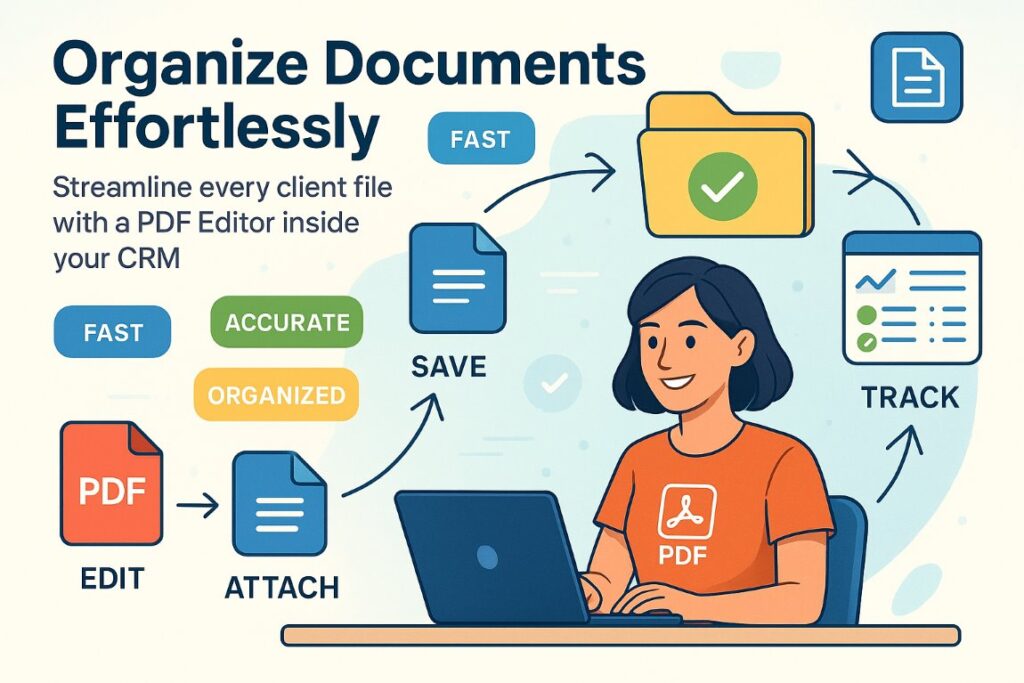
It’s always easier to understand a workflow when you see how it looks in actual situations. Here are a few samples from my own routine.
- Case 1: Updating a contract on the fly
I once had a client, Daniel Harper, ask for a faster project schedule. Instead of recreating a contract, I opened the existing PDF, adjusted the milestones, and added a short note acknowledging the timeline change.
I saved the result, attached it to Daniel’s CRM page, and gave it to him within minutes.
He signed it the same day. No drama. No version confusion.
- Case 2: Turning an email attachment into a trackable file
When a long-term client, Willow & Co. Interiors, sent me a scanned sketch through email, it risked becoming one of those “lost in the inbox” items. Instead of letting that happen, I opened the PDF straight from the provider. I cleaned up the scan, saved it with a proper name, and placed it in their CRM folder.
Later, when I needed that sketch, it was right where it belonged.
- Case 3: Sending a summary
A person asked for a paper containing only the action points from a lengthy meeting summary. I used the extraction tools to isolate the parts that mattered, added my notes on top, and uploaded the simplified version to their CRM profile.
Having a single polished document saved me from explaining where to look or which paragraph mattered.
These small moments highlight how much easier life becomes when every element ends up in the right place the first time.
- Choosing the best PDF editor
You don’t need a complex tool with dozens of features you’ll never even try. Look for something that feels intuitive and works smoothly with your everyday habits. Before finalizing any tool, it’s helpful to follow proven tips for editing PDF documents to avoid formatting issues and ensure every update stays clean, accurate, and easy to manage inside your CRM.
Here are a few qualities that make a PDF editing software genuinely useful:
- A clean interface that doesn’t slow you down.
- Strong tools (text, images, forms, signatures).
- Reliable saving and exporting, without destroying formatting.
- Fast performance on large files.
- Easy location of recently opened documents.
If it plays nicely with your operating system and doesn’t fight with your CRM workflow, you’ve found a winner. Integration isn’t always direct — sometimes it’s simply about how to edit a PDF online without breaking your rhythm.
Conclusion
Combining your CRM with a good PDF editor might feel like a small adjustment, but in day-to-day work, it can be a game-changer.
It keeps your client documents tidy, saves you from version headaches, and makes updates quick enough that you don’t have to “set time aside” for them anymore.
If your CRM is already the heart of your procedures, adding a smooth system is like giving it a well-deserved upgrade. It’s one of those improvements that feels simple, but over time, you’ll wonder how you ever managed without it.
%201.png)

%201.png)

%201.png)