



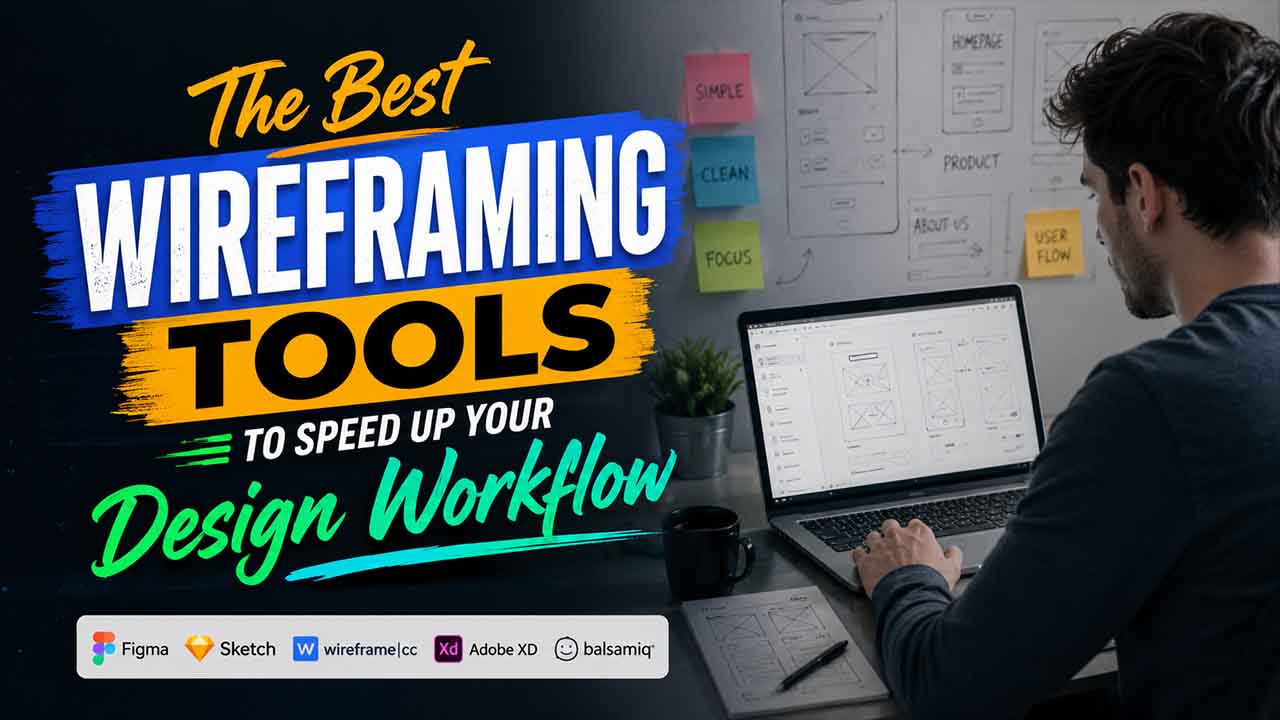

Courtesy of AI, wireframing no longer needs pushing pixels for hours on end. You can drop a few constraints, describe a flow, and get useful frames in minutes through straightforward prompts. All you have to do is fine-tune it with natural-language edits, so the whole process becomes quick and iterative.
In this guide, let us show you the right wireframing tools that empower AI to make this happen. Let us cover the features, advantages, and disadvantages of every option and explain who can benefit from each platform the most.
How to Select the Right AI Wireframing Tools?
Going through distinct wireframe tools is just the first step to look at the right one. You should also try to gain first-hand experience with below-listed options to check their real-life performance. The common process to follow is this:
- List out the most convincing options.
- Sign up for them (Many platforms provide free trials or plans you can utilize to test them out).
- Run the similar three prompts across different tools (e.g., onboarding, marketing signup, and e-commerce checkout) with your constraints and guidelines.
- You can log the important metrics as: time-to-first draft, edit distance to final, and the number of AI iterations required.
- Log the important metrics such as edit distance to final, time-to-first draft, and the number of AI iterations required.
As you explore distinct options, emphasize the five factors to choose the right one.
| Factor | What You Need to Look for? |
|---|---|
| Quality of generation and control | Notice how effectively your selected platform can understand the intent (“two-step checkout process with validation of address,” “mobile sign up with SSO”) |
| Design system fidelity | Choose a tool that allows you to anchor AI output to your tokens and components so that type scale, spacing, and interactive states remain consistent |
| Export, editing, and developer handoff | Check exports (PNG/SVG, Figma import, code stubs) and whether specs/annotations (spacing, sizes, tokens) are enough for design QA or engineering later on in the process. |
| Governance and collaboration | Emphasize on threaded comments, multiplayer editing, role-based permissions, and multi-threading so stakeholders and PM can review without disrupting the source |
| Privacy and Security | Confirm model-training opt-outs, data retention policies, and compliance (e.g., SOC 2/ISO 27001). Enterprise teams may also require SSO/SCIM, regional data residency, and audit logs. |
The factors mentioned above are some of the criteria that can help you choose the right wireframing tool:
1. UX Pilot’s AI Wireframing Tool:
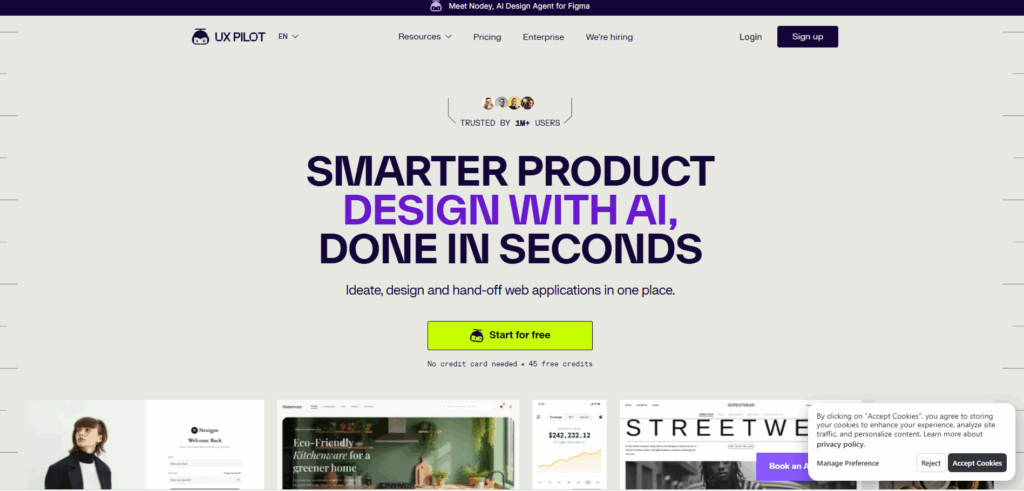
The AI wireframing tool of UX pilot converts sketches or short prompts into multi-screen user flows or editable wireframes. You can create draft inside Figma or on the web, and then conversationally iterate by asking the AI tool to perform actions such as:
- Swapping Sections
- Restructuring Layouts
- Refining the hierarchy
By courtesy of the multimodal input support of the platform, you can convert ideas into detailed or structured wireframes using both text descriptions (natural language prompts) and uploaded sketches or images. Instead of beginning from zero, you get a good foundation of your product instantly.
If you utilize Figma, the UX pilot plug-in can accelerate your workflows drastically. You can directly create AI wireframes in Figma and move your work between design files and UX pilot, which enables you to remain in your existing workflow.
As far as downsides are concerned, the main thing is that you do not get a one-click to final specs tool. AI-generated layouts still benefit from a designer's pass for states, spacing, and accessibility, so you can expect to do a bit of manual polishing once the draft appears in Figma.
Furthermore, usage depends on credits, so large teams must take into account all the quotas and cost fit before they sign up.
AI Wireframing tool by UX Pilot is mostly suitable for designers who want to create wireframes quickly and finish user workflows without extensive input. It is also a right fit for non-design stakeholders who wish to express intent through text and get concrete frames to react to.
Advantages:
- Creates editable wireframes from images or text on both mobile devices and desktops.
- Incorporates with Figma for downstream collaboration and editing.
Disadvantages:
- Outputs might need alignment with design system and accessibility touch-ups.
- Credits-based usage might not align with high-volume teams.
2. Figma:
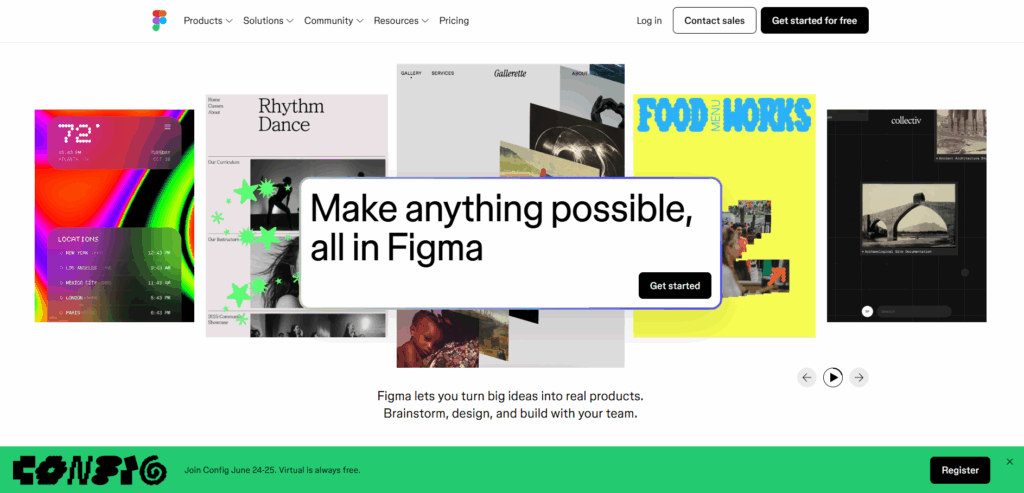
Figma is a popular and all-in-one canvas that enables you to sketch low-fi wires, prototype click-throughs, re-utilize components, and ensure real-time collaboration. Its variables and auto-layout enable you to generate token-based and responsive wireframes that adjust as content adopts.
Auto-layout allows frames to work like flexbox, fill, hug, and spacing rules allows wires to remain tidy as you iterate. Combined with variables/components, it is an effective option for systemized wireframing.
Figma AI enables you to create starting layouts with the help of a prompt (lo-fi to hi-fi libraries). This is quite similar to how AI Wireframing of UX Pilot operates, but it might not turn out to be as capable. If your focus is speed, from prompt to multiple screens, screen-flow generation and text-to-wireframe are more purpose-built and quicker. Furthermore, they can directly run inside Figma as well with the help of a plugin.
Now, keeping this in mind, you can either choose between UX Pilot and Figma or combine the two to:
- Ideate with AI of UX Pilot
- Generate wireframes in seconds
- Deliver the draft and collaborate in Figma.
Irrespective of whether you use it with UX Pilot or not, Figma is the best option for system-aligned and accurate wireframes with strong handoff and multiplayer editing. This is especially true when wireframes exist alongside dev modes and design systems.
Advantages:
- Mature workflow of wireframing with components, Auto Layout, and variables. This is an excellent option for responsive and structured wires.
- Top-notch ecosystem and collaboration.
Disadvantages:
- Steeper learning curve for responsive behavior and auto layout.
- Native prototyping is quite limited for complex logic.
3. UXPin:
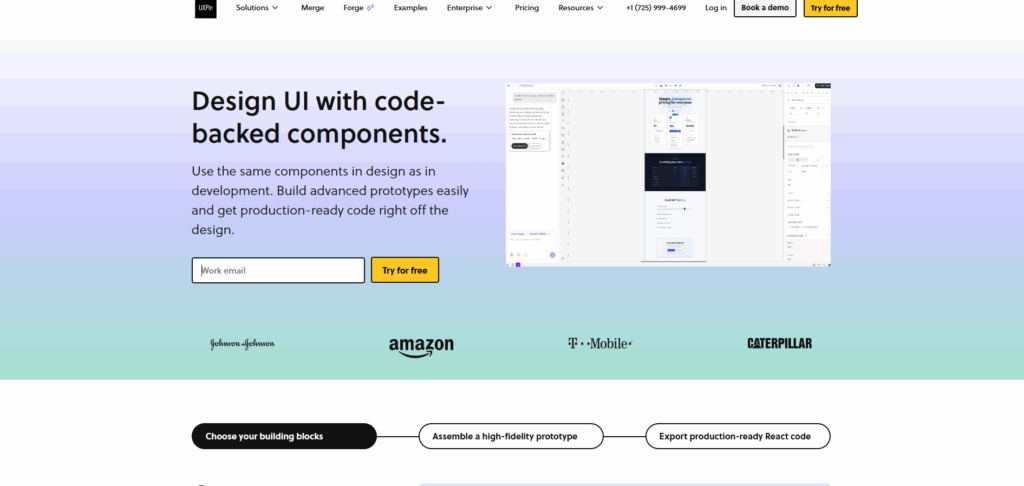
UXPin integrates classic wireframing with AI-driven and code-aware prototyping. It enables you to sketch low-fidelity structures, layer real interactions such as variables, states, and conditional logic. This can simulate user flow before you are involved in engineering.
For productivity-focused users, UXPin provides the AI Component Creator engineered using Claude and Open AI. It can convert a UI image or text prompt into React UI components which are backed by popular UI libraries such as:
- Ant Design
- MUI
- React-Booststrap
- Tailwind
With the help of AI Component Creator, early wires can be combined from constraint and real parts instead of static stencils. You can then hand off a solid draft and layer interactions.
Another notable characteristic is validation and fidelity in the wireframe stage. Since components are live and interactive, you can run early accessibility checks and prototype with variables/conditions (contrast, color blind simulators) while ideas are still wireframing light.
While ExPin combines traditional design tools effectively with sophisticated features, it might need some setup. You will likely require some developer time to expose props and components, which can slow down smaller teams and put UXPin at a disadvantage when compared to more innovative tools on the list.
Advantages:
- Code-based wireframes ensure that the early designs remain aligned with production components, which minimizes rework at handoff.
- Deep interactions (conditions, variables) and accessibility platforms allow testable and realistic flows at wireframe fidelity.
Disadvantages:
- This might need expert setup or take longer to connect props and components.
- Involves a more substantial learning curve than many competitors.
4. Framer:
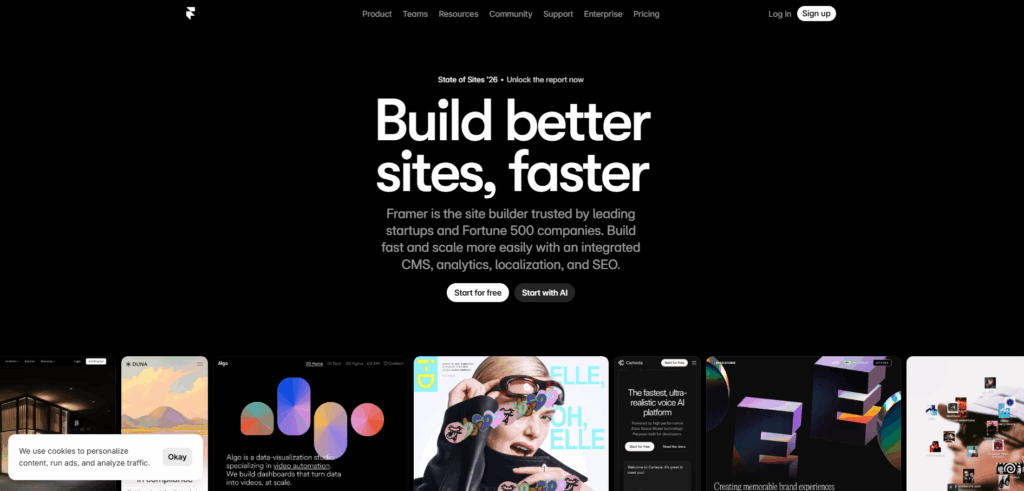
Framer integrates AI-powered layout generation with a CMS, visual editor, and hosting so you can go from wireframe to a functional and live website at one place. It also provides hands-off free collaboration characteristics that allow numerous users to edit the copy page or layout with updates in real-time.
As far as the platform’s AI is concerned, it encompasses on-page editing and site generation. You can get simple layouts and copy through straightforward prompts and modify text and images via live sites. This makes it quite valuable for collaborative iteration after the first wireframe is online.
Framer also comes with a dedicated Figma plugin, which makes it simple to pull plugins from Figma into a site project while also preserving the structure. Once you import the wireframe, you can add the content you have just created and then ship.
As a complete suite, Framer goes beyond creation of page and enables you to monitor your website after publishing through characteristics such as:
- SEO Monitoring
- Performance Analytics
- A/B Testing
While Framer AI is crucial for straightforward drafts, complex websites still require manual testing. This is especially useful for large content models and structured SEO, where users generally report that Webflow-style control turns out to be more mature.
Still, it is an effective option for teams who wish to create website wireframes into functional websites more quickly and utilize CMS, hosting, and standard SEO settings under one roof. If your end objective is an operational marketing website or compact product docs, Framer might be a better fit.
Courtesy of its Figma integrations, the platform operates well with other wireframing platforms. For instance, you can utilize UX pilot to get multi-screen flows quickly that you can edit inside Figma. You can then consolidate them into Framer through Framer import if your plan is to ship a website. This ensures fast AI ideation with the production stack of Framer for simplified design process.
Advantages:
- In-built hosting and CMS make going live quite simple after wireframing with AI
- Smooth path from external designs from external designs (e.g., Figma) into Frame
Disadvantages:
- Large SEO-based builds and complex logic may require extra care.
- This is not a replacement for in-depth UX specs; you will still fine-tune hierarchy and content strategy, which is outside the AI draft.
5. Google Stitch:
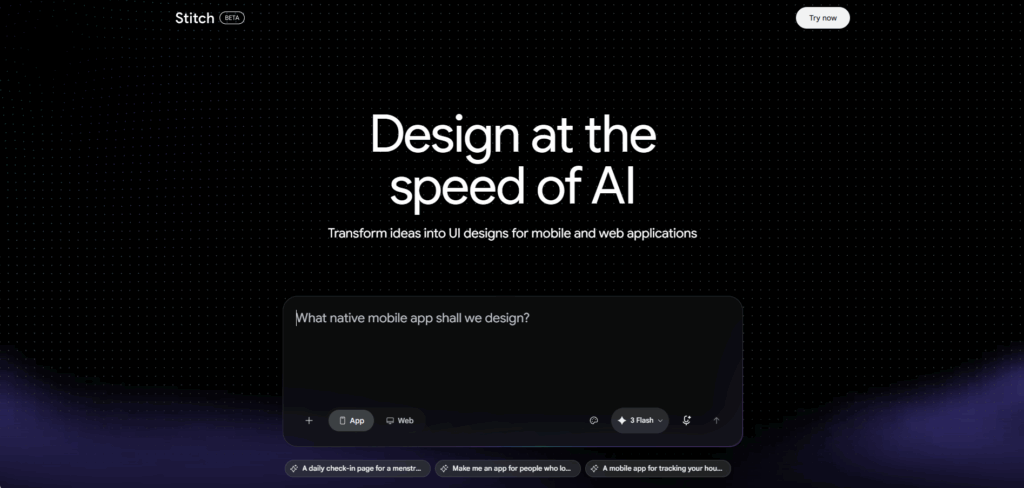
Google stitch wireframe platform that converts sketches, prompts, or screenshots into multi-screen user interfaces for mobile apps or websites pages. It then combines those visuals with exportable Figma files or front-end code for refinement.
Like it is true with other wireframing tools, you begin with a natural language brief or Sketch/Screenshot, and Stitch returns numerous layout variants you can refine in a chat loop. You can make numerous modifications through prompts like:
- Swapping Patterns
- Adding Sections
- Restyling
Once you are happy with the draft, you can easily export generated screens as front-end code or hand them to design through Figma port.
As Google Labs experiments still in beta stage, Stitch is still free. You can try it at no cost whatsoever during the preview window, which is a nice idea for operating real pilots without procurement friction.
Still, there is a price to pay, and it is similar in many beta products, shifting features, and mixed results. Early feedback from community accentuates that first draft can feel generic or “vanilla,” with visual interest and hierarchy requiring a designer’s pass.
You can also expect quotas, policies, and feature depth to evolve as the beta progresses. So, it is difficult to know whether the final product will align with your requirements.
Advantages:
- Fast image or prompt generation with code export variant exploration, and Figma handoff.
- Free during beta through Google Labs, reducing the barrier to trial across all teams.
Read More: Stitch AI: Google’s New Free AI Tool Makes UI Designing Effortless for Developers
6. Banani:
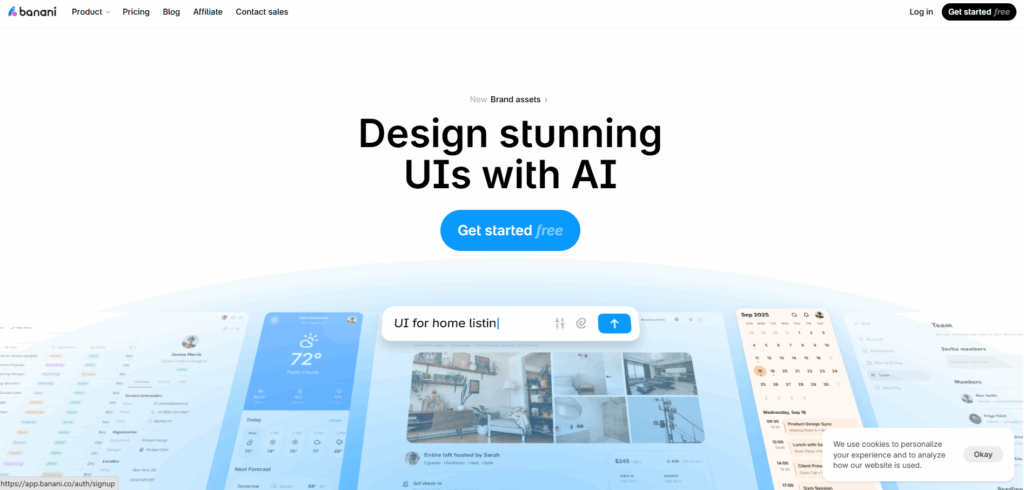
Banani is an AI copilot that converts short prompts or reference images into multiscreen UI drafts or wireframes which you can fine-tune with a lightweight editor or additional prompts. The platform has an interface that is beginner-friendly, so it is suitable for teams and newbie designers looking for professional design tools.
Banani’s generator returns numerous options from a single prompt and provides support to partial edits, enabling you to regenerate a whole section instead of the entire page. This can be valuable when you are focusing on a layout and just want to refine a few details.
Another valuable export is the copy-export into Figma that does not need plugins. This simplifies handoffs drastically, which happens in just three simple steps:
- Choose the layouts you want to hand off.
- Select “Copy to Figma” (or just plain copy-paste)
- Continue with components, auto layouts, and comments where your team already works.
Despite its capability to create multi-screen drafts, Banani’s flow appears to be screen-by-screen instead of deeply modeled end-to-end logic. This might be a hurdle in the end-to-end layouts and needs a bit of fine-tuning to get the design that you want.
Advantages:
- Image-based and quick prompt wireframes with simple export of prototype.
- Low-friction Figma handoff without the use of plugins.
Disadvantages:
- Page-by-page generation can appear slower for end-to-end or complex app flows.
- Geared to create static mockups/wires and compact click-throughs (richer prototyping states, logic, and validation behaviors might need multiple tools).
7. Visily:
Visily develops AI into wireframing workflows in numerous ways. This is most notably:
- Text-to-design process via prompts
- AI chat assistant used for iterative edits
- Screenshot-to-wireframe workflow
Given the fact that AI manages the heavy lifting, Visily advertises itself as a non-designer who wish to create wireframes without any friction. The sketch or screenshot conversion into clickable prototypes is extremely quick, and you can make chat-based edits to specific components.
The platform comes with valuable collaboration features, such as real-time annotation and diagramming. Numerous designers can smoothly work on the same page and monitor all the visible changes.
You can transition design from Visily to Figma through copy-paste. However, you only get one-way handoff. There is no bidirectional or persistent synchronization, so edits in Figma will not flow back.
Another major drawback is the lack of an auto-layout option. This is a key selling point for the majority of wireframing software, which puts Visily at a key disadvantage. Though, you do get auto-prototyping though you can still convert static pages into interactive wireframes.
Advantages:
- Numerous AI edits (sketch, text, screenshot) and a chat assistant with a quick conversion to simple prototype links and editable design.
- Valuable collaboration features for simplified workflows.
Disadvantages:
- One-way handoff to Figma without bidirectional synchronization.
- No automatic layout, which can slow down the initial stages of wireframing.
8. Balsamiq:
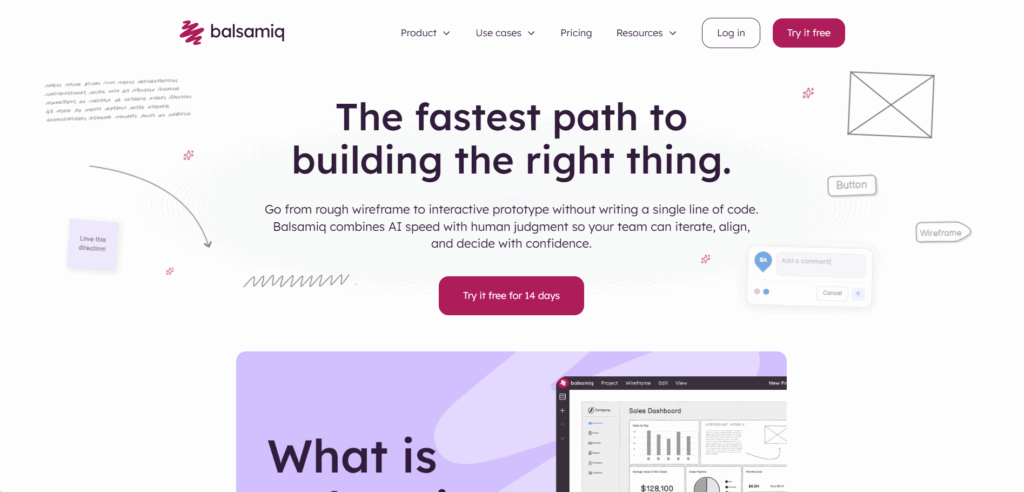
Balsamiq is a low-fidelity and fast application that deliberately looks like a sketch, keeping attention on the flow and layout instead of pixel polish. It runs in the browser and provides useful features such as:
- Fast linking for click-throughs.
- Straightforward drag-and-drop User Interface elements.
- Easy export for feedback and sharing.
You can think of Balsamiq as just an honorable mention on the list because it does not have as many AI or automation features as other wireframing tools covered in this list. Instead, it is just a straightforward hand-drawn design that keeps attention on the hierarchy of information and interaction paths, making it simpler to converge on layout, removing any debate over spacing or typography.
Advantages:
- Quick lo-fi sketching that focuses discussions on the structure and not styling.
- Straightforward sharing for feedback collection.
Disadvantages:
- Limited for restricted prototyping/hi-fi.
- The desktop app regularly goes through maintenance.
Conclusion
Selecting the right wireframing tools boils down to the workflow of your team, end goals, and skill level. Figma and UX Pilot work effectively together for quick AI-driven drafts with structured handoff. Framer and UXPin help teams that require live websites or code-ready components. Banani and Google Stitch reduce the barrier for beginners, while Balsamiq and Visily can keep things focused and simple. You can test a few options against real project prompts before committing yourself.
Once you have built the wireframe, logo design is the critical next step. Check out top 10 Free AI tools for Logo Generation in 2026.
FAQs About Wireframing Tools
Q. What tools are used for wireframes?
A- Physical wireframe can operate at initial wireframe stages, though; they are not always easy to save, share, or rework. With an online wireframing tool of Figma, you can quickly share, create, or iterate on low-fidelity wireframes.
Q. What are the three types of wireframes?
A- The three key types of wireframes are Low Fidelity (focuses on page structure or user flow), High-fidelity (close to the end-product with in-depth design elements), and Mid-Fidelity (adds functionality focus and detail).
Q. Who uses wireframes and why?
A- Product managers and business analysts utilize wireframes to translate needs into visual specifications for developers or designers. Developers utilize them to sketch out user interfaces when they do not have a designer or when you are directly working with clients.
Q. What is not included in a wireframe?
A- The wireframe showcases the page arrangement or layout of the website’s content, including navigational systems and interface elements and how they effectively work together. The wireframe generally lacks color, typographic style, or graphics because the main focus exists in behavior, functionality, or website focus.
Q. What font is used for wireframes?
A- It depends on the style of your wireframe. For hand-drawn or sketchy wireframes, use Redacted Scripts or Architects Daughter. For blocky or clean placeholder text, use Redacted or Blokk regular.
Q. Which of the following is a wireframe tool: Balasamiq, Figma, Wireframe.cc, UXPin, or Miro?
A- All of them are wireframe tools. More options include Adobe XD, Moqups, Mockflow, Justinmind, etc.
%201.png)

%201.png)

%201.png)