





On Mac, dragging the app to the Trash does not mean it will be completely deleted. Most of the users believe that the complete uninstall can be achieved by deleting the app. In reality, the deleted files are left inside the hidden folder. This can lead to space compression, Mac slowness, or compatibility issues if the software has to be installed again in the future. In the following instructions, the complete uninstall process of applications for Mac has been described. This process involves general uninstall processes, step-by-step manual uninstall process, and a contemporary method by using a Mac uninstaller. At the end of this guide, Mac users can delete apps in a way that helps in having an optimized Mac.
Part 1: Two Standard Methods
The majority of people who use a Mac computer tend to start with the simplest ways to delete app on Mac. These methods are quite effective and quite fast too, especially on basic applications.
Method A: Drag to Trash from the Applications Folder
- Open the Applications folder from the Finder
- Find the application you wish to remove
- Drag the application to the Trash or right-click and select Move to Trash
- The Trash must be emptied for complete removal
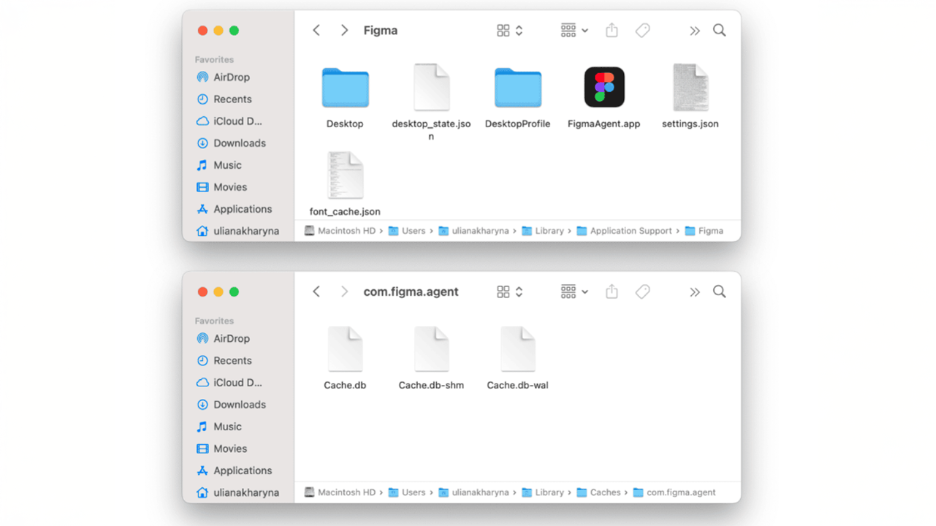
This is a straightforward approach but removes only the app bundle itself.
Method B: Uninstall Using Launchpad
- Open Launchpad.
- Tap and hold on the app icon until it begins to jiggle.
- Click the X icon to delete the app. If you are having trouble doing this, you may need to press the Option key if needed.
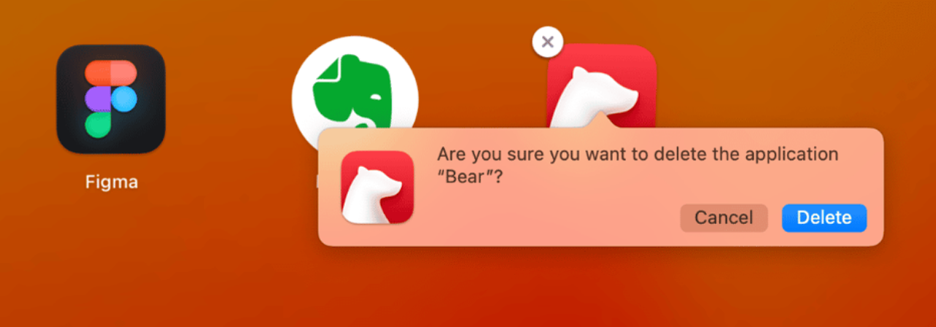
Launchpad is convenient for apps downloaded from the App Store, but it does not remove hidden files.
The Catch: Leftover Files
Warning: When dragging an application into the Trash or the Launchpad, it only removes the actual application itself. However, it does not remove the support files, caches, preferences, and logs, which are left in the Library folder. Although these files are not typically noticed by Mac users, they consume disk space as well as cause problems in the long run. Removing these additional files is required if uninstalling an app from MacBook is the goal.
Part 2: The Manual "Complete" Uninstall: Hunting Down Leftover Files
If you want to completely uninstall Mac app, you can manually remove leftover files. This how to uninstall applications on Mac method is thorough but requires care.
Step-by-Step Guide
- Open the Finder and use Shift + Command + G for opening Go to Folder.
- Type ~/Library and press Enter to open the hidden Library folder.
Subfolders to check for files regarding the app or developer:
- Application Support
- Caches
- Preferences
- Logs
- Containers
4. Look for folders with the app name or developer’s name and then drag these folders to the Trash.
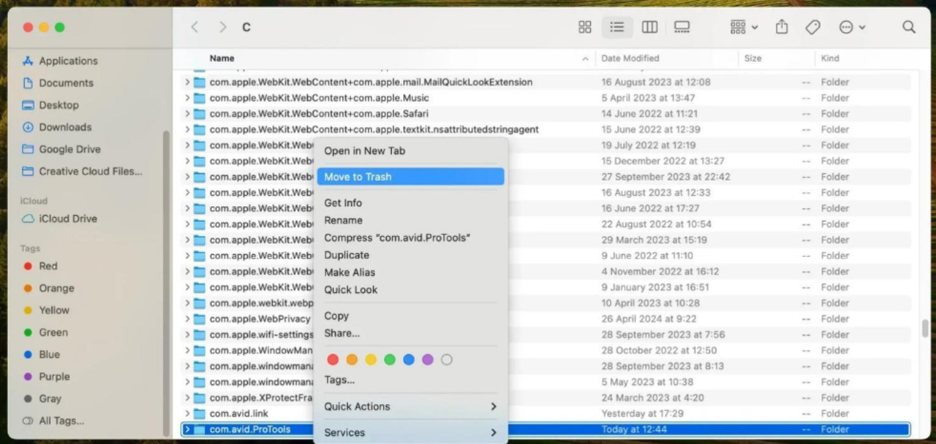
Be Careful
- This is a time-consuming process. It is also prone to errors
- Incorrectly deleting system files can result in other programs failing
- Certain files are hidden in various places, so they are easily missed
Though this manual method is effective, its complexity has made most people look for safer and even automated ways of fully uninstalling Mac applications.
Part 3: The Modern Solution: Using a Dedicated Mac Uninstaller
The problems caused by both standard and manual uninstallation are solved by dedicated Mac uninstallers. They safely take care of leftover files and save time in the process.
Why You Need a Mac Uninstaller
- Dragging applications to Trash leaves hidden files.
- Manual file hunting wastes a lot of time and might be a little risky
- Large apps or multiple apps make manual cleanup tedious.
Introducing Tenorshare Cleamio
Here, dedicated Mac uninstallers like Tenorshare Cleamio are very helpful. Unlike standard deletion methods, Cleamio will find all traces of your application and automate the process of removing it completely from your Mac. Scan all relevant folders including hidden library files, cache, logs and configuration files to ensure that nothing is left. By handling both the main app and its remaining files, Cleamio saves time, reduces risk, safely and completely uninstalls the app and provides a way to clean up your Mac efficiently.
How It Works
- Cleamio scans your Mac and lists all installed applications.
- Select the app to uninstall and perform standard deletion.
- Then rescan for any files remaining in the library or other folders.
- Preview all detected files for your confirmation before removal.
This process allows complete deletion and also prevents the deletion of important files.
Key Benefits
- Thoroughness: Full uninstallation of the Mac app and all associated leftovers.
- Safety: Prevents deletion of system files and other application data.
- Efficiency: Removes hours of manual cleanup.
- Free Up Space Mac: This does removal of caches, log files, and support items.
As for users who demand a safe, speedy, and thorough removal, investigating a tool like Cleamio is highly advisable.
Part 4: Choosing Your Method: A Quick Decision Guide
- From Drag to Trash: Best used in straightforward apps. When the remaining files are of little concern.
- Manual Approach: Best if you have technical know-how, if you need to uninstall a problematic app, and if you want complete control.
- Use Dedicated Uninstaller (like Cleamio): Mostly preferred for guaranteed complete uninstallation in less time and for safe uninstallation of multiple or large programs.
Conclusion & Best Practices
Following these Actionable Mac Tips will help keep your Mac fast, organized, and free from storage issues. To properly remove the application from your Mac, it is important to not only remove the application itself from the but also remove all files associated with it like cache files, settings files, and so forth. Cleaning up your Mac is essential so as to ensure it runs efficiently without an impediment of storage space issues as well as issues arising from the installation of another application in the future. Whether it is an uncomplicated application using an in-built process, an involved manual removal for advanced user control, or an effortless and secure removal with the help of the dedicated application from Cleamio, it is most appropriate.
FAQs
Why am I unable to remove the apps from the Applications folder?
"Delete" in Applications removes only the app bundle. The files that are stored within Library folders are still present and occupy hard disk space and can be a potential cause for troubles in the long run.
Q: Is it safe for me to use a third-party uninstaller? Will it harm my Mac?
Well, the truth is that reputable apps like Cleamio to remove Mac files and leftovers are safe. Such apps do not remove system files accidentally.
Q: How can I remove apps that won't delete or are "in use"?
Shut down the app thoroughly or restart your Mac. In case the app remains in use, you may rely on the uninstaller for Mac to uninstall the app permanently.
Q: Can an uninstaller for Mac help to free up storage space?
Yes, a dedicated uninstaller also eliminates residual files and caches, so it quickly cleans up a Mac and saves storage.
%201.png)

%201.png)

%201.png)