

If you work with Excel regularly and manage invoices, reports, schedules, and extensive datasets, you already know how frustrating it is to turn those sheets into clean, good-looking PDFs. Essentially, Excel’s in-built feature “Save as PDF” seems like it should fix everything, but it creates more issues than it fixes.
Every time you tried exporting Excel to Pdf directly, the generated PDF files looked like they got thrown in a blender. Pages were too big, tables got cut off, critical columns disappeared, and the overall formatting looks inconsistent and unprofessional. Sometimes these files come across in a very poor format, making it feel inappropriate and embarrassing to share them with clients.
And this is the main issue—not all PDF converter tools handle Excel formatting the same way. Some squish the text, some only export one sheet, and some twist the layout. Also, there are many tools that function technically but are so slow that the transition process hampers productivity.
And this requires you to use a more informed approach. Evaluating both online and offline tools is essential to determine which tool keeps your spreadsheet legit after conversion. And to be honest, there are many tools that preserve the integrity of your Excel files.
How You Can Test All Tools
To ensure a fair and transparent evaluation, use real Excel files from active projects — not those perfect sample files designed to look compelling in demos. This holistic approach helps you see how these tools manage real-world messy spreadsheets.
Here are some example files you can use during evaluation:
1. A Basic Excel Sheet
- Single sheet
- Simple formulas
- Light formatting
- File size: ~150 KB
2. A Multi-Sheet Workbook
- Five sheets
- Multiple tables
- Color formatting
- Merged cells everywhere
- File size: ~2MB
It’s perfect for checking layout accuracy during online XLSX to PDF or Excel to PDF exports.
3. The Curveball Option
- Ten sheets
- Pivot tables
- Charts
- Conditional formatting
- Integrated Images
And here’s the evaluation criteria on the basis of which each tool is judged:
Speed: The speed at which the Excel file is converted
Layout Accuracy: The preservation of formatting, rows, and columns
Ease of Use: (especially for people searching for how to change Excel to PDF)
Features: editing, compression, and batch conversion
Cost and Restrictions: File size limitations, watermarks, and free tier restrictions
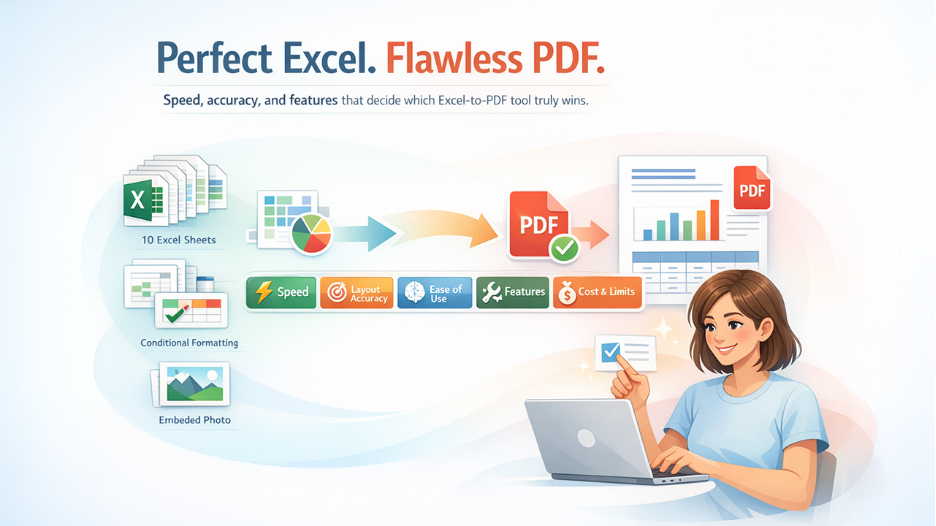
These criteria directly address the main problem: producing clean, readable PDF files that look exactly like the original spreadsheet.
Begin Converting Excel to PDF with The Best Tools
Below are some of the best Excel to PDF tools tested precisely during the evaluation process. Each one handles spreadsheets differently, so you will get a real feel for what works and what does not. The focus here is on tools that actually deliver clean, reliable Excel to PDF conversions.
1. iLovePDF2.com
At first glance, iLovePDF2 Excel-to-PDF looks like a modern, user-friendly tool built in 2008. The layout is clean and straightforward, with the upload option clearly visible with no cluttered menus. The overall interface is designed with simplicity, with no confusing or hidden menus, making it suitable for both first-time users and experienced professionals.
Main Features
- Accurate Excel-to-PDF conversion
- Batch conversions
- Google Drive & Dropbox import
- Merge, split, edit, and compress PDF tools
How It Solves the Problem
During the testing process, i Love PDF 2 handled all spreadsheet types incredibly well. Each formatting element, like borders, row spacing, colors, and formulas—everything remained intact. Even large, multi-sheet Excel files are transformed into polished PDFs that look clean and professional, exactly matching the original layout.
If you’re looking for a reliable Excel to PDF Converter without losing formatting, this tool performs exceptionally well even in different format complexities.
Performance Insights
The conversion process is exceptionally fast after uploading with minimal waiting time. The generated file is downloaded quickly and maintains clear, accurate formatting. Notably, there is no need to resubmit the file or manually fix structuring issues afterward.
Pros
- Extremely quick conversions
- Preservation of an accurate layout
- Simple drag-and-drop functionality
- The free version has no watermark
Cons
- Daily conversion limits on free accounts
Pricing / Limitations
- Task caps are provided in the free version. Premium unlocks advanced options and eliminates constraints.
Quick Verdict
Best for dependable, quick conversions with superb formatting precision for 100% free.
2. SmallpdfFree.com
SmallPDFFree offers an advanced Excel to PDF tool designed with a clean, intuitive, and minimal interface that looks simple and hassle-free. The upload feature is clearly visible without any distractions. The overall workspace is designed especially for beginners who want to convert Excel to PDF Online without navigating complex settings and advanced configurations.
Main Features
- Clean drag-and-drop workspace
- Supports multiple file types
- Cloud storage integration
- PDF compression and editing tools
How It Solves the Problem
It converts Excel to PDF pretty smoothly, especially when working on simple sheets with highly accurate results. With advanced layouts, a few tiny shifts may occur—while these changes are subtle; they can be noticeable for users who need accurate formatting.
The conversion process remains impressively smooth and efficient when tested with multi-sheet test files. The charts were neatly organized, and everything was quite readable and well arranged. This makes SmallPDFFree.com a perfect option for handling spreadsheets with graphs, merged tables, or compelling visual elements.
Pros
- Very easy to use
- Quick conversions
- Ideal for beginners
Cons
- Large Excel files may slightly drop quality
Pricing
- 100% free
Quick Verdict
Great for simple, everyday conversions. Also, best for highly formatted spreadsheets.
3. Adobe Acrobat Online
Adobe Acrobat Online offers a clean, polished, and professional-looking interface that instantly highlights its “corporate ninja” vibes. This reliable platform is designed for users who need precision and consistency in handling critical documents. But honestly, accessing many advanced features feels annoying and requires signing in, which can feel restrictive for users who simply want to convert excel files. Ultimately, apart from its friction, it remains the most reliable choice for converting advanced xlsx to pdf files.
Main Features
- High-accuracy conversion
- Full support for complex Excel files
- Accurate rendering of charts and pivot tables
- Professional editing tools
How It Solves the Problem
Adobe Acrobat Online preserves Excel formatting in its most detailed format. From conditional formatting, margins, and chart layouts to everything managed precisely, making it perfect for users needing it for data-heavy documents
When converting a large and complex Excel file, Adobe took a little longer to convert compared to other tools, but the output was insanely clean. No distortion. No cut-off columns. Everything looks perfect. While the process takes much more time than expected, the results are nearly perfect without needing manual correction.
Pros
- Highest accuracy in preserving complex layouts
- Handles large Excel files easily
- Professional-quality results
Cons
- Slower than lightweight tools
- Most powerful features require subscription
Pricing / Limitations
- Basic conversion is free. Advanced editing requires Adobe Pro.
Quick Verdict
Ideal for professionals working with complex sheets. Not the fastest, but definitely the most precise - after iLovePDF2.
4. PDF Candy
PDF Candy offers a large toolset of PDF related tools and provides a relatively accurate Excel to PDF conversion experience. However, it feels somewhat outdated in terms of its design, and its loading process takes more time than expected. Beyond these discrepancies, the tool works seamlessly, but the overall experience lacks compared to other modern platforms.
Main Features
- Convert Excel to PDF
- Merge, split, compress PDFs
- Edit PDF content
- Desktop and online versions
How It Solves the Problem
It actually preserves formatting effectively. Rows, column widths, and colors often remain intact, and the tool works well with multi-sheet Excel files too. This makes it a strong competitor among modern alternatives, especially for standard PDF conversions that do not need high accuracy.
During testing, the platform has proved strong accuracy, but for large uploads it will take a bit longer than expected. While performance is not excessively slow, it lags behind top-performing tools. The output PDF files generally looked good overall, though they lacked the precision seen in Adobe or iLovePDF2.
Pros
- No ads
- Many extra PDF features
- Good accuracy with multi-sheet files
Cons
- Slightly slower processing
- Some free features have limits
Pricing / Limitations
- Free for limited use. Full access requires a premium subscription.
Quick Verdict
Perfect if you want editing tools along with conversion. But it is not the fastest and most reliable option. Along with Excel to PDF conversion, many users also look for quick language translation options. Tools that offer Free PDF Translate help professionals handle multilingual documents easily without switching platforms, saving time while keeping formatting accurate.
5. SodaPDF.com
Soda PDF Online offers a balanced mix of accuracy, features, and user-friendliness. It’s designed for offices and business users who want an all-rounded PDF solution, rather than just a file conversion.
Main Features
- Accurate Excel-to-PDF conversion
- Cloud importing ability
- Access via desktop and browser
- Security and signing features
How It Solves the Problem
It handles charts, images, and multi-page spreadsheets very well. Formatting remains accurate, layout stays consistent, and formatting stays strict, making it perfect for casual, professional, and business-related applications.
Uploading files is smooth, but the conversion speed is average—not particularly slow or fast — it feels reliable enough for office purposes. The output looked clean and professional, though definitely good for business files.
Pros
- Good accuracy
- Multi-platform access
- Professional UI
Cons
- Some free features require login
- Slightly slower with huge files
Pricing / Limitations
- Free version exists with limited features. Paid plans unlock full capabilities.
Quick Verdict
Great for office teams and professionals needing consistent performance.
Excel to PDF Tool Comparison Table
Here’s a quick comparison of all tools tested:
| Tool | Speed | Accuracy | Free Limitations | Best For |
| iLovePDF2.com | Fast | High | Daily limits | Students & freelancers |
| SmallpdfFree.com | Fast | Medium-High | Limited tasks | Beginners |
| Adobe Acrobat Online | Medium | Very High | Some features paid | Professionals |
| PDF Candy | Medium | High | Feature limits | Multi-task users |
| Soda PDF Online | Medium-Fast | High | Login required | Office environments |
Which Tool Should You Choose?
For speed: iLovePDF2 and SmallPDFFree
For best formatting accuracy: iLovePDF2 and Adobe Acrobat Online
For feature-rich workflows: PDF Candy and SmallPDFFree
For office-level reliability: Soda PDF, iLovePDF2 and smallpdffree.com
For simple spreadsheets: SmallpdfFree and iLovepdf2.com
Ending Summary
Converting Excel to PDF doesn't have to be stressful or time-consuming, as long as the right tool is used. From financial sheets and business reports to schedules and multi-sheet workbooks, the tools evaluated above interpret accurate formatting, and clutter-free layouts are achievable without consistent reconversion or manual fixes.
For fast, clean, and reliable Excel to PDF conversions, you can't do better than iLovePDF2.com and SmallpdfFree.com. Both these tools are designed to deliver top, consistent results, without shifting formatting, and handle routine conversation needs effectively. Either option stands out as a perfect choice for most users.
For complicated sheets requiring the maximum level of formatting precision, Adobe Acrobat Online is still a powerhouse. Besides conversion, if you want to add more features like merging or editing, then PDF Candy can be a good choice.
But, for business and office environments where consistency and dependability are crucial, Soda PDF Online offers a professional solution that performs well across common document formats. No matter what kind of spreadsheet you're working with, these tools make the process of converting Excel to PDF easier, cleaner, and way more accurate than relying on built-in exports.
%201.png)

%201.png)

%201.png)