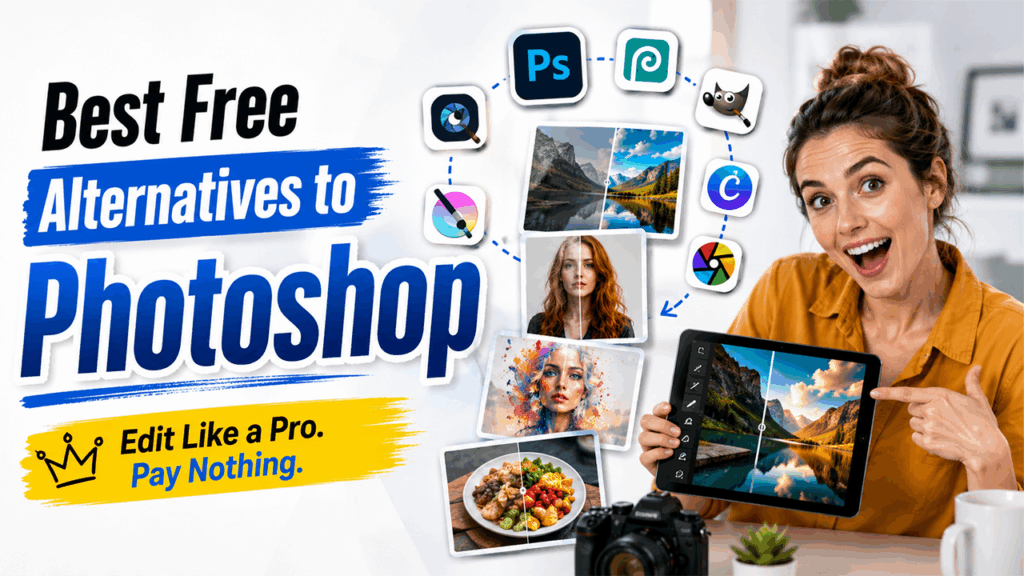

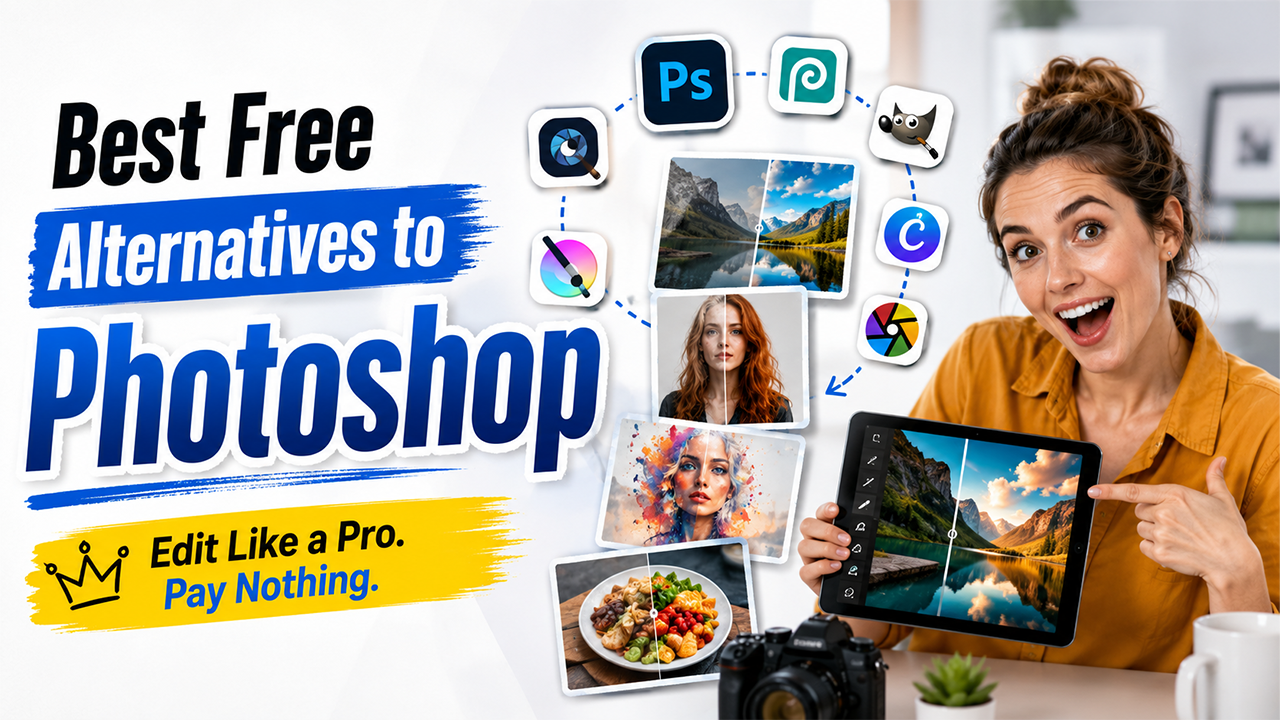

You don’t need to spend hundreds of dollars a year to edit your photos well. If you have only ever heard of Photoshop, this might be surprising for you. There are plenty of really good free tools available now. And they can do almost everything Photoshop does; from fixing lighting and skin tones to removing unwanted objects to designing graphics for your business without you having to spend a single penny.
Whether you are a photographer, illustrator, digital artist or just like to edit your photos; there is something for you on the list. You can make quick, simple edits without a learning curve. This guide breaks down the ten best free alternatives to Photoshop, so you can pick the one that actually fits what you need right now.
What Makes the Best Free Photoshop Alternative?
All free software is not equally good. Some tools are free because they are genuinely good while others are free because they are stripped down to almost nothing, hoping to make you frustrated and pay up eventually to get the most of it. Let’s see what separates the two before ranking anything:
A free photo editor earns a spot on this list if it offers:
- Layer Support for Advanced Photo Editing: It's the ability to stack, mask, and blend image elements without flattening everything into one messy blob. With this, you can undo one small change without ruining the whole photo.
- Watermark-Free Image Exports: If a tool displays its logo across every download is just pretending to be free by offering a few free trials. You should be able to export a clean, finished image without paying extra just to remove a stamp.
- Essential Photo Editing Tools: You need selection tools, retouching brushes, and proper color correction, not a slider that just makes everything look "vintage." Filters are fun, but they don't help when you actually need to fix something. Before editing a photo you didn't shoot yourself, basic image search techniques can help confirm you're allowed to use it.
- PSD File Compatibility: A lot of design work still gets passed around as PSDs, whether it's a client sending files or a team collaborating on the same project. If your free tool can't open one, you'll hit a wall fast.
- Active Community and Support: A forum, a discord channel, or even good documentation helps you when something breaks, and something eventually will happen. An active community doesn’t leave you stuck guessing what went wrong.
Now remember all these to assess if below given tools check this list or not.
10 Best Free Alternatives to Photoshop at a Glance
If you're short on time, here's the quick version. Skim the table, find what fits your needs, then jump to that section for the full picture.
| Tool | Best For | Platform | Price |
| Affinity | Professional photo retouching and editing | Windows, Mac, iPad | Free |
| Photopea | Browser-based PSD editing | Any browser | Free (ad-supported) |
| GIMP | Deep, open-source control | Windows, Mac, Linux | Free |
| Krita | Digital painting and illustration | Windows, Mac, Linux | Free |
| Canva | Social media graphics and quick edits | Web, mobile | Free (Pro paid) |
| Paint.NET | Lightweight Windows editing | Windows | Free |
| Pixlr | Conversational AI photo editing | Web, Windows | Free (ads/Premium) |
| PhotoScape X | Batch editing and simple fixes | Windows, Mac | Free (Pro paid) |
| Darktable | Totally free RAW photo editing | Windows, Mac, Linux | Free |
| Fotor | Easy AI tools for content creation | Web, mobile | Free (Pro paid) |
Now, let’s get into the details because a table only tells you so much.
10 Best Free Photoshop Alternatives: Detailed Breakdown
Here’s a closer look at what each free Photoshop alternative offers, where it stands out, and where it falls short.
1. Affinity
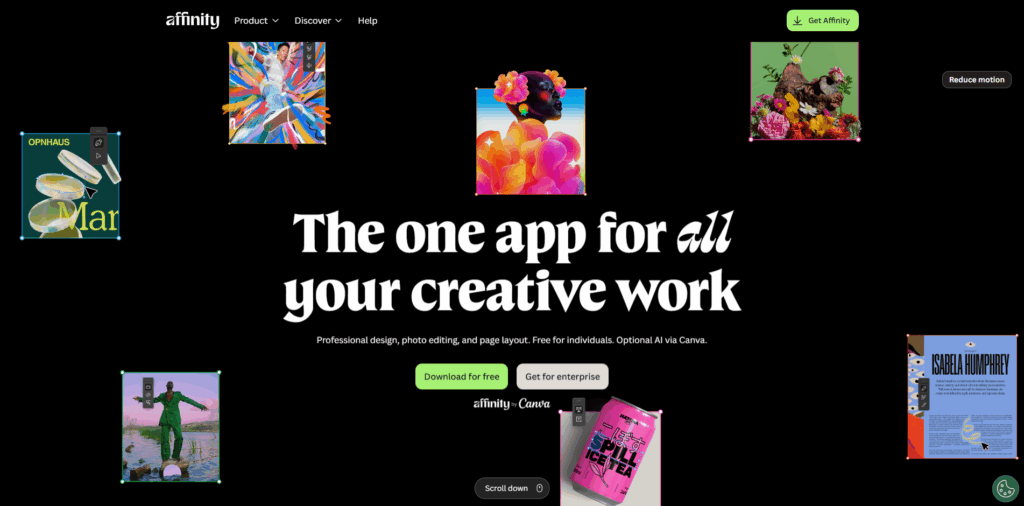
There was a time when Affinity used to be a paid competitor to Photoshop. However, later, Canva bought its parent company, Serif, and turned it into a single, free desktop app that brings photo editing, vector design, and page layout in one place. It allows you to switch between these modes on the same file with one click. This makes it a lot faster than exporting between separate apps. It also imports PSD files with layers intact, so switching over from Photoshop doesn't mean starting from scratch.
Key features:
- Switches instantly between photo, vector, and layout modes on the same file
- Imports PSD, AI, and other formats with layers and settings preserved
- Built-in Canva AI tools for generative fill and expand
Pros:
- Full professional toolset with no watermarks
- Works completely offline once installed
- Feels familiar fast if you already know Photoshop
Cons:
- AI features require a separate Canva Pro subscription
- Slight learning curve switching between the different studio modes
Pricing: Free; Canva Pro subscription needed only for AI tools
2. Photopea
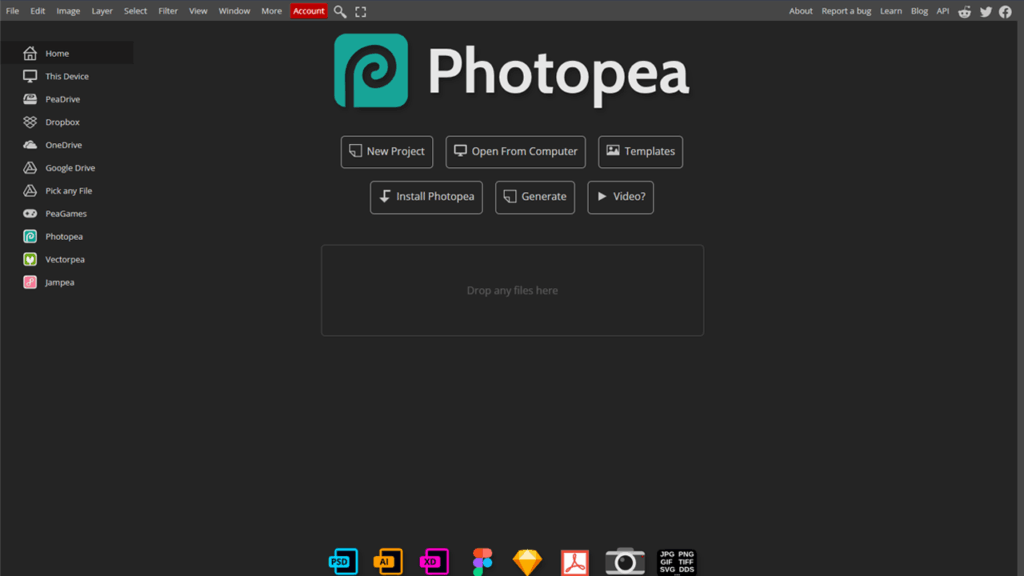
Photopea is a browser-based tool, and it shares a remarkable similarity with Photoshop. It offers everything from layer and adjustment layers to blend modes to smart objects. Photopea's sharpen and clarity filters also make it a quick way to unblur images without installing anything. If you have already used Photoshop, you won’t struggle with Photopea and can start within minutes without installing the app.
Key features:
- Native PSD file support, both opening and saving
- Full layers panel with blend modes and smart objects
- Works on any device with a browser, including Chromebooks
Pros:
- Zero install, so you can start editing immediately
- Nearly identical layout to Photoshop
- Cross-platform since it just needs a browser
Cons:
- Free tier shows ads while you work
- Can slow down noticeably on very large files
Pricing: Free with ads; $5/month removes them
3. GIMP
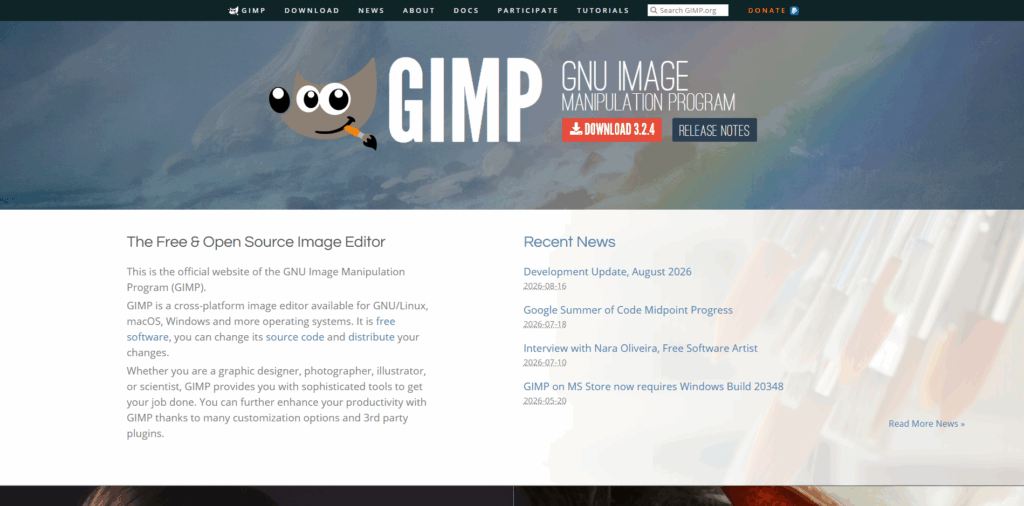
GIMP has been the go-to answer to "what's a free Photoshop alternative" for over two decades, and it's stuck around for good reason. It handles layers, masks, channels, and custom brushes, backed by a plugin library with hundreds of add-ons built by its community.
Key features:
- Full layer, mask, and channel support
- Customizable brushes and paths
- Huge third-party plugin ecosystem
Pros:
- Enormous feature depth for a free tool
- Completely open source with an active community
- Runs on Windows, Mac, and Linux
Cons:
- Interface feels dated compared to newer tools
- Steeper learning curve than most alternatives on this list
Pricing: Free
4. Krita
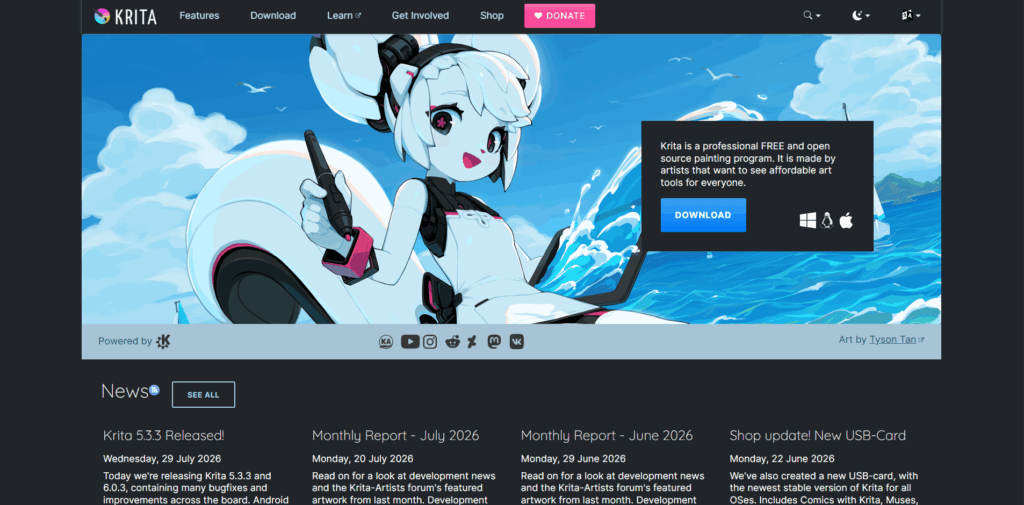
If you work extensively with digital painting rather than photo retouching, Krita is a strong competitor. It is designed specifically for artists, and its brush engine is considered one of the best in any software, whether it's free or paid. However, it doesn’t mean you can’t edit photos in Krita; you most definitely can. But the color tools take a few extra clicks as they are a secondary feature.
Key features:
- Advanced, realistic brush engine for painting and sketching
- Supports raster and vector work, plus PSD import
- Built-in animation tools
Pros:
- Best-in-class painting tools among free apps
- Fully free and open source
- Great for artists working with a drawing tablet
Cons:
- Photo editing feels clunkier than in dedicated editors
- Lacks one-click AI features like background removal
Pricing: Free
5. Canva
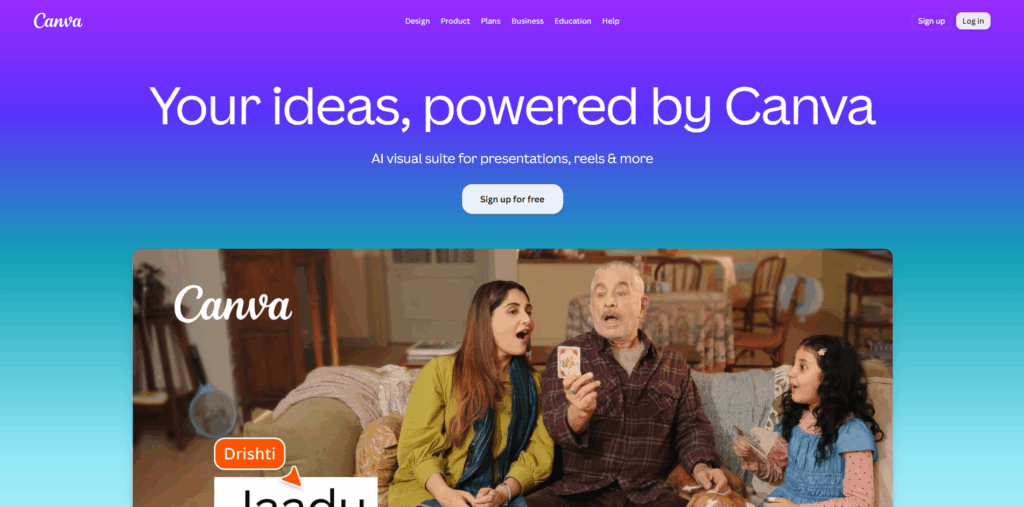
Canva is not a dedicated pixel-level photo editor in the conventional sense, but it has established itself as a best free alternative to Photoshop. Moreover, it now has brought Affinity’s photo editing tools directly inside its interface along with other features, such as AL object removal, generative fill, and access to over a million templates. The Canva AI image generator turns text prompts into custom visuals in seconds.
Key features:
- AI-powered object removal and generative fill
- Massive template library for social posts, presentations, and documents
- Brand Kit to save logos, fonts, and colors for consistent content
Pros:
- Extremely beginner-friendly interface
- Fast for social graphics and marketing assets
- Great for teams that need consistent branding
Cons:
- Less precise than dedicated photo editors for detailed retouching
- Pro plan needed for the largest template library
Pricing: Free; Pro plan available for individuals and teams
6. Paint.NET
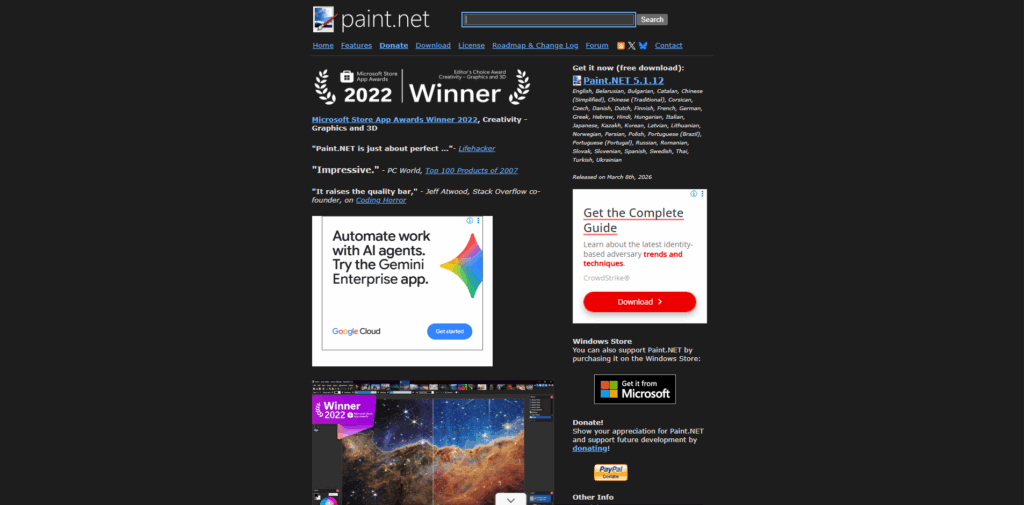
Paint.NET was built as a replacement for MS Paint and later grew into a genuinely useful photo editor. It loads fast, genuinely lightweight, and doesn’t overwhelm you with excessive menus, while still supporting layers and effects that most casual users will actually use.
Key features:
- Layer support with unlimited undo history
- Special effects and filters, including blur and distortion
- Plugin framework built by an active user community
Pros:
- Simple, uncluttered interface
- Fast performance even on older machines
- Good for quick, everyday edits
Cons:
- Windows only, no Mac or Linux version
- Fewer advanced tools than GIMP or Affinity
Pricing: Free
7. Pixlr
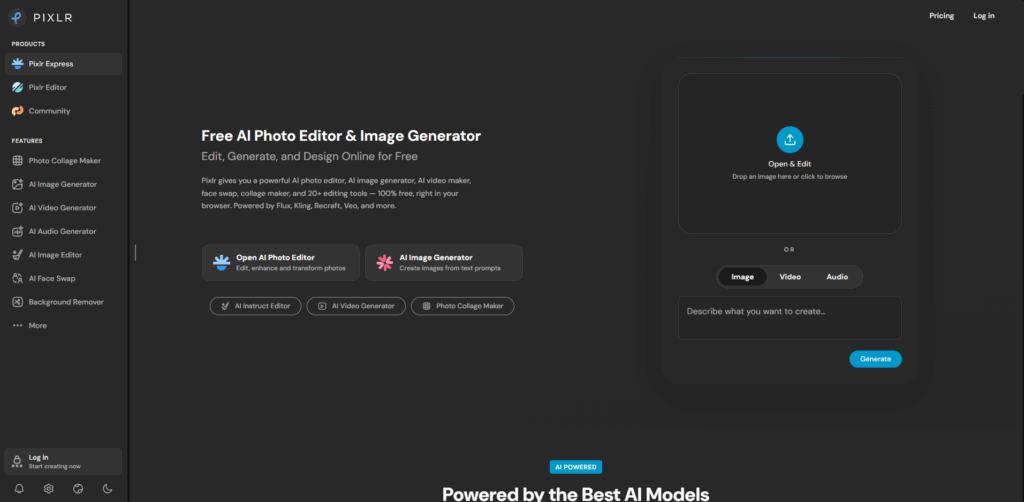
Pixlr is divided into two different apps: one is Pixlr Editor which is used especially for advanced editing, and another is Pixlr Express for quick AI-powered edits. Pixlr Editor’s layout will feel easy to navigate if you are already familiar with Photoshop. They both have the same tool panel, layers, and blend modes. Additionally, Pixlr Express lets you edit photos just by giving simple text prompts.
Key features:
- AI editing through text prompts for fast, accurate results
- Familiar Photoshop-style layout with layers and blend modes
- Background and object removal, plus AI upscaling and sharpening
Pros:
- Beginner-friendly AI tools that still feel powerful
- Closest interface match to Photoshop on this list
- Useful for both quick fixes and detailed edits
Cons:
- Features are confusingly split across two separate apps
- AI tools run on a paid credit system
Pricing: Free with ads; Premium plans available for individuals
8. PhotoScape X
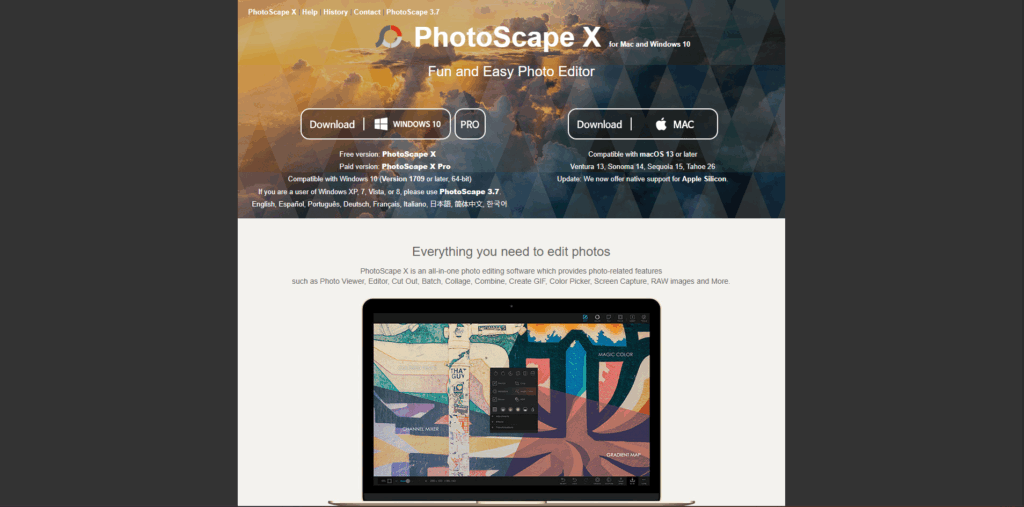
PhotoScape X handles a lot of photos quickly rather than performing deep editing. Its batch editor lets you apply the same fix, such as you can resize or correct color of dozens of images at once. This is significantly useful to anyone managing a product catalog or big photo library.
Key features:
- Batch editing for resizing, renaming, and color correction
- Built-in collage and GIF maker
- RAW file conversion support
Pros:
- Great for processing large numbers of photos fast
- Simple, approachable interface for beginners
- Handles common everyday fixes well
Cons:
- Some advanced tools sit behind the paid Pro version
- Not built for detailed, layered compositing work
Pricing: Free, with a paid Pro upgrade
9. Darktable
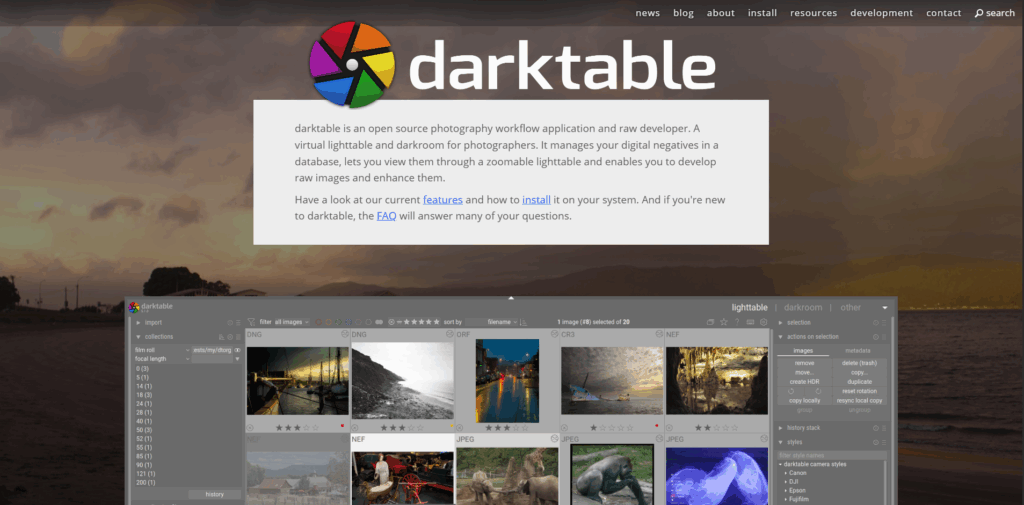
Darktable is one of the best free photo editors for those photographers who are mainly interested in editing RAW photos, and don’t need to add text or design graphics. You can instantly use Darktable if you have used Adobe Lightroom before. Its rating, tagging, and photo library organization tools will feel instantly familiar.
Key features:
- Non-destructive RAW photo editing
- Advanced photo library organization and tagging
- Batch exporting to a hard drive or web gallery
Pros:
- Every tool a photographer needs for professional RAW processing
- Completely free with no ads
- Strong community support and regular updates
Cons:
- No built-in AI features like noise reduction or upscaling
- Not designed for graphic design or text-based work
Pricing: Free
10. Fotor
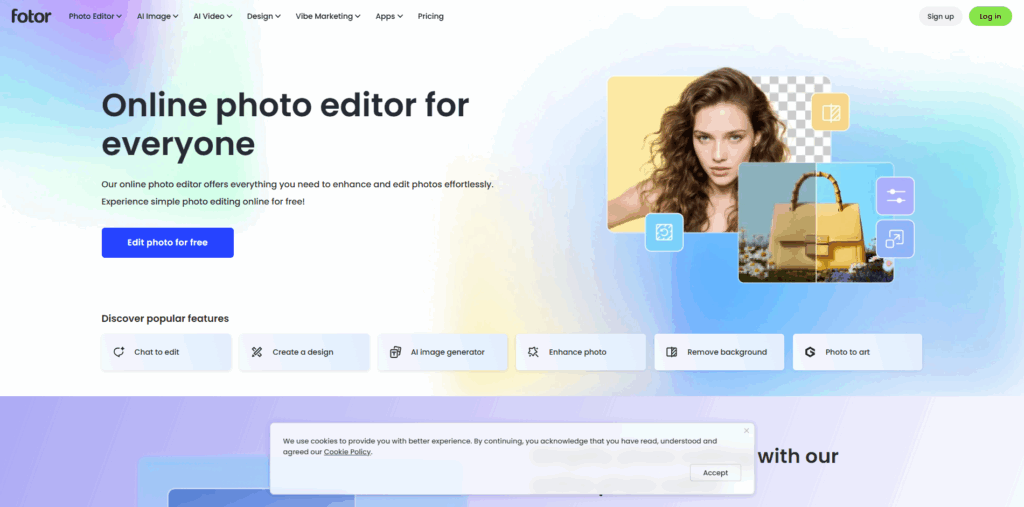
Fotor leans heavily on AI to speed up basic edits, one-click enhancement, background removal, and skin retouching among them. It's your go-to option if you want decent results without learning much about photo editing at all, and it also includes AI image and video generation tools. Since Fotor can generate images from scratch, a quick reverse image search is worth doing before publishing AI-made visuals commercially.
Key features:
- One-click AI object and background removal
- AI image generation through multiple built-in models
- Dedicated eCommerce tools for product photos
Pros:
- Very easy to use for complete beginners
- Fast results for social and product content
- Combines photo and basic video editing in one app
Cons:
- Basic tools like color saturation are locked behind paid plans
- Less control for detailed, professional-level edits
Pricing: Free, with paid plans for additional features and AI credits
Which Free Photoshop Alternative Should You Choose?
Do not go for the flashiest option or the one which is most popular. The right choice depends on what you’re actually trying to do.
- If you want something which is closely similar to Photoshop without paying anything; go with Affinity. It's the most complete free editor available right now, and that's not likely to change soon.
- If you don’t want to install anything and just need to open a PSD file; Photopea is your answer. It runs in a browser tab and feels close enough to Photoshop that you won't even miss the download.
- If you want to shoot in RAW and want a real editing workflow; Darktable is built exactly for that, with the kind of organization and processing tools photographers actually rely on.
- If your workflow revolves more around digital painting or illustration than photo editing; Krita's brush engine will get you further than any general photo editor could.
- If you mostly create social graphics, templates, or quick marketing assets; Canva will save you more time than a traditional editor ever would.
- If you are managing a big batch of product photos that all need the same fix; PhotoScape X exists precisely for that job.
There's no single "best" here. There's only the tool that matches what's actually on your plate.
Conclusion
Photoshop’s price hasn’t dropped in the slightest; however, the reasons for paying it has gotten a lot weaker. Between Affinity being fully free, Photopea running a near-identical experience in your browser, and specialized tools like Krita and Darktable handling their niches better than Photoshop ever did; most people simply don't need the subscription anymore.
That's really the whole point of looking at the best free alternatives to Photoshop in the first place: pick the tool that fits the job in front of you, not the one with the biggest name attached, and you'll likely find you were paying for a lot more software than you actually used.
Frequently Asked Questions (FAQs)
Is Affinity really free now?
Yes. Since Canva acquired Serif, Affinity is free for everyone, though AI features need a Canva Pro subscription.
Which free tool is closest to Photoshop?
Affinity and Photopea are closest, offering layers, masks, and PSD support similar to Photoshop's core toolset.
Can I edit PSD files for free?
Yes. Both Photopea and Affinity open and edit PSD files natively without needing Photoshop installed.
Are free photo editors good enough for business use?
Many are. Affinity and GIMP both support commercial use and handle professional-level editing tasks reliably.
Do free tools require an internet connection?
Not always. GIMP, Affinity, Krita, and Darktable all work offline, unlike browser-based tools like Photopea and Pixlr.
%201.png)

%201.png)

%201.png)