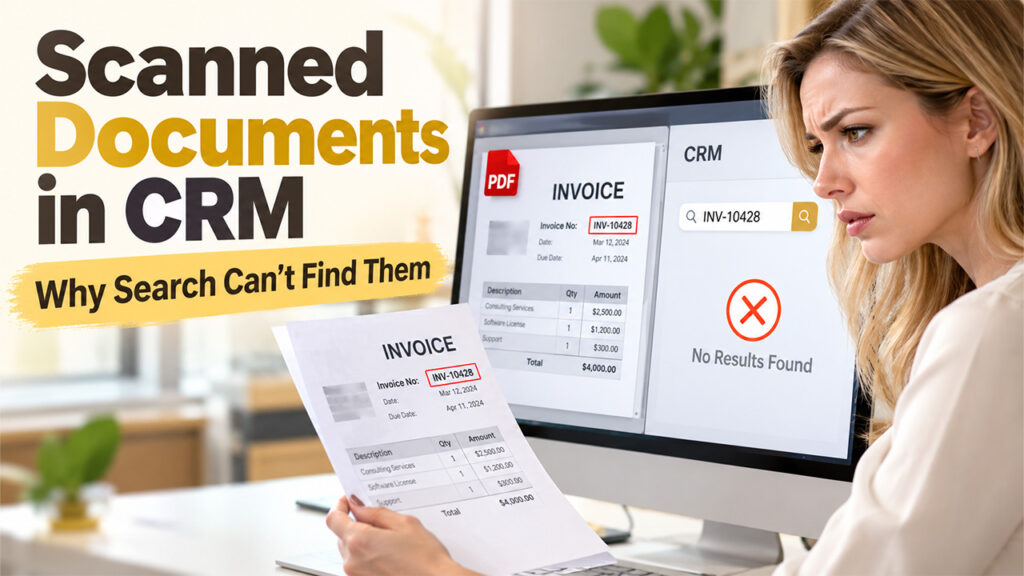

An invoice is attached to the record and search does not find it. The file opens and the number is on the page, but a scanned PDF holds a picture of the page, and full-text search reads a text layer that is not there. If your CRM cannot find text inside an invoice or other scanned document, you may need to make scanned PDFs searchable before your search system can index them.
Convertio's document converter turns a text-based PDF of up to 1 GB into an editable DOCX or TXT that search can index.
What Are Searchable Scanned PDFs?
Searchable scanned PDFs contain a machine-readable text layer in addition to the scanned page image. This allows CRM systems, PDF readers, and indexing tools to find words, invoice numbers, and other information inside the document.
Contents
Find the unsearchable files · see how they were compressed · what went wrong at Xerox · the same setting in software · what Germany banned · what to do
1. Find Scanned PDFs That Aren't Searchable
Before creating searchable scanned PDFs, identify the attachments in your CRM that contain images instead of a searchable text layer. Once identified, you can use a PDF editor with your CRM to review and manage these documents before processing them with OCR. Open one attachment, press Ctrl+F and search for a word you can see on the page, and a scan with no text layer returns nothing.
For a folder of them, pdffonts invoice.pdf prints the fonts a file uses, where a page of real text lists at least one font and a scan with no text layer prints the header row with nothing under it.
Both checks take seconds per file, and a loop over the upload directory turns them into a list of the documents your CRM search has never seen.
2. See how the scan was compressed
pdfimages -list invoice.pdf` prints one line per image with a column called enc, and five values can appear in it:
ccitt: a fax-style bitmap, where every pixel came from the paperjbig2: symbols matched against each other, stored once and reusedjpeg,jp2,image: photographic or plain raster data
A page encoded as ccitt holds what the glass saw, and a page encoded as jbig2 holds an assembly of shapes the encoder decided were the same, which has a history worth knowing before those numbers reach an invoice field.
3. What went wrong at Xerox in 2013
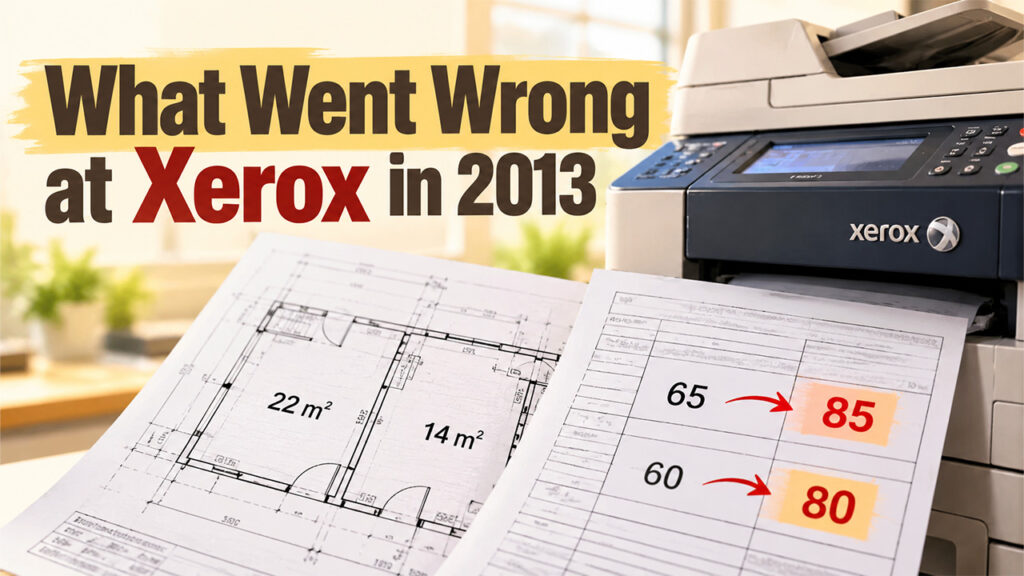
On 24 July 2013 David Kriesel scanned a construction plan on a Xerox WorkCentre 7535. Three places on that plan came back wrong: one room showed about 22 square metres, and the next room along, a lot larger, was labelled 14. He had OCR switched off on purpose, and the wrong numbers sat in the pixels themselves.
He scanned a cost table next. In the second column, third line, 65 had become 85. Readers wrote in to say that a 60 in the top right had become 80.
Then he printed a page of numbers in Arial 7pt and scanned that. "A lot of sixes were replaced by eights," he wrote. The false eights carry the dent an eight has on its left side, and the sixes around them are correct.
Kriesel wrote to Xerox support on 25 July. He published on 1 August, a week later, with no answer in hand.
The first Xerox statement came on 6 August. "For data integrity purposes, we recommend the use of the factory defaults with a quality level set to 'higher,'" the company said. Kriesel reproduced the error at that setting three days later, and by 11 August he had it in all three compression modes.
Rick Dastin, a vice president at Xerox, told him on the phone that character substitutions can occur and that Xerox knew.
On 12 August Xerox stated the scope, and the bug turned out to be eight years old. Reseller data put hundreds of thousands of the affected WorkCentre and ColorQube machines in service. The fix shipped in waves from 22 August, with pattern matching removed from the scan path entirely.
"The last 8 years of PDF scans of affected devices may not only contain errors, but also I think they might be of no legal value altogether, regardless if they are actually proven to contain errors." — David Kriesel, 2013
4. The same setting in software
None of this is confined to copiers. OCRmyPDF is an open-source tool that puts a searchable text layer behind a scan. Version 7.0.0 shipped on 10 July 2018 with a new PDF optimiser.
"A user reported that ocrmypdf was in fact using JBIG2 in lossy compression mode. This was not the intended behavior." That is the release note for version 7.2.0, published on 5 October 2018. Lossy mode became opt-in that day, behind the --jbig2-lossy flag.
The tool's own documentation calls lossy JBIG2 "an advanced and potentially dangerous feature". It says the mode should not be used when numbers present in the document are important. The default similarity threshold is 0.85, and two symbols that look 85 per cent alike are compressed together.
5. What Germany banned in March 2015
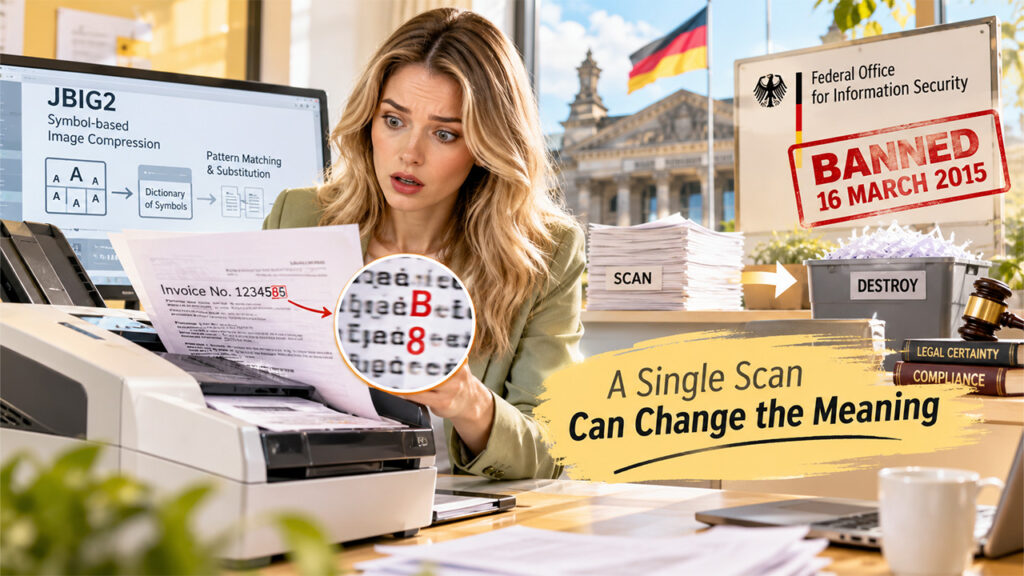
The method behind the substitutions isJBIG2, a codec for black-and-white images. It keeps a dictionary of symbols and points at entries in it, and lossy JBIG2 fills that dictionary by pattern matching and substitution. Lossless JBIG2 uses soft pattern matching and corrects the result with a difference image.
Germany's Federal Office for Information Security banned both on 16 March 2015. The rule governs scanning that ends with the paper being destroyed, and it now sits in the office's guidelineTR-03138 under the heading A.SC.12. Methods that use symbol coding for image compression MUST NOT be deployed, in the guideline's own capitals.
The guideline gives the reason in two parts. An inaccurate implementation can leave the scan semantically different from the original, for example by swapping characters, and even a correct one cannot guarantee legal certainty. The guideline is still in force, and question 8.8 of its FAQ, version 1.5 of 5 February 2025, names the Xerox case directly.
6. How to Create Searchable Scanned PDFs With OCR
To create searchable scanned PDFs, run OCR over scans that contain no text layer and organize them through effective CRM document management practices. A scan has to go through OCR before any converter can hand back text from it. Run OCR over the files from step 1 and keep the original image in the CRM record, since the text layer is an addition rather than a replacement. OCRmyPDF does this in bulk with --skip-text leaving files that already carry text alone, and Convertio's separate OCR feature covers the one-off cases, with ten pages free before an account is needed.
Treat the output as searchable rather than authoritative, and a total or an account number gets checked against the image before anyone books it. On the devices, scanning profiles belong at a resolution and compression the vendor has patched, and anything older than August 2013 deserves a test page of sixes.
Frequently Asked Questions
Q1. How do I know whether a PDF has a text layer?
Press Ctrl+F in the viewer or run pdffonts over the file, where no fonts listed means no text.
Q2. Does OCR fix a wrong digit in the picture?
OCR reads what the pixels show, and a substituted digit is read back exactly as it was substituted.
Q3. How do I make a scanned PDF searchable?
You can make a scanned PDF searchable by running OCR (Optical Character Recognition) on it.
Q4. Can searchable scanned PDFs be indexed by a CRM?
Yes. Once a scanned PDF has a machine-readable text layer, a CRM's document-indexing system can potentially index its contents.
%201.png)

%201.png)

%201.png)