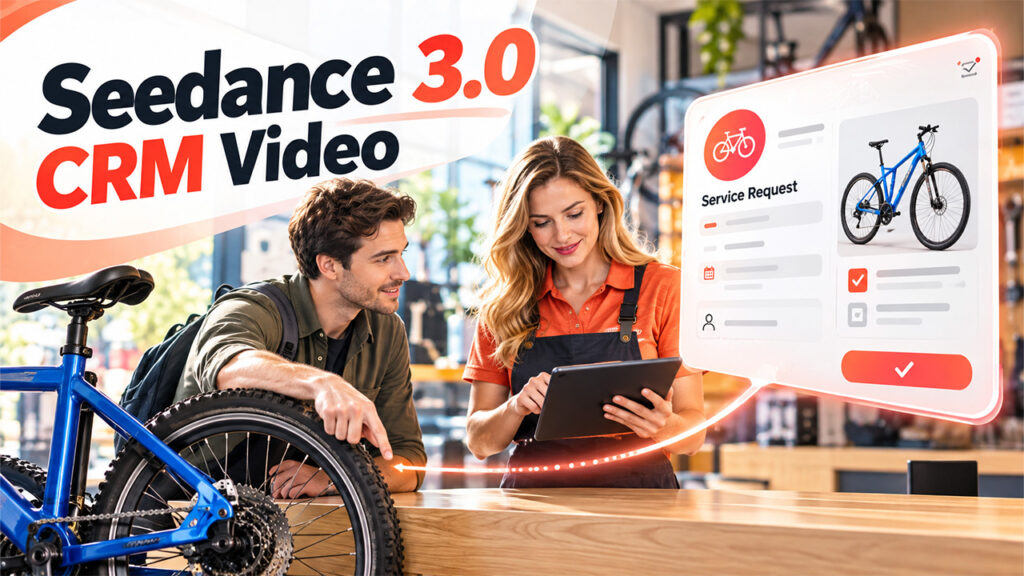
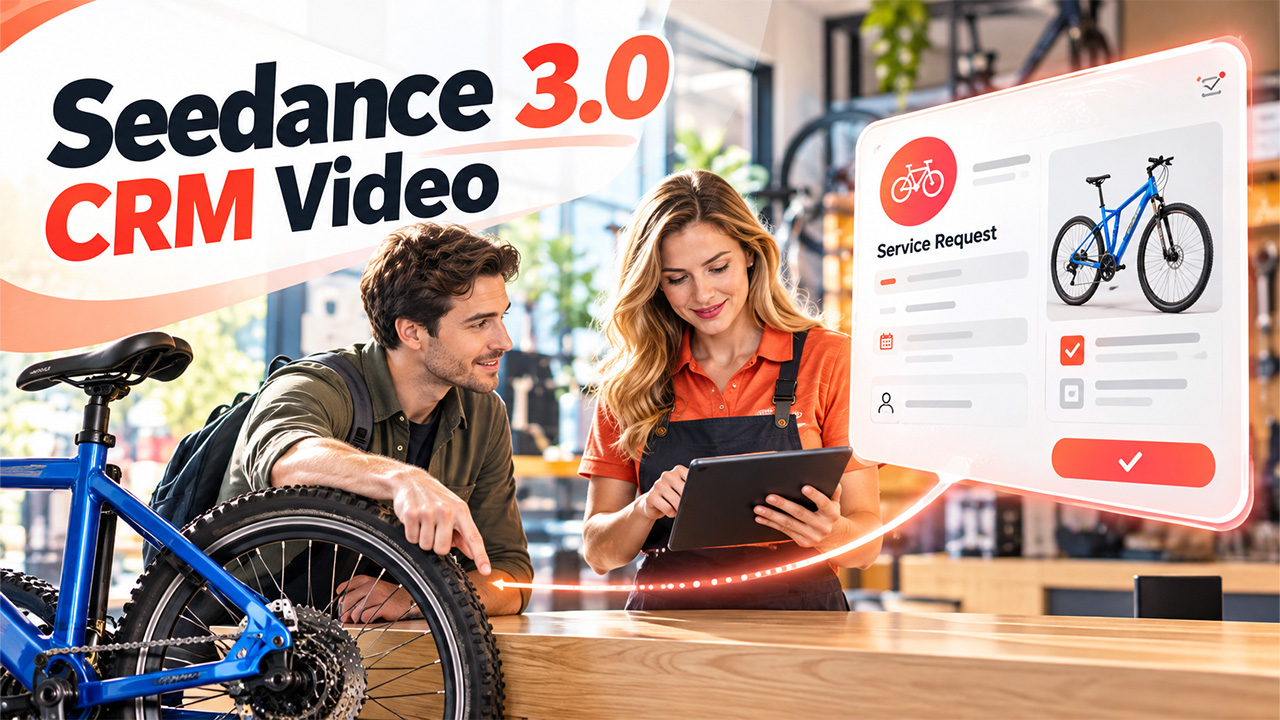

A bicycle arrives at the repair counter, and its owner points towards the rear wheel. The service adviser reaches for a tablet. This is where a user can begin a proposed CRM onboarding video. Before showing fields or menus, users want the viewers to understand the job all the controls serve, like turning a short conversation into a service request that another team member can follow easily.
The example would be fictional. I would use a made-up bicycle workshop, a generic bicycle, and a small set of demonstration records created for the tutorial. The video would follow one request from the counter to a scheduled follow-up. It would not suggest that a real customer had used a particular system or that the illustrated workshop had achieved measurable results.
My visual brief would separate the story into two kinds of material. A short illustrative scene would establish the customer interaction. A real screen recording feature from the configured demonstration environment can show the actual CRM steps, but the user should not ask a video generator to invent a dashboard and then present that dashboard as a working application.
For the opening scene of the video, users can explore Seedance 3.0, a platform whose website describes video creation guided by text, images, video, and audio references. A reference photograph could also define the repair counter and bicycle, but a written brief can specify the service advisor's moment. The generated clip would be an external video asset, which does not require or imply a native connection between a generator and a CRM.
How to Plan a CRM Onboarding Video
A useful CRM onboarding video connects everyday business activities with the actions users perform in the software. Effective CRM training helps users understand software navigation and practice common tasks. Start with a simple scenario, identify the CRM workflow to demonstrate, and prepare fictional records that reflect the task. Use AI-generated scenes to establish context and real screen recordings to explain the actual interface. This approach keeps the video engaging while ensuring that the instructions remain accurate and easy to follow.
Give the service request one clear visual identity
Users can choose a blur bicycle with a plain frame, along with a light wooden counter and a dark colored tablet case. All these details can provide continuity without needing a recognizable brand. A permitted photograph or a deliberately staged reference would establish the arrangement. The wheel should sit beside the counter rather than in front of the adviser, leaving a clear line of sight to the customer's gesture.
My first Seedance 3.0 prompt would describe a stationary camera at counter height. The customer pointing towards the rear wheel and the advisor looked from the bicycle to the tablet. User can also avoid adding walking, wheel rotation, and camera orbit to the same shot. The scene only needs to communicate that a request is being received, and any extra choreography could obscure that simple relationship.
The tablet display would remain angled away from the camera. That choice prevents accidental interface text from becoming part of the explanation. In a separate editing application, I would add a short caption such as “Record the service request” over a quiet area of the image. The caption belongs to the tutorial, so its wording and timing should remain editable without regenerating the background scene.
Make the transition match the data being entered

The cut to the screen recording can occur when the advisor looks down at the tablet. Users can begin recording with the relevant form already open, avoiding any long journey through unrelated navigation. In the fictional demonstration, the request could describe a rear-wheel noise, identify the bicycle by an example asset label, and show a preferred contact method. Field names would match the actual configured application.
The Seedance 3.0 sequence would establish context, and the screen capture can help in providing the variable instructions. If the selected CRM environment did not have a dedicated service-request module, the user can demonstrate the appropriate configured record type instead of inventing a new one. Any custom fields would be identified as part of the example setup. The viewer might be able to distinguish a standard control from a tutorial-specific customization.
Users can also enter the sample information slowly enough for the cursor to lead the eye. A close crop around the current field can be useful, but it should retain enough surrounding the interface to show where the view is. When moving from contact information to the request description, users can pause briefly rather than filling the entire form at once and expect th narration to catch up.
I would enter the sample information slowly enough for the cursor to lead the eye. A close crop around the current field could be useful, but it should retain enough surrounding interface to show where the viewer is. When moving from contact information to the request description, I would pause briefly rather than fill the entire form at once and expect the narration to catch up.
Use a second scene to explain why the handoff matters
A short illustrative cut could show a mechanic receiving the bicycle at a work stand. The blue frame would connect this scene to the counter without a spoken reminder. I would keep the camera on the same side of the bicycle and use similar light. The mechanic could place a hand on the saddle and glance toward a work card, giving the edit a clear stopping point.
If a Seedance 3.0 draft changed the bicycle into a different style, I would revise the reference and simplify the description before generating more shots. The color alone is not enough: frame shape, handlebar position, and wheel proportions also influence recognition. A closer view of the mechanic beside the seat tube could preserve the handoff idea while reducing the amount of geometry that must remain consistent.
The following screen segment would show the actual assignment or activity step supported by the demonstration environment. I would explain the specific action visible on screen, such as assigning an owner or creating a follow-up task. I would not claim that a notification or automated message was sent unless the recording and test setup showed it. A clear manual step is better teaching material than an unsupported automation claim.
Keep sound and narration tied to observable actions
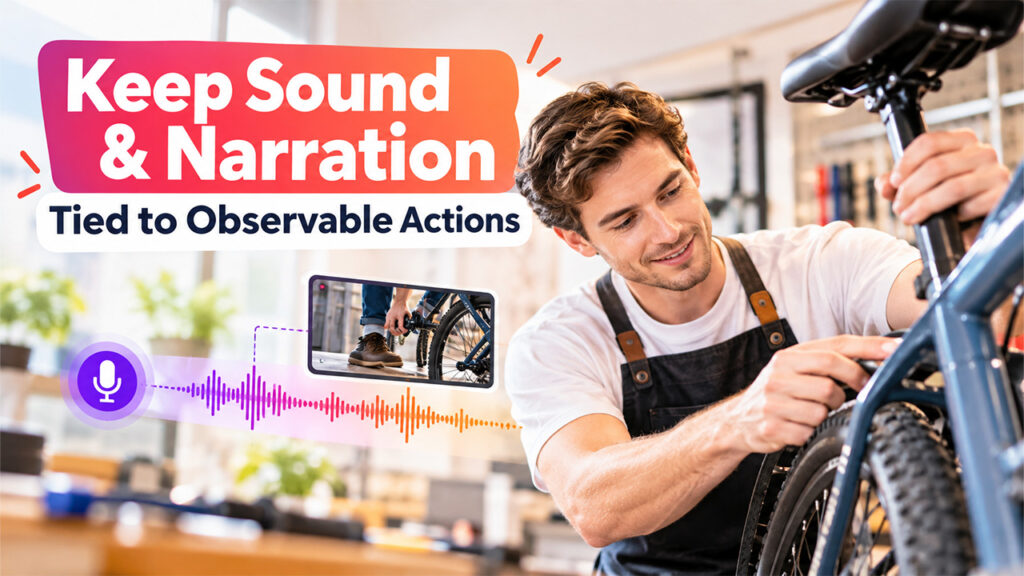
The opening could use a quiet workshop atmosphere: a soft footstep, a bicycle being steadied, and a low room tone. The product website describes synchronized sound generation, but I would inspect the selected Seedance 3.0 audio before keeping it. An exaggerated mechanical rattle could imply a diagnosis that the service request has not established. The scene should introduce the problem, not decide what repair is needed.
I would record the instructional narration separately so that terminology could be corrected without changing the visual material. During the form demonstration, the background sound would drop substantially. Each sentence would correspond to the visible field or action. If a sentence required three interface changes to make sense, I would divide it and extend the screen recording rather than rush the cursor.
Captions would be prepared from the final narration and checked against the actual field labels. I would use fictitious contact information throughout and inspect the screen recording for unrelated tabs, notifications, and records before export. This is part of making a reusable tutorial: the viewer needs the example workflow, not incidental information from the recording environment.
Build a small set of clips that can survive revisions
I would save the chosen Seedance 3.0 clips separately from the screen captures, narration, and captions. A simple naming scheme could identify the counter opening, workshop handoff, form entry, and follow-up step. Keeping those assets separate would make it possible to replace a changed CRM screen later while retaining the illustrative sequence, provided that sequence still matched the lesson.
Before generating additional variations, I would inspect the current model options and credit estimate in the interface. The next attempt should address a visible problem, such as the wrong bicycle shape or a distracting hand movement. I would assemble the video in a separate editor and watch the complete sequence at normal speed, checking whether the transition from the physical request to the software action feels understandable.
The finished Seedance 3.0-assisted introduction would be successful if it made the record feel connected to a concrete service interaction. A customer describes a problem, an adviser records it, and a colleague receives enough context to continue. The generated scenes supply that human setting, while the real screen demonstration carries the technical instruction. Together, they can turn a form-filling lesson into a coherent, checkable story without pretending that illustrative footage proves software behavior.
Conclusion
A well-planned CRM onboarding video connects real-world scenarios with clear, accurate software demonstrations. Seedance 3.0 can help create illustrative scenes, while real screen recordings show viewers exactly how to complete each step. By keeping these elements separate, businesses can create engaging onboarding content that is easier to follow, verify, and update.
%201.png)

%201.png)

%201.png)