
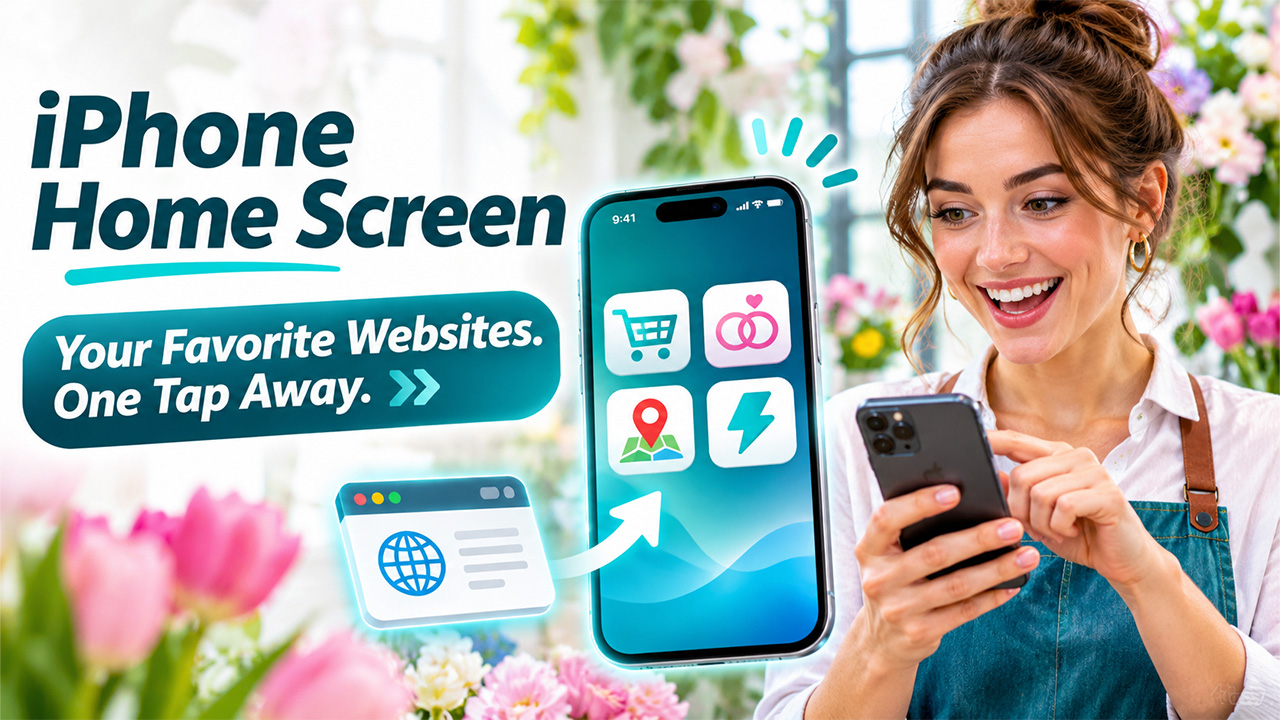

By the end of this guide, you'll know how to add a website to your iPhone home screen so the websites you open every day sit there as icons, each one a tap away. Whether it's a supplier's order page, a booking calendar, a delivery map or a web app you use for work, you can create a shortcut in under a minute without typing an address or searching through browser tabs. Similarly, mobile CRM applications help businesses access customer records and manage daily activities directly from their smartphones.
By the end of this guide, the websites you open every day will sit on your iPhone home screen as icons, each one a tap away, with no address to type and no tab to hunt for. Each site takes under a minute, and the steps work for almost any page you visit often: a supplier's order page, a booking calendar, a delivery map or a web app you use for work. Hana, who runs a flower shop and does most of her admin standing at the workbench between arrangements, is the example along the way.
What You Need to Add a Website to Your iPhone Home Screen
- An iPhone with Safari. Recent versions of Chrome on iPhone offer the same action through Chrome's own share option, though the labels differ slightly from Safari's.
- A short list of the sites you open daily. Hana started with three: the wholesale market's order page, her wedding inquiry form and the map she uses to plan delivery runs on busy days.
- Your sign-in details for any site on the list that needs them.
- A short name for each icon, one word if you can manage it.
Step 1: Open the Website You Want to Add to Your iPhone Home Screen
Go to the page you want the icon to open, not just the front page of the site. For a supplier, the order form is usually more useful than the homepage, because the icon usually opens the page you were on when you added it. If the site needs a sign-in, sign in first so the icon opens straight into your account.
Hana began with the wholesale market's order page, since that was the address she typed most often, usually with damp fingers.
Tip: Bookmarks work too, but they live inside the browser. To use one, you open Safari, find the bookmarks list and scroll to the right entry. A home screen icon skips all of that, which is why it suits the sites you open several times a day.
Step 2: Open the share menu
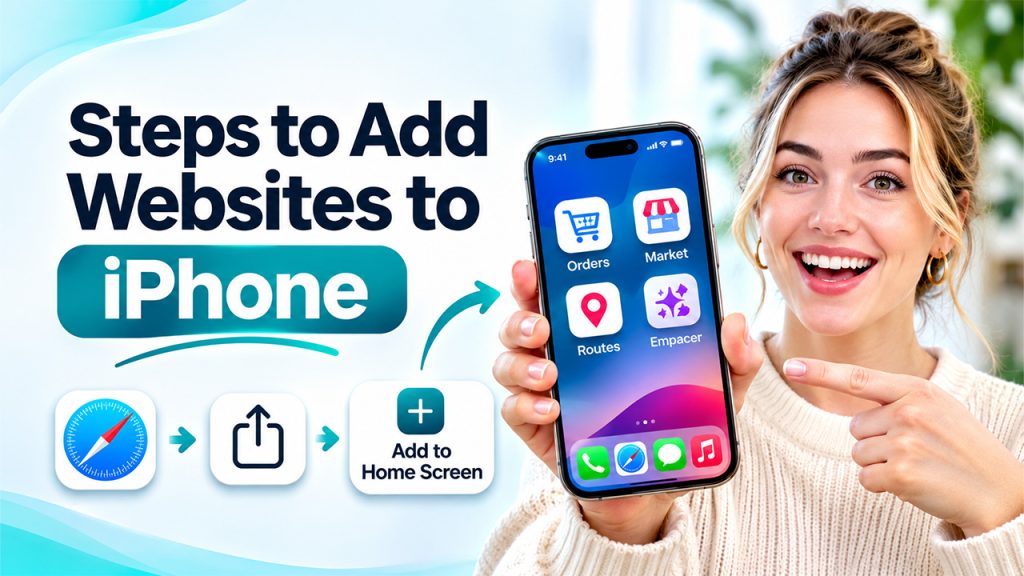
The Share button looks like a box with an arrow pointing up. In some versions it sits in the toolbar at the bottom of the screen. In others you tap a button with three dots first and find Share there. Button positions and menu labels shift between versions of the iPhone software, so treat the wording here as a guide.
If the toolbar has slid out of view while you were reading, scroll up a little and it usually comes back.
Step 3: Find the home screen action and name the icon
Scroll down the list of actions until you see Add to Home Screen. The list can be long, so if the action isn't there at first glance, keep scrolling or look for an option to show more actions.
Safari then suggests a name taken from the page. Shorten it so it fits under the icon, for example "Orders" in place of a supplier's full name. Short, plain names help when you're in a hurry. Hana uses names like "Market", "Weddings" and "Routes" so she can spot the right icon at a glance with a bucket of stems in the other hand.
Step 4: Add the Website to Your iPhone Home Screen
Recent versions may show a switch for opening the site as a web app, in its own window. Leave it on for tools you use like apps. Many sites added this way open without the browser's toolbars, which gives more room on a small screen. Then tap Add. The icon appears on your home screen, usually on the first page with free space.
A shortcut costs almost nothing in storage. It is essentially a saved link with an icon, plus whatever the website itself keeps in the browser, which is usually small, so you can add a handful without worrying about space.
Tip: Add one site, open it once to check it, then do the rest. If the first icon lands on the wrong page, you find out before repeating the same slip on every icon.
Step 5: Open the shortcut and hand over a first task
Tap the new icon and check that it opens the right page and that you're still signed in. For a web app you talk to, the browser asks for the microphone the first time you use voice. The shortcut Hana opens most is the one she added last, for Empacer, an AI business assistant meant for owners of small and medium businesses. On iPhone it opens in the browser at app.empacer.com, so she added it with the same steps, and now a tap opens it. The company's app page covers the options for using Empacer in your browser and on other devices. One account works on a computer and other devices too, so a task started on the phone is still there on the laptop, along with your files and settings.
Talking to Empacer needs microphone access. When the browser asks for that permission, choose Allow to turn voice on; if you declined at some point, you can change the choice in Safari's settings for that website, and the labels vary by version. At the workbench, Hana taps the icon and then the voice button, and requests a caption for a photo of a finished bridal bouquet that she attaches with the paperclip. She names the flowers and the season in the request, which gives the draft a concrete detail to build on. Other days she types in the Ask anything field, for instance to get a reply to a supplier about a late delivery, written in her usual tone.
The result arrives as a card. On it, Hana can change any line, tell Empacer what needs fixing, decline the draft or approve it. By default, the draft waits for her approval before anything is sent, so the card is where she checks names, dates and numbers, such as the date of a wedding.
Step 6: Arrange the icons and repeat on iPad
Touch and hold an empty part of the home screen until the icons start to jiggle, then drag each one where you want it. Dropping one icon onto another creates a folder, which you can rename. The row at the bottom of the screen holds the icons you reach for most and stays in place as you swipe between pages.
On an iPad the steps are much the same. The Share button usually sits near the top of the screen, close to the address bar, and the new icon lands on the iPad's home screen. If you use both devices, add the same shortcuts to each so your daily sites are one tap away wherever you are.
Troubleshooting: Common Problems When Adding a Website to Your iPhone Home Screen
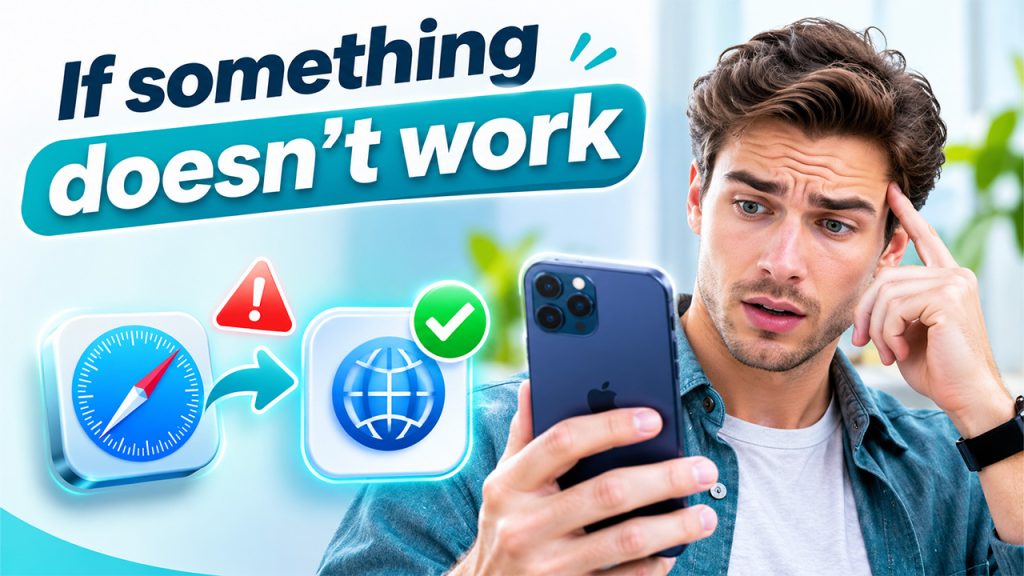
The page opened inside another app
Links opened from inside some apps show the page in a stripped-down browser, which may not offer the home screen action. Look for an option to open the page in Safari, then repeat the steps from the Share button.
The add option isn't in the share list
Scroll further down the list or look for an option to show more actions. Some versions let you edit the list, which is a good moment to move the action nearer the top so it is easier to find next time.
The icon has the wrong name or opens the wrong page
Many versions don't let you rename a shortcut once it is on the home screen. The simplest route is to add it again from the page you want, with the new name, then move the old icon off the screen. The same trick helps when a site moves its sign-in page or you want the icon to open a different section, such as an order history in place of the homepage.
The option is missing on a work phone
On a phone set up by an employer or a school, some options may be switched off. Whoever manages the phone can tell you what is allowed on it.
Quick Recap: How to Add a Website to Your iPhone Home Screen
- Open the exact page you want in Safari and sign in.
- Tap Share, which in some versions sits behind a button with three dots.
- Choose Add to Home Screen and shorten the suggested name.
- Leave the web app switch on if it appears, then tap Add.
- Open the new icon, allow the microphone if the site needs it, and give it a first task, as Hana does with Empacer.
- Group the icons into folders or the bottom row, and repeat on iPad.