

Small businesses and sales teams deal with PDFs almost every day. Proposals, contracts, invoices, quotations, product sheets, onboarding documents, case studies, pricing files, and signed agreements often move through the sales pipeline in PDF format.
The reason is simple. PDFs keep formatting consistent, look professional, and open easily on almost any device. But when your team needs to edit, sign, compress, brand, protect, or update those files quickly, a basic PDF viewer is not enough.
Imagine a sales rep about to send a proposal and noticing one pricing table is outdated. Or a small business owner who needs to add a logo, combine two files, remove an old page, and send the document before a client call. Without the right PDF editing tool, these small tasks can slow down the whole process.
That is why choosing the right PDF editing software matters. The best tool can save time, reduce mistakes, improve document branding, and help your team move faster from lead to deal.
In this article, we will look at some of the best PDF editing tools for small businesses and sales teams, including full PDF editors and simple tools for specific tasks like adding a watermark to a PDF.
Why Small Businesses and Sales Teams Need PDF Editing Tools
For large enterprises, document workflows are often handled by dedicated systems. But small businesses and sales teams usually need tools that are fast, affordable, and easy to use without long training.
A good PDF editing tool can help with:
- Editing text in proposals, contracts, and reports
- Adding or removing pages from sales documents
- Combining product sheets, quotes, and case studies into one file
- Adding signatures and form fields
- Converting PDFs into Word, Excel, or image formats
- Adding company logos, stamps, or watermarks
- Protecting confidential pricing and internal documents
For sales teams, speed is very important. A document may need to be changed just before a demo, after a client meeting, or during a negotiation. If every small edit needs help from a designer or admin team, the sales process becomes slower.
Teams also increasingly use AI-powered productivity tools like an AI flashcard generator to simplify onboarding, employee training, and knowledge retention from PDFs and internal documents.
The right PDF tool gives the team more control.
Key Features to Look For in a PDF Editing Tool
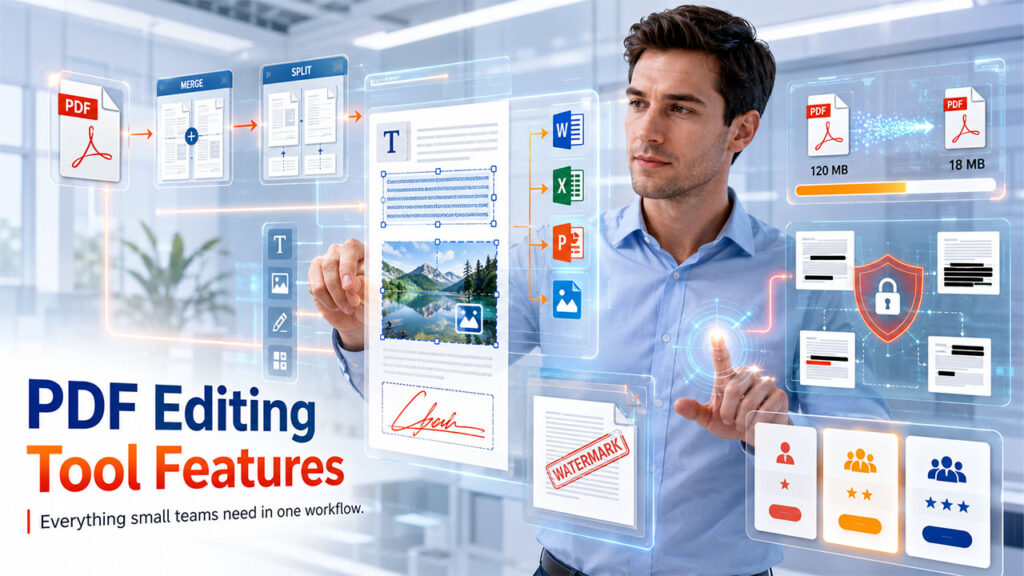
Before choosing a PDF editor, small business owners should think about their real workflow. Not every team needs the most expensive software. Some only need simple editing and signing. Others may need advanced collaboration, branding, security, or CRM-friendly document handling.
Here are the features worth checking:
1. Easy Text and Image Editing
Your team should be able to update text, replace images, adjust links, and fix small errors without recreating the document from scratch.
2. PDF Merging and Splitting
Sales teams often combine proposals, pricing pages, brochures, and legal terms into one document. Merging and splitting tools make this much easier.
3. E-Signature Support
If your team sends contracts or agreements, built-in signing features can reduce delays and make the process smoother.
4. PDF Conversion
Converting PDFs to Excel, Word, PowerPoint, JPG, or other formats can be useful when content needs to be reused or edited in another tool. For users who need more flexibility, online tools also make it easy to convert and edit PDF online without installing additional desktop software.
5. Compression
Large PDF files can be difficult to send by email or upload to a CRM. Compression helps reduce file size without losing too much quality.
6. Security and Watermarking
Password protection, permission settings, redaction, and watermarking are important when sharing confidential documents or branded files.
7. Pricing That Fits Small Teams
Small businesses need tools that are affordable and scalable. A free plan or low-cost subscription can be more practical than a heavy enterprise solution.
Quick Comparison: Which PDF Tool Fits Which Task?
Not every PDF tool is built for the same type of work. This quick comparison can help small businesses and sales teams choose a tool based on the PDF task they handle most often.
| If Your Team Needs... | Consider These Tools |
| Complete PDF editing and document management | Adobe Acrobat, Foxit PDF Editor, Nitro PDF Pro |
| Quick browser-based PDF tasks | Smallpdf, iLovePDF |
| Simple everyday editing | PDFgear |
| Forms, approvals, and signatures | DocHub |
| Adding watermarks to PDF files | Watermarkly |
Below is a closer look at how each tool fits into a small business or sales workflow.
How Each Tool Fits Into a Small Business Workflow
Adobe Acrobat: For Teams That Need Full PDF Control
Adobe Acrobat is still one of the strongest options for businesses that handle many types of PDF work. It can edit text and images, organize pages, convert files, including PDF to Excel, collect signatures, create forms, protect documents, and add watermarks.
For a sales team, this means one tool can manage proposals, contracts, pricing documents, legal terms, and signed agreements. If a business regularly sends formal client documents, Acrobat gives enough control to keep everything polished and secure.
The downside is that it can be more than a small team needs. If your only PDF tasks are compression, conversion, and light editing, a simpler tool may be easier and more affordable.
Foxit PDF Editor: For Business Editing Without Adobe
Foxit PDF Editor is a strong alternative for teams that want advanced PDF editing but do not necessarily want Adobe Acrobat. It supports editing, conversion, page organization, forms, e-signatures, redaction, security, and watermarking.
It works well for businesses that need professional document handling but want another option in terms of pricing, interface, or workflow. Sales teams can use it for proposals, quotes, contracts, and internal documents that require comments, revisions, or protection.
Nitro PDF Pro: For Teams Handling Documents Every Day
Nitro PDF Pro is suitable for businesses that work with PDFs constantly. It includes editing, conversion, signing, collaboration, protection, and page management features.
For sales teams, Nitro can be useful when proposals and contracts are part of the daily workflow. It is especially helpful when multiple people review, update, and send PDF documents. Like Acrobat and Foxit, it may be too advanced for very occasional users, but it makes sense for teams that need a serious PDF system.
PDFgear: For Everyday Editing Without Complexity
PDFgear is a practical choice for small teams that need common PDF editing features without a steep learning curve. It can help with editing, converting, annotating, organizing pages, compressing files, and adding basic document changes.
A small business can use it to fix mistakes in sales documents, update product sheets, prepare reports, or convert PDFs into editable formats. It may not replace enterprise-level PDF software, but it is useful when the goal is simple daily productivity.
Smallpdf: For Quick Browser-Based Tasks
Smallpdf is useful when speed matters more than advanced control. Sales reps can use it to compress a large proposal, merge several files, convert a PDF to Word, or send a document for signature directly from the browser.
This makes it helpful for teams that need fast, occasional PDF tasks and do not want to install desktop software. However, it is not the best choice for complex editing or detailed brand control.
iLovePDF: For General PDF Utility Work
iLovePDF is similar to Smallpdf in that it brings many everyday PDF tools into one online platform. It is useful for merging, splitting, compressing, converting, editing, signing, and watermarking PDFs.
Small businesses may find it helpful because it covers many small document tasks in one place. It is not as powerful as a professional desktop editor, but it works well for quick fixes and routine PDF preparation.
DocHub: For Forms, Approvals, and Signatures
DocHub is strongest when the workflow involves forms, signatures, approvals, and simple document completion. Sales teams can use it to fill agreements, collect client signatures, add comments, and manage signed documents online.
It is less focused on advanced PDF editing, but for signing and form-based workflows, it can be a practical option. This is especially useful for small teams that need to move contracts forward without adding a complicated document system.
Watermarkly: For Simple PDF Watermarking
Watermarkly is different from the other tools on this list because it is not trying to be a full PDF editor. It solves one specific problem: adding a watermark to a PDF.
This can be very useful for small businesses and sales teams that want to mark a proposal, pricing sheet, draft contract, product catalog, or sample file before sending it to a client. Watermarks such as “Confidential,” “Draft,” “Sample,” or a company logo can help protect documents and reinforce branding.
Watermarkly is simple and free to use, which makes it practical when the team only needs to watermark a PDF quickly without opening a larger PDF editing platform.
Final Thoughts
PDF editing tools are essential for small businesses and sales teams that want to work faster and present documents more professionally. The right tool can help your team edit proposals, prepare contracts, compress large files, collect signatures, protect sensitive documents, and share polished materials with clients.
The best choice depends on how your team works. Some businesses need a full PDF editor for contracts and formal documents, while others only need quick browser-based tools for compression, conversion, signing, or watermarking.
In the end, choose a PDF tool that saves time, reduces document errors, and helps your team send better files without slowing down the sales process.
%201.png)

%201.png)

%201.png)