
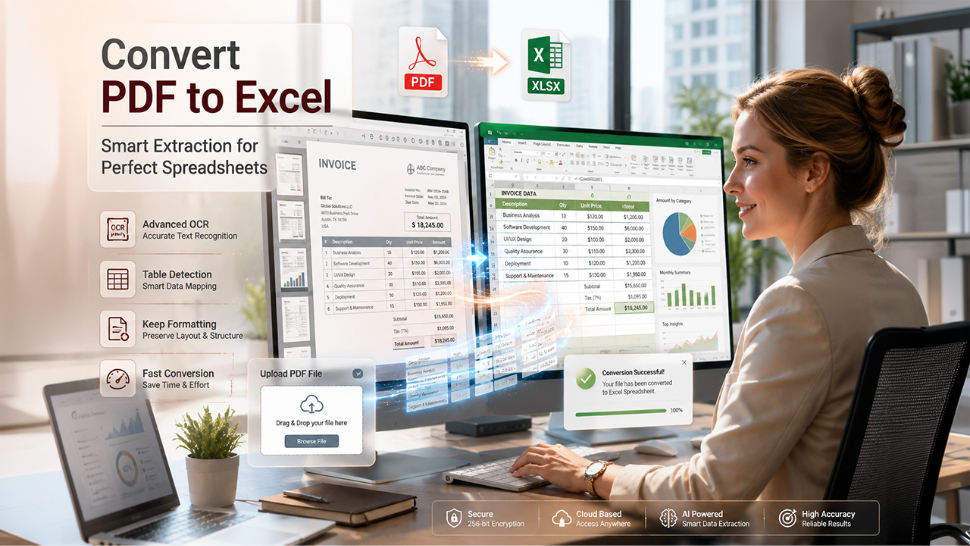

PDF to XLS conversion allows you to leverage the power of Excel’s features for faster and easier data management. It eliminates the need for copying or retyping records, whether you’re dealing with financial analysis, complex calculations, or inventory updates. One of the key benefits of PDF converter tools is that they streamline this entire process with minimal effort. The process of changing file formats is simple, and we will show you how to convert a PDF to Excel step by step.
How to Turn PDF into Excel Using Specialized Software
Quality software tools accurately convert PDF to Excel but require installation and regular updates. The best apps are also offered at higher prices, whether as a one-time purchase or a monthly subscription. All this makes them more suitable for those who change file formats regularly. Here’s how to convert a PDF to Excel using specialized software:
- Download and install a reliable PDF to Excel converter.
- Launch the app and open the PDF file you want to convert.
- Select XLS as the output format. The best apps may also let you select specific pages or tables and adjust the conversion settings.
- Start the conversion process.
- Save the ready-made Excel file.
How to Change File Formats for Free? Convert PDF to Excel Online
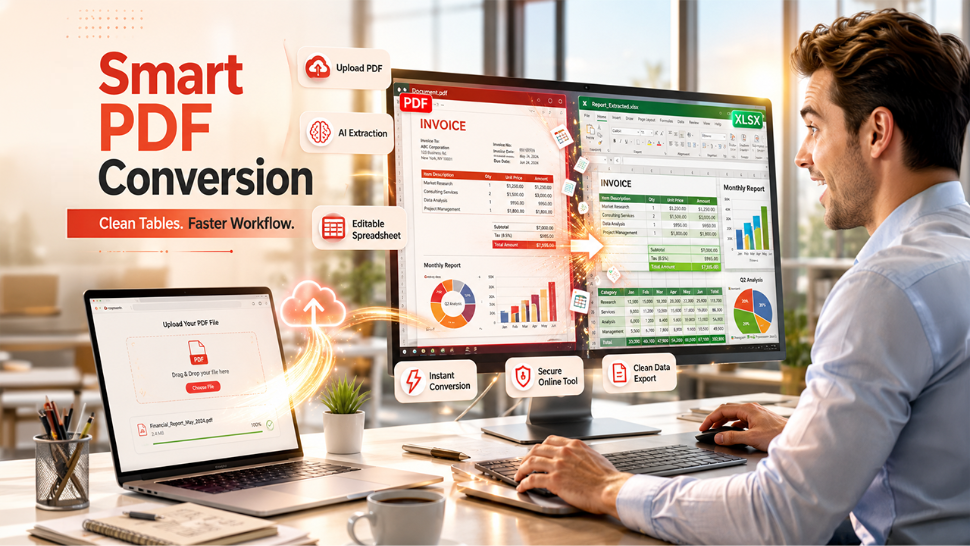
Online converters are a convenient choice for both regular users and those switching file formats infrequently. Since these tools operate on the web, there’s no need to install software. The best of them run well on any browser, device, and operating system, and they adopt strong security measures to keep your files safe. If you decide to convert PDF to Excel free of charge using OnlyDoc or similar online platforms, the process will be quick and take just a few clicks:
- Find the best PDF to Excel converter available for free.
- Upload your PDF file.
- Wait a few seconds for the tool to change the file format.
- Download the converted Excel spreadsheet.
Note: If you're exploring file conversions beyond PDFs, you might also be interested in learning how to Convert YouTube to MP3 Legally.
How to Convert a PDF to Excel Using Preview
If you have a Mac or iPhone and you want to know how to change a PDF to Excel without using Adobe or other special programs this way might work for you. You do the work yourself which's different from using special software or online tools. But Preview is a program that comes with your Mac or iPhone so it is a choice if you want to change a PDF to Excel without being online and without getting extra programs. You can use your Mac or iPhone to change a PDF, to Excel using Preview.
- Right-click your PDF document and navigate to Open With -> Preview.
- Highlight the data you want to convert and press Command + C to copy it.
- Open Microsoft Excel.
- Create a blank workbook.
- Press Command + V to paste the data into Excel.
- Click Save.
How to Convert Files Using Microsoft Excel
Excel can turn your PDF into XLS using its built-in conversion feature. However, the option is available only in Excel 2019, Excel 365, and later versions. If the software is not installed on your device, download it as part of the Microsoft 365 subscription or purchase a standalone app. You can also convert PDF to Excel online, free of charge, through your Microsoft account.
- Open Microsoft Excel and create a blank workbook.
- Go to the Data tab.
- Open the Get Data menu.
- Hover over From File and select From PDF.
- Locate the needed PDF file saved on your device and click the Import button. Excel will analyze your file and show a list of detected pages and tables.
- Choose what you want to import. You can also preview the content on the side panel.
- Click Load to import your records directly to Excel. Do you need to make changes? Then click Transform Data. Excel will open the Power Query Editor, where you can modify your records (e.g., delete a column or change the data type) before finishing the import.
- Save your file in Excel format.
Common Conversion Challenges & Solutions
Can I convert a PDF to Excel without losing the original formatting? Why does the converted Excel file look messy? Is it possible to turn a scanned PDF into XLS? These are the most common questions users ask when changing their file formats. Check out what typically goes wrong during PDF to Excel conversion, alongside some simple solutions to make the process smooth.
| Challenges | Solutions |
| Inconsistent formatting | Use high-quality tools with advanced layout recognition or adjust columns manually after conversion. |
| Missing data | Check your original PDF file for hidden or non-selectable text. Try a different converter if needed. |
| Large file size | Split the PDF into several files. |
| Complex layouts | Convert only specific sections of a document, or simplify your PDF before uploading. |
| Poor conversion from scanned PDFs | Use OCR tools to extract text before conversion. |
Conclusion
Switching from PDF to XLS is really not that hard. If you use the methods and tools you will be able to change the file format easily.
The quality of your PDF files is important too make sure the data, in your PDF files is clear and easy to understand.
This will help you get results when you convert your PDF files to XLS files.
%201.png)

%201.png)

%201.png)