

Prototyping tools enable you to build designs that you can easily share with developers, get stakeholders' review, and fine-tune them before launch. The challenge is finding a solution that includes all the aspects you need. There are numerous varieties of tools available in the market, excluding the new AI-powered options that are now emerging. Sorting through all of them to find an option with the features that matter most to UI/UX designers can quickly become overwhelming. For teams focused on rapid prototyping, choosing the right tool can make the design process faster, smoother, and more collaborative.
We have all been there. To help you out in your research, this blog presents you with the best 9 AI prototyping tools. You can test, compare, and iterate in real-life situations to choose the best option. Let's get started.
What is Prototyping?
In product development, prototyping means building a working draft of an idea before any of it becomes final. That draft might be sketched on paper, clicked through on a screen, or coded into a limited functional demo, but the purpose stays the same: to put something tangible in front of real users and stakeholders before resources are spent building the wrong thing.
The value shows up well before launch:
- It turns vague requirements into something a team can react to directly, rather than debate in the abstract.
- It exposes usability problems while they are still cheap to fix.
- It gives designers, engineers, and product leads a shared reference point instead of separate assumptions.
- It shortens the distance between an idea and validated feedback from real users.
How far a prototype needs to go depends entirely on the question being asked. A rough wireframe might settle a layout debate, while a fully interactive build is usually necessary before a feature reaches developers.
Best AI Prototyping Tools for UI
Let us look at the best AI prototyping tools, sorted by user type and use cases:
- Best Overall: UX Pilot
- Best for Wireframing and AI Website Sitemaps: Relume
- Right Option for Initial Stage Validation of Design: Google Stitch
- Right Option for Website Design: Framer AI
- Best Option for Speeding Interaction Setup: Figma AI
- Best If You Have a Product Design Already: Alloy
Such picks are not based on feature checklists or marketing pages. They have been verified by experienced designers who have actually used these tools to prototype similar product ideas, segmenting things, iterating on flows, and checking which ones did the right job. Let us study the best 9 AI prototyping tools.
Top AI Prototyping Tools to Use in 2026
1. UX Pilot AI UI Generator
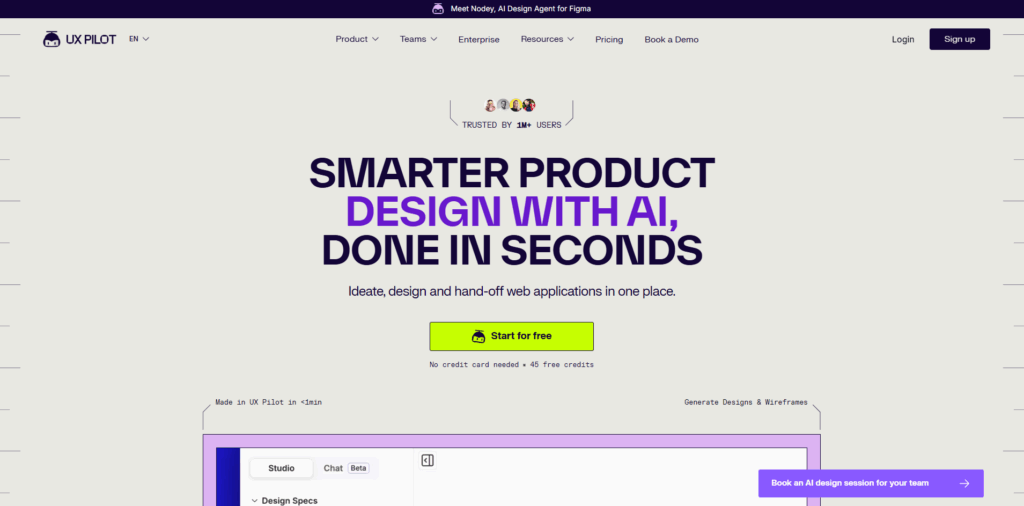
UX Pilot refers to a prototyping tool created around a chat-based and generative workflow. You can describe what you want, and it creates app interfaces as per your requirements. This can save you from having to go through a steep learning curve, even if you have never built a screen before.
However, it does not factor in experienced designers who are used to set design practices and follow strict criteria when creating prototypes. UX Pilot enables you to import your present design system and export prototypes back into your workflow via Figma integration.
- Creates complete screens from short text prompts with a consistent layout.
- Enables you to directly test flows with an Interact mode before handoff.
- Provides custom themes and unlimited icon or component imports from Figma.
- Provides a free plan, with three paid tiers for teams that require more.
2. Relume AI
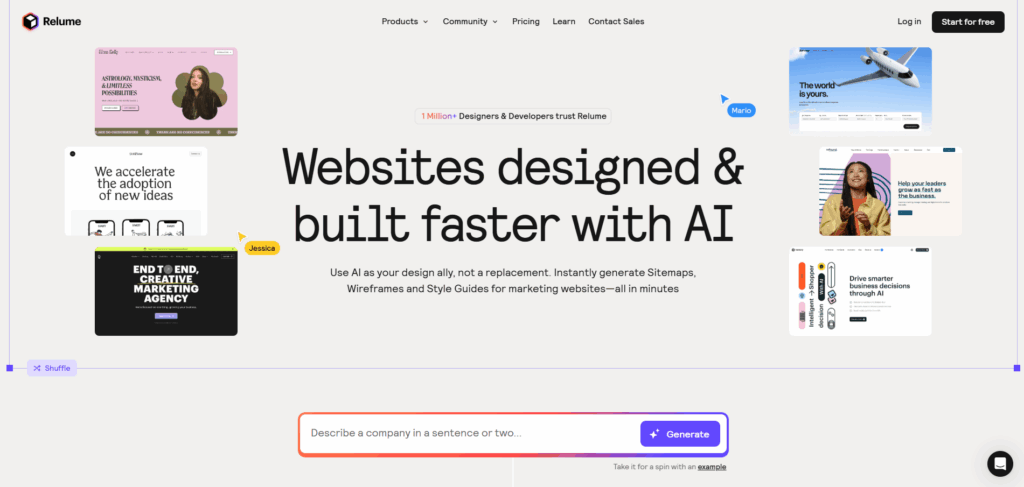
Relume organizes prototyping from a structural angle, changing a single text design into a comprehensive sitemap combined with low-fidelity wireframes for each page. Instead of chasing visual polish, it emphasizes hierarchy of content layout logic, providing teams a clear foundation to fine-tune before moving into in-depth interface handoff or design.
- Style guide tab for quickly modifying typography and colors.
- Component library accelerates early-stage layout decisions.
- A free plan is available, with premium plans unlocking the Figma export and more pages.
3. Google Stitch
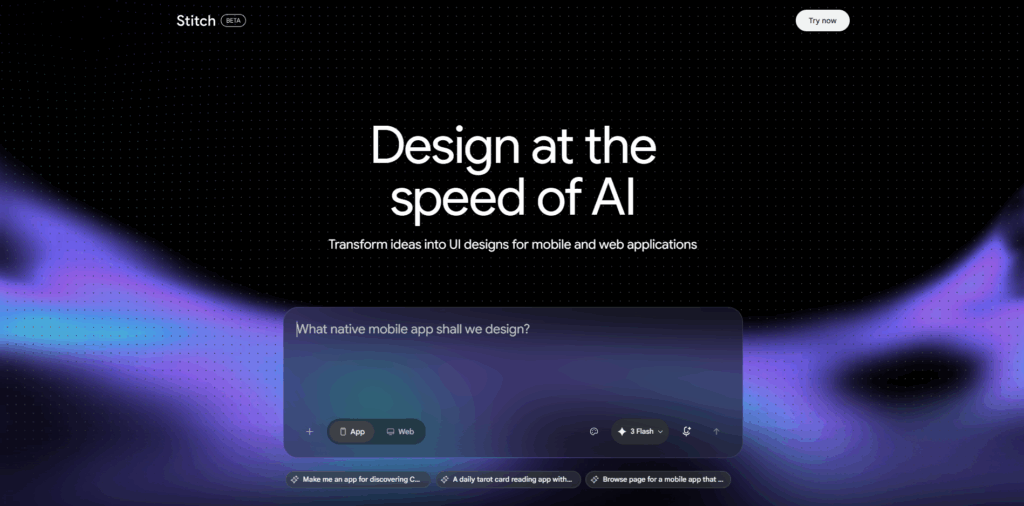
Google Stitch refers to an experimental tool from Google Labs that converts rough sketches or written prompts into an operational interface design and front-end code. What begins as a static layout, which can be converted into an interactive prototype once each screen is chosen, enabling teams to select flows and review standard interaction states.
- Four model modes: Gemini Flash, 3 Pro, 2.5 Pro, and Nanobanana for redesign.
- Prototype creation can take a lot of time as per the screen count.
- Available as a free plan, has limitations to 350 monthly generations on Flash mode.
4. Framer AI
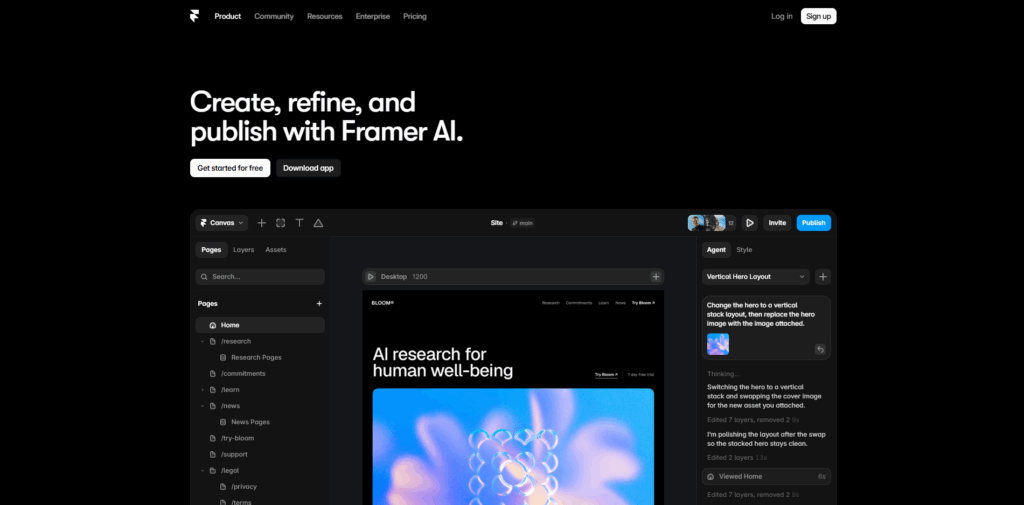
Framer AI works more like a website builder than a dedicated tool for prototyping, since it also manages hosting and publishing from the platform directly. Two AI modes simplify the workflow: Wireframer for fast layouts and Workshop for the addition of interactive components. It is a good option for general websites instead of mobile apps or SaaS products.
- AI works as a supporting feature instead of a primary editing method.
- A free trial is available, with paid plans beginning at $15/month.
5. Adobe Firefly
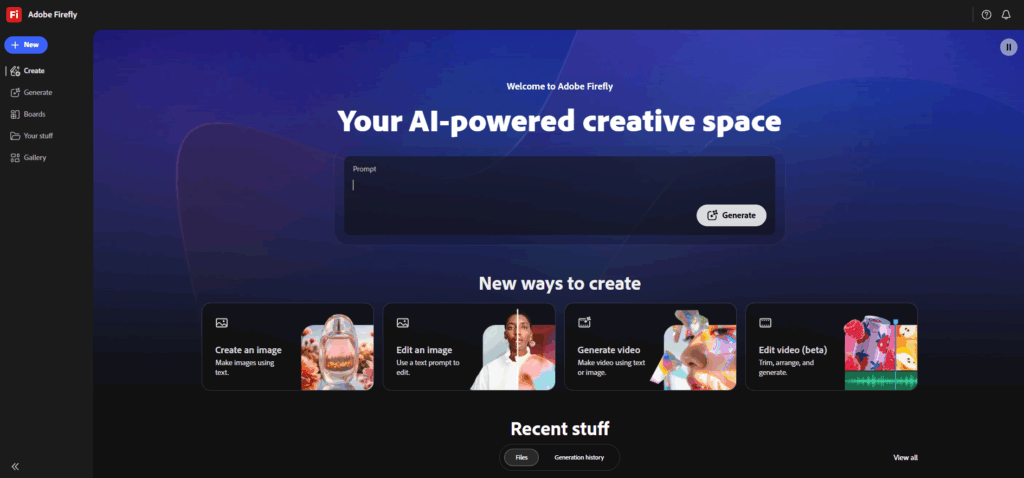
Adobe Firefly is mainly built as a generative video and image platform instead of a UI prototyping tool. Though it still has a role in initial creative exploration. Teams generally use it to create icons, illustrations, and moodboard elements that can be used as input into other design software, instead of creating test flows or interactive screens.
- No option to connect flows, define screens, or simulate interactions
- Does not support reusable components or design systems
- A free trial is available, with paid plans beginning at $9.99/month.
6. Figma AI
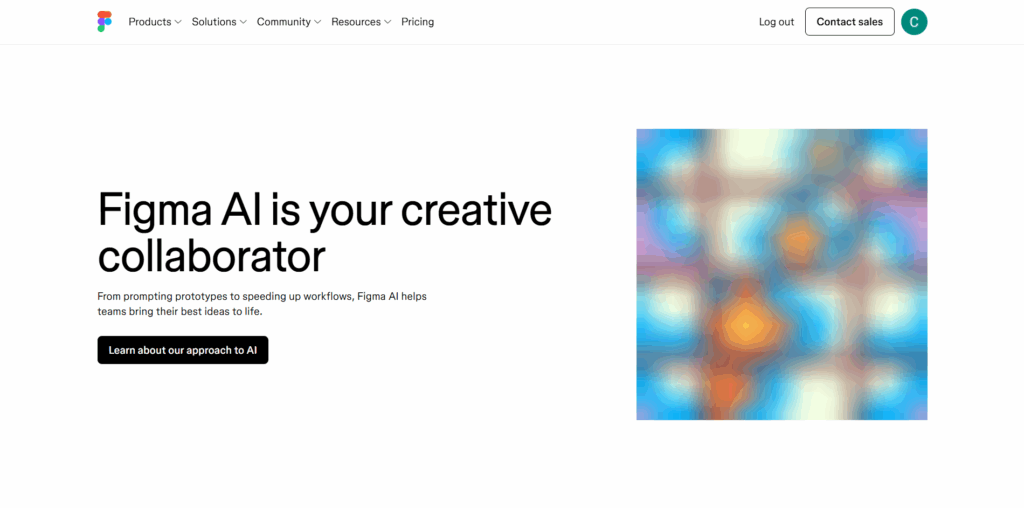
Figma hosts the most design and prototyping workflows already. Thus, Figma AI focuses on adding automation instead of replacing the existing process. The First Draft feature creates a high-fidelity screen from a given description, while Add Interactions links selected screens automatically, saving time on repetitive tasks.
- Works on individual screens instead of complete multi-screen flows.
- AI features require a paid plan, starting at $16/month.
7. Alloy App
Alloy takes a distinct approach to prototyping by capturing a present live page instead of beginning from a blank canvas. Once they are captured, the page can be edited via a chat-driven AI assistant that in AI assistant that adds or modifies sections while matching existing layout, color, and style choices already in place.
- The browser extension directly captures pages for editing.
- No imports of Figma components, which restricts the use of structured design systems.
- The free plan enables up to 20 prototypes; premium tiers begin at $20/month.
8. Canva
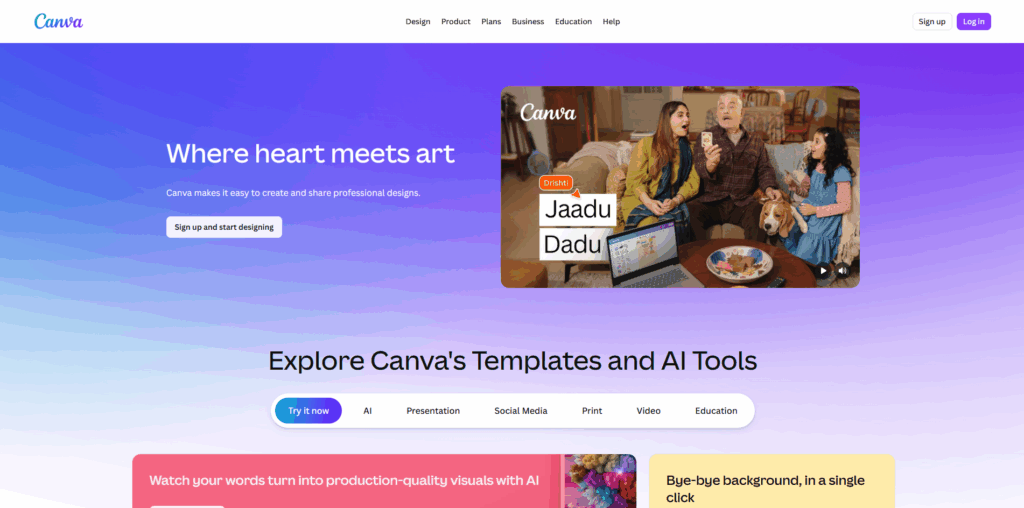
Canva has widened from a graphic design solution into a standard clickable prototyping tool, enabling users to connect numerous screens together via hotspots or buttons. The approach is quite effective for early ideation or stakeholder walkthroughs, specifically with audiences that are unfamiliar with dedicated design software, though it lacks in-depth interaction testing.
- A broad library of components and templates is well suited for beginners.
- The free plan is quite generous, with premium plans unlocking more templates and assets.
9. Lovable
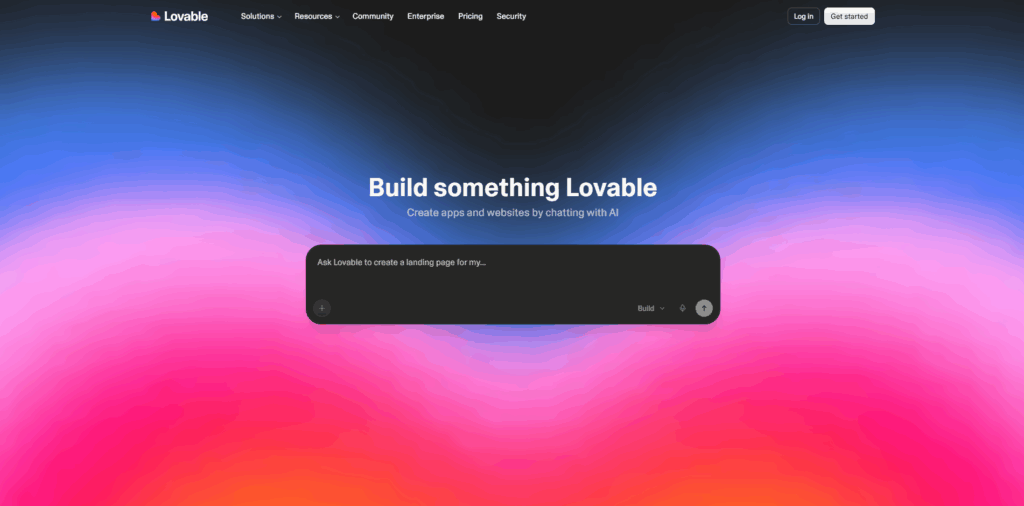
Lovable works as a full-stack app builder instead of a conventional prototyping tool, making it valuable once a team needs to go beyond clickable mockups. A single prompt can create a functional multi-page application, complete with standard backend logic and navigation, though visual control remains limited since changes take place through prompts.
- Provides support to design component imports from Figma.
- Freemium model with limited free credits daily.
- Paid Pro plan begins at $25/month.
Important Factors to Assess Before Selecting a Tool
Selecting the right tool depends less on which tool has the highest number of features and more on how effectively it aligns with the current stage and workflow of the team. A few significant factors are worth considering before purchasing an option:
- Fidelity needed: Early concepts generally only require low-fidelity wireframes, while investor pitches or developer handoff generally require interactive or high-fidelity screens.
- Learning curve: Chat-driven tools to onboard quickly, while code-driven or design-system-intensive platforms that reward teams with existing technical experience or design.
- Integration with current tools: A platform that links up with Figma or a related design system minimizes duplicate work and ensures that assets remain reusable.
- Team Size and Budget: Free plans are an effective option for testing ideas. However, scaling across a complete design team generally means comparing premium tiers and per-seat pricing.
- Speed of iteration: How fast feedback can convert into an updated version generally matters more long-term than how refined a single demonstration appears.
Still Not Sure Which Platform to Select?
The actual starting point depends on the stage a team is currently at:
- For fast iteration on UI and exploring ideas, UX Pilot is the most effective option for prototyping.
- For a standard structure of websites and simple wireframes to build, Relume is a good option.
- For designing as well as publishing a website from a single platform, Framer AI is an effective option.
A lot of such tools provide free trials or plans, so testing two or three in parallel is a practical way to look for the right fit before scaling usage across the complete team.
Conclusion
Selecting the right approach to prototyping boils down to matching the platform to the skill level, stage, and existing workflow instead of chasing the option that is most feature-heavy on the market. Whether the priority is fast wireframes, high-fidelity interactive screens, or a working app generated from a single prompt, every tool covered can solve a distinct aspect of the product design process. Testing two or three solutions on a similar project idea remains the most dependable way to look for the one that seamlessly fits into the workflow.
FAQs About Prototyping
Q1. What is the difference between a wireframe and a prototype?
A- wireframe can be defined as a skeletal or static layout that outlines content placement and structure. On the other hand, a prototype refers to an interactive model that simulates precise functionality and user flows.
Q2. When should prototyping begin in the product development process?
A- Prototyping must begin as quickly as possible, ideally right after the end of the ideation phase. Thus, design assumptions can be tested before major development resources are committed.
Q3. Is prototyping necessary for small or early-stage startups?
A- Yes. Prototyping is specifically useful for startups as it enables lean teams to quickly verify product ideas, collect investor-ready demonstrations, and minimize the risk of development in the wrong direction.
Q4. What is the difference between low-fidelity and high-fidelity prototyping?
A- Low-fidelity prototypes are quick to build, and simple sketches or wireframes are utilized for testing early concepts. On the other hand, high-fidelity prototypes closely represent the design of the final product and interactions for in-depth evaluation of usability.
Q5. Can non-designers use prototyping tools effectively?
A- Yes. A lot of modern AI prototyping platforms like Bolt.new, Lovable, and Figma Make are engineered for non-designers, enabling founders and product designers to create interactive prototypes from simple text prompts without any background in design.
%201.png)

%201.png)

%201.png)