
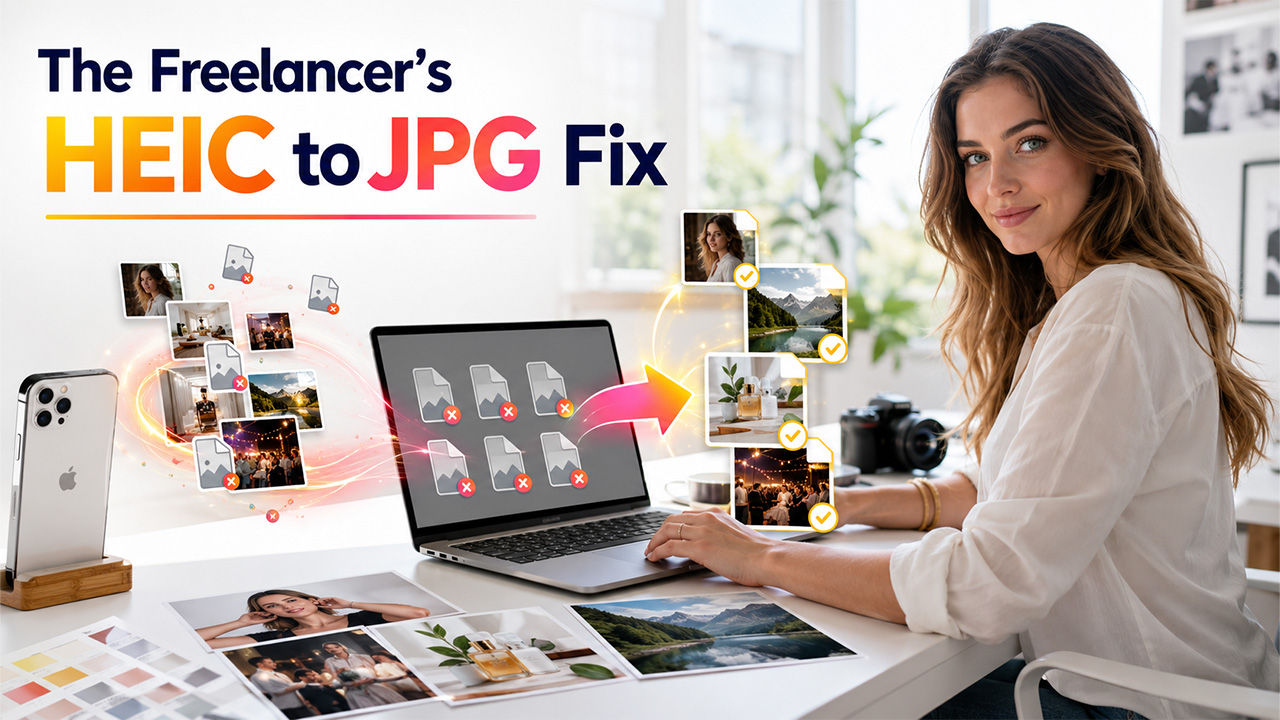

A client sends over a batch of photos for their social media calendar. Product shots, headshots, event photos — all taken on an iPhone. You download them to your Windows PC and none of them open. Your editing software throws an error. Your file manager shows blank icons. The client is waiting and you have no idea what's wrong with the files.
Nothing is wrong with the files. The problem is the format. iPhone cameras save photos as HEIC by default. Most Windows software, design tools, and content management systems don't support it. This is one of the most common workflow blockers for freelancers and virtual assistants working with Apple device users.
If you're a freelancer working with iPhone users, knowing how to convert HEIC to JPG can save time and prevent workflow disruptions.
This guide covers exactly what to do. Fast, clean, and without bothering your client about it.
Why iPhone Client Photos Won't Open on Windows
HEIC became the default iPhone camera format when Apple rolled out iOS 11. It's efficient for storage on Apple devices but widely unsupported outside that ecosystem. Windows requires additional codec extensions just to view HEIC files. Many design and editing applications—older versions of Photoshop, Canva desktop, and legacy CMS platforms—don't support it at all.
When a client sends HEIC files, they're not doing anything wrong. Most iPhone users don't know their camera saves in HEIC. They took the photo, shared it, and expect you to handle it. As a freelancer or VA, handling it cleanly without friction is part of the service.
The HEIC to JPG converter from WPS solves this in seconds. Open a browser, upload the file, convert it, and download the JPG. No software to install. Works on any Windows version. The output quality matches the original exactly.
For freelancers and virtual assistants, learning how to convert HEIC to JPG is a practical skill that eliminates delays when working with client-supplied iPhone photos.
The Fastest Way to Convert HEIC to JPG for Client Assets
Most freelance and VA work involves single assets or small batches—one receipt photo, three product shots, a handful of event photos. For these situations, a browser-based converter is the most practical route.
Open Chrome. Go to the WPS HEIC converter. Upload the client's HEIC file. Click convert. Download the JPG. From upload to download, it's done before you know it. You never have to ask the client to resend the file in a different format.
This works whether the file came through email, WhatsApp, Slack, Google Drive, or any other delivery method. Download the HEIC file wherever it landed. Convert it. Use the JPG in your workflow as normal.
Handling Color Profiles in Client Photos
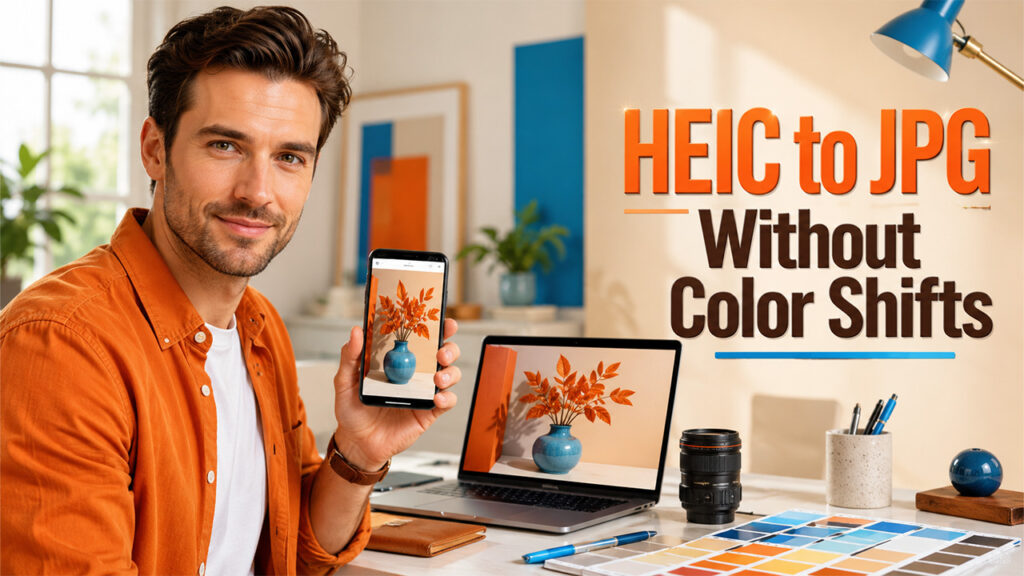
This is the part most freelancers miss. iPhone photos use Display P3 wide color — a broader color range than the standard sRGB used by most screens, design software, and web platforms.
When you convert HEIC to JPG or HEIC to JPEG with a tool that doesn't handle color profiles correctly, the output looks slightly different from what the client saw on their iPhone. Colors appear a little flat or shifted. For product photography or brand work where color accuracy matters, this creates problems.
A quality converter maps Display P3 to sRGB accurately during conversion. The JPG output looks identical to the original on any standard screen. WPS handles this correctly by default — no manual color profile settings needed.
If a client ever says "the colors look different in your deliverable," color profile mishandling during conversion is usually the cause. Using the right converter prevents this entirely.
What Happens to EXIF Metadata During Conversion
Client photos often carry important metadata—the date and time the photo was taken, the location, and camera settings. For content creators managing editorial calendars, e-commerce sellers tracking product shoots, or business owners documenting receipts and invoices, this metadata matters.
Many free converters strip EXIF data silently during conversion. The date disappears. The location is gone. The photo loses its context.
WPS preserves EXIF metadata in the JPG output. Location, timestamp, and camera settings all transfer intact. For freelancers handling client asset libraries where organization by date or shoot location matters, this is the difference between a clean delivery and a messy one.
Setting Up a HEIC-to-JPG Workflow for Recurring Clients
Creating a repeatable process for how to convert HEIC to JPG ensures every client photo arrives in a usable format before editing or publishing begins.
If you work with the same iPhone client regularly, setting up a conversion step in your intake workflow saves time on every project.
Option 1 — Convert on receipt: Every time a client delivers HEIC files, run them through the converter before adding them to your project folder. Name the JPG files consistently. Store originals in a separate archive folder. This keeps your working files clean and your software happy.
Option 2 — Ask the client to change one setting: On their iPhone, go to Settings, Camera, Formats, Most Compatible. Every photo taken after that saves directly as JPG. You receive JPG files automatically from that point on. Most clients are happy to make this change once they understand it saves both sides time.
Option 3—Request JPG on the brief: Add a line to your client onboarding documents or project briefs: "Please deliver photos in JPG format." This sets the expectation upfront and prevents format issues from the start of every project.
Inserting Converted Photos into Client Deliverables
Once you have the JPG, inserting it into Word documents, PowerPoint presentations, Google Docs, or any CMS works without issues. No format errors. No broken image placeholders.
Receipt photos and document scans drop straight into spreadsheets and reports without any issues once converted. Text and numbers in the original photo stay sharp and legible after conversion at 85% quality or above.
Social media work benefits too. Converting before upload puts you in control of how the image gets compressed. Platforms apply their own compression during upload. Converting first means one controlled compression cycle rather than an unpredictable platform-side process.
The Professional Advantage
Knowing how to handle HEIC files quietly and efficiently is a small but real differentiator as a freelancer or VA. Clients who use iPhones—which is most clients in many markets—will occasionally send HEIC files. No friction. No resend requests. No color issues. No missing metadata. That combination tells a client you know what you're doing.
The conversion process takes under a minute. Building it into your standard intake workflow costs nothing and prevents a recurring source of delay and confusion. For any freelancer regularly dealing with iPhone client assets, learning to convert heic to jpg is one of those small skills that quietly saves hours over time. Understanding how to convert HEIC to JPG is a small but valuable skill that reduces delays, improves compatibility, and helps maintain a professional workflow.
Frequently Asked Questions
Q1. Why won't my client's iPhone photos open on my Windows PC?
iPhone cameras save photos in HEIC format by default since iOS 11. Windows doesn't support HEIC natively without additional codec extensions. Most design and editing software on Windows also doesn't recognize HEIC files.
Q2. Will converting my client's photos change the colors or quality?
It depends on the converter. A quality tool maps Display P3 wide color to sRGB accurately and exports at high-quality settings. The result matches the original photo exactly. A poor converter shifts colors slightly and applies aggressive compression. Always use a converter that handles color profiles correctly for client work.
Q3. What happens to photo metadata when I convert HEIC to JPG?
Plenty of free converters delete EXIF data mid-conversion without telling you. The date, location, and camera settings vanish without a word. WPS preserves all standard EXIF data in the JPG output. For freelancers managing client asset libraries organized by date or shoot location, metadata preservation matters.
Q4. Is there a free HEIC to JPG converter that works without installation on Windows?
Absolutely. A browser-based heic to jpg converter works across all Windows versions. Nothing to install. Open Chrome, upload the HEIC file, convert, and download the JPG. WPS offers free unlimited conversions with no signup required. The virtual assistant HEIC to JPG workflow takes under a minute per file.
Q5. Should I ask my client to stop sending HEIC files?
The simplest long-term fix is asking them to change one iPhone setting. Settings, Camera, Formats, Most Compatible. Every photo they take after that comes out as JPG. Most clients appreciate the suggestion once you explain it saves time on both ends. For one-off projects, converting on receipt is faster than explaining the settings change.
%201.png)

%201.png)

%201.png)