
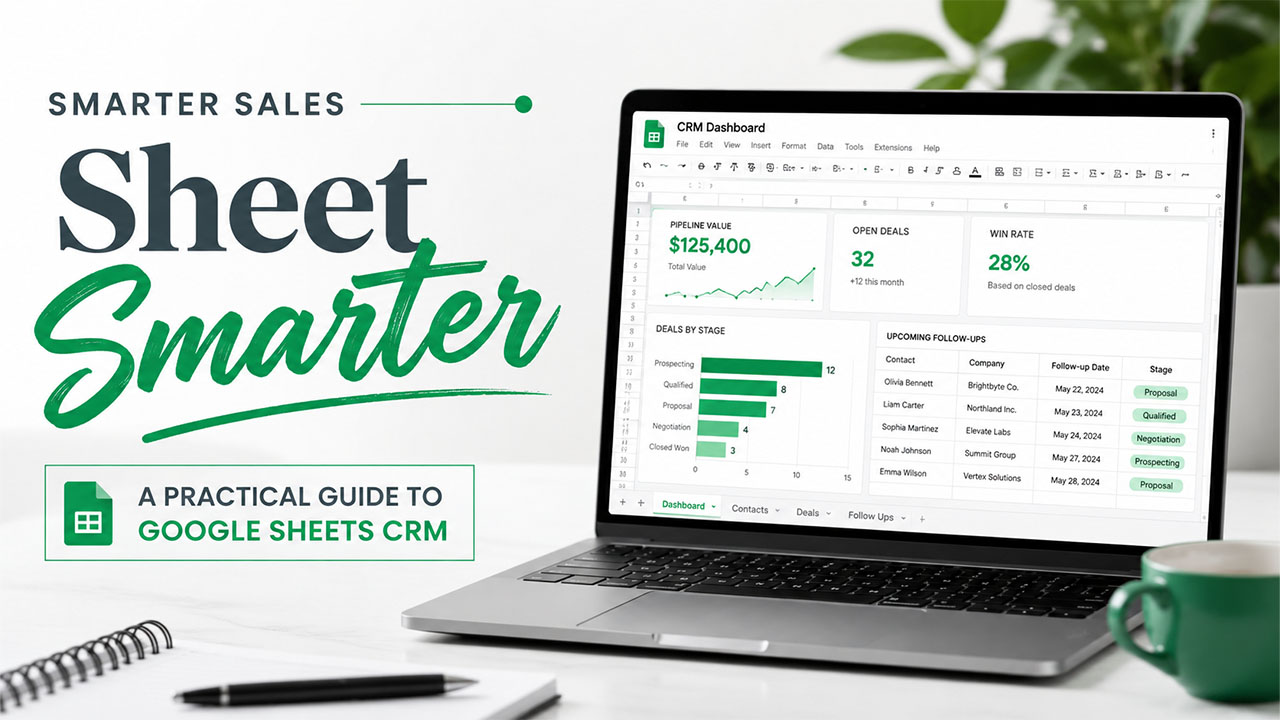

Establishing a sales process from zero can turn out to be an overwhelming process, specifically for smaller teams that are not ready to invest in dedicated software. This is precisely where a Google Sheets CRM template can be useful. It provides you with a ready-to-use structure for monitoring contacts, follow-ups, and deals, without the learning curve or cost of comprehensive CRM platforms. This complete guide, it covers what a spreadsheet template like this one includes, how you can correctly set it up, and when it makes sense to move to dedicated CRM software instead.
Before proceeding forward, it is worth understanding what we actually mean by CRM. Check out our dedicated blog on what is CRM.
Understanding Google Sheets CRM Template
A Google Sheets CRM template is a ready-made spreadsheet created to sort contact data, customer interactions, and sales opportunities in a single place. Instead of creating a monitoring platform from a blank sheet, you begin with a structure that is already organized into logical sections.
You will find a lot of templates in this category that involve:
- A contacts tab for companies, names, emails, and phone numbers.
- A leads or deals tab for monitoring follow-up dates and pipeline stages.
- An overview or dashboard tab that summarizes pipeline activity and value.
- Dropdown fields for consistent deal stages and statuses.
A few versions keep things extremely straightforward, with just a single tab to fill out and an in-built sort order as per the follow-up urgency. Others separate deals, contacts, and forecasting into distinct tabs for more comprehensive tracking. In either case, the objective is always the same: replace all scattered notes with a single shareable and organized system that is ready-to-use right away.
Process to Use a CRM Template in Google Sheets
Using a Google Sheets CRM template is often simple, whether you create your own or begin from an existing one.
To use a pre-built option inside Google Sheets:
- Start a new spreadsheet at sheets.google.com.
- Select “Template Gallery.”
- Move to the Work section.
- Find a listing under “Customer Relationship Management.”
If you would instead create your own CRM template in Google Sheets, organize it around such core tabs:
- Contacts – name, email, company, phone number, contact type, and source.
- Deals or Leads – contact, deal name, stage, and predicted close date.
- Sales Overview – a summary that shows win rate, pipeline value, and deals by stage.
Once your tabs are created, executing a few steps makes the template simpler to maintain:
- Implement dropdown lists (through data validation) for statuses and stages, so entries remain consistent.
- Leverage conditional formatting to automatically highlight overdue follow-ups.
- Add straightforward formulas such as SUMIFS to get an estimate of total pipeline totals without manual mathematics.
- Freeze the header rows, so labels remain visible while exploring longer lists.
What You Need to Look for in a Free CRM Spreadsheet Template?
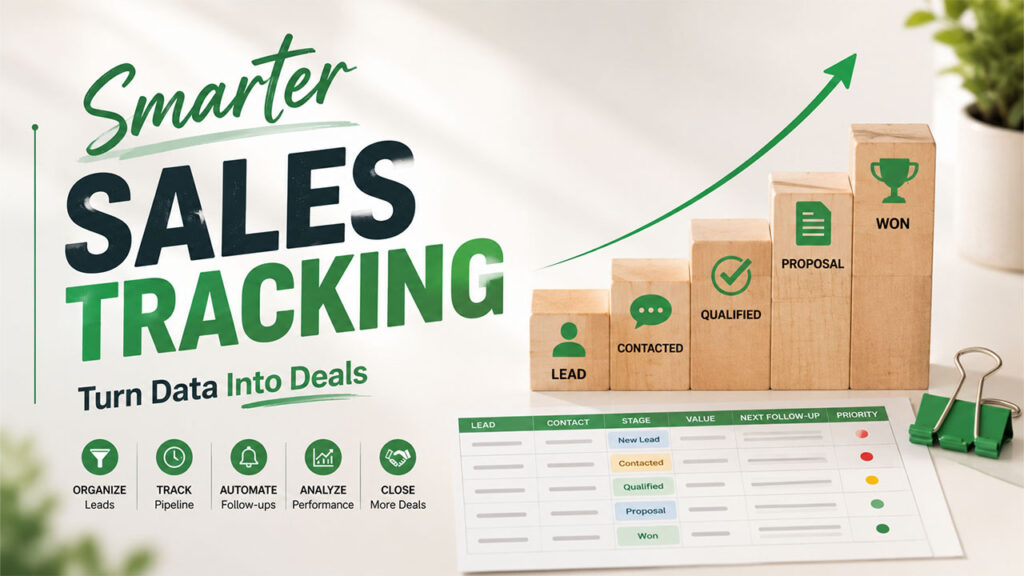
Not every Google Sheets CRM template is created in the same way, so it helps to know what separates a genuinely valuable one from a standard contact list.
Find templates that involve:
- Color-coded urgency indicators or automatic follow-up reminders.
- A clear divide between contact records and active deals.
- In-built charts or dashboards summarizing the health of the pipeline.
- Customizable fields, since each sales process appears a little different.
- No complex process of download, ideally something you can directly copy into your Google Drive.
A good template must also be editable genuinely. If formulas, dropdowns, or formatting can break the moment you add a new column, it is going to cause considerably more friction than it saves.
Personalizing Your Template for Your Sales Process
No two sales processes can look precisely the same, so a Google Sheets CRM template must be adjusted instead of being used as it was downloaded. A few customizations make a template align better from day one:
- You can rename default stage labels to align with your precise sales process instead of keeping generic terms such as Stage 1 or Stage 2.
- Include lead-source columns if tracking where contacts originate is important for your reporting.
- Include a temperature or priority field (warm, hot, cold) to aid representatives in emphasizing the right contacts first.
- Adopt the dashboard formulas to represent the specific pipeline stages of your team.
- Remove unutilized columns from the original template so that the sheet remains easy to scan.
Small adjustments such as these ensure that the template remains relevant instead of forcing your process to align with the default structure of someone else.
Google Sheets CRM Template vs. Dedicated CRM Software
It is important to make note of the fact that a Google Sheets CRM template stands out compared to paid CRM platforms, since the two solve distinct issues:
- Cost: A spreadsheet template is quite free, while a dedicated CRM solution comes with a monthly per-use fee.
- Setup time: You can utilize a ready-to-use template in just a few minutes, while CRM software generally needs onboarding and configuration.
- Automation: Spreadsheets need manual updates, while CRM tools can automate emails, reminders, and lead scoring.
- Integrations: Templates operate in isolation, while the CRM tool directly connects with the calling, email, and marketing tools.
- Scalability: A spreadsheet aligns with small contact lists, while CRM software is developed to manage more complex as well as larger pipelines.
Neither option is better universally. The best choice greatly depends on the budget, team size, and how complex the sales process is. If you are more inclined toward dedicated CRM software, it is worthwhile to understand the types of CRM systems available to choose the right CRM for your workflow.
Basic Mistakes You Can Avoid
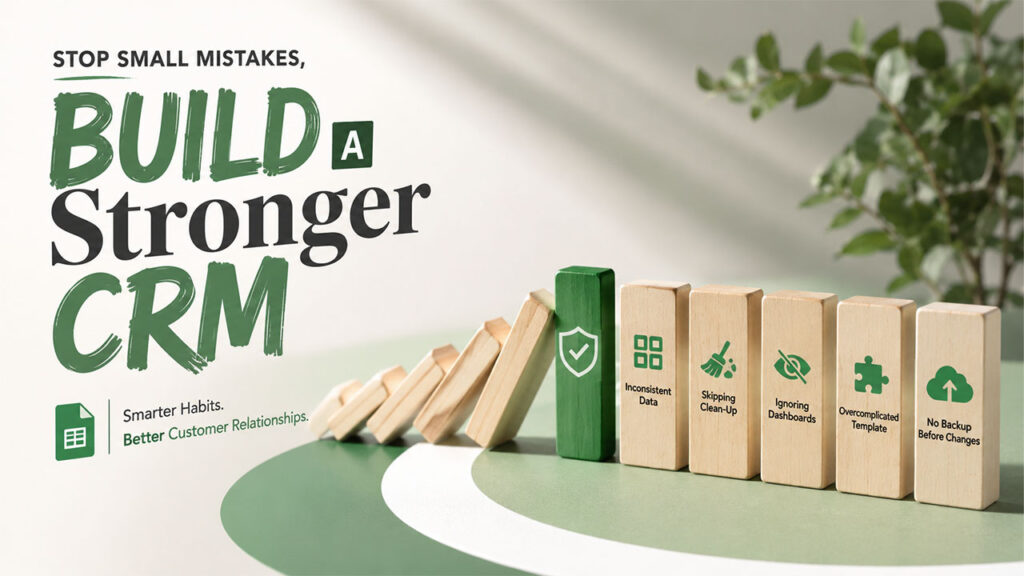
Even a well-developed Google Sheets CRM template can lose its value if it is not consistently used. A few repetitive mistakes can undermine the entire system:
- Allowing different people to edit similar fields without agreed-upon formatting, which leads to inconsistent entries.
- Skipping consistent clean-up, closed deals and outdated contacts accumulate, and filtering slows down.
- Ignoring the dashboard tab entirely, missing early warning signs like stalled deals or overdue follow-ups.
- Overcomplicating the template with too many columns or tabs before the team needs them.
- Not duplicating the sheet or backing up before making changes in the structure risks accidental loss of data.
Limitations You Can Keep in Mind
A Google Sheets CRM template is an effective choice for simple sales processes and small datasets. However, it comes with actual limitations.
- It is generally the right option for small teams, often around two to three people or fewer.
- Once contact volume scales past approximately 50 to 100 leads, sorting and filtering become difficult to manage.
- There is no built-in automation for tasks such as lead scoring or email sequences.
- It will not natively integrate with tools such as calling software, email platforms, or accounting tools.
- Sharing permissions must be carefully managed, since a spreadsheet can be edited, duplicated, or exposed accidentally if access is not properly restricted.
Conclusion
A Google Sheets CRM template is one of the quickest and most efficient ways to ensure structure to an early sales process. With the right dropdowns, tabs, and consistent habits around updates, it can manage pipeline management and contract tracking well for smaller teams. As your contact volume scales up, migrating to dedicated CRM software becomes the next natural step, not an indication that the spreadsheet approach has failed. Even if you are a small business, you can still choose to use CRM software to simplify sales pipelines, automate routine tasks, and centralize customer data.
%201.png)

%201.png)

%201.png)