
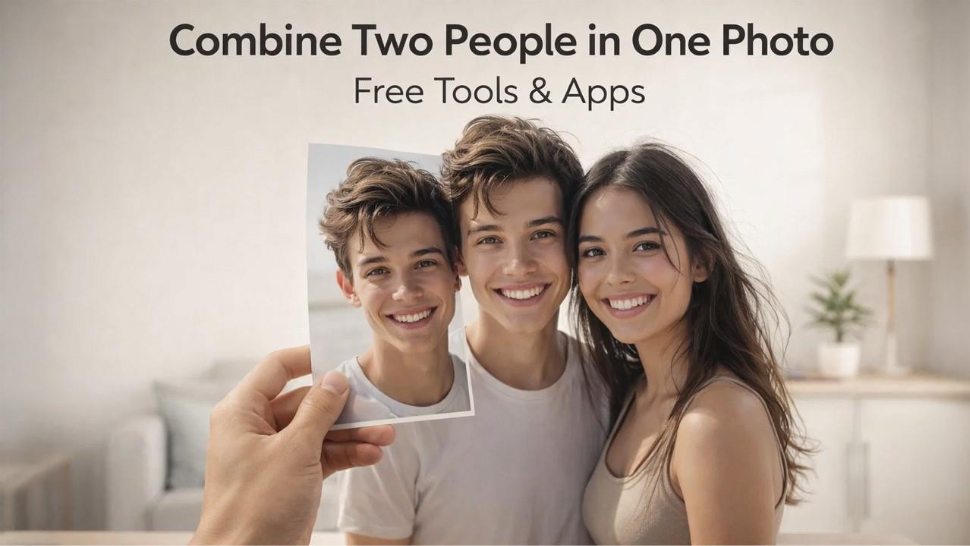

Combining two people from separate photos into one image is something many people need to do. Family photos when someone could not make it. Group shots assembled from individual pictures. The goal in each case is the same: a natural-looking result.
Photoshop was once the primary option. But it came with a cost and a steep learning curve. For casual users, that was not practical.
Now you can get a clean result without professional skills. Easier methods are available. If you want a reliable way to combine two people in one photo, AI-powered tools have made it pretty simple. You merge the images in seconds. Masking, subject detection, and lighting correction. The software handles all of that automatically.
What used to take time and know-how now takes just a few clicks.
The Challenge: Lighting, Proportions, and Shadows
Here's what made merging photos difficult before AI. You take two separate pictures, and almost nothing lines up.
The lighting might be coming from different angles. Skin tones can look completely different because of white balance. And scale is often off—one person ends up looking like a giant next to the other, even though in real life they're the same size.
Editors used to spend a lot of time fixing these issues manually, working with blend modes and layer masks to get everything to match.
Now AI handles that work. It looks at both images, figures out where the mismatches are, and adjusts things automatically. This is where AI-Powered Creativity plays a key role, enabling tools to intelligently match lighting, proportions, and tones without manual editing. What used to take an hour of careful editing now takes a few minutes, even if you've never done it before.
Method 1: Using Dedicated AI Photo Combiners
The most efficient way to merge two people is to use a dedicated photo combiner tool. These apps are built specifically to handle the details of human subjects.
Step-by-step guide:
Select Your Source Images
Pick a background photo—where you want the final image to take place—and a cutout photo of the person you want to add.
Upload to the Tool
Find a reliable AI combiner platform. Look for one that specifically offers a combine two people feature, so the AI is trained on human figures rather than landscapes or objects.
Auto-Masking
The AI automatically detects the person in the secondary photo and removes the background around their hair, shoulders, and body. In Photoshop, this usually requires complex refine edge tools.
Place and Resize
Drag the person onto the background. Scale them so their size matches the perspective. If the person in the background is standing, the new subject should have a similar eye line.
AI Harmonization
This is where it all comes together. Advanced tools automatically adjust the color, brightness, and contrast of the inserted person to match the background. The result looks like they were originally in the same room.
Method 2: The "Layering" Method on Mobile Devices
If you want to work on your phone, you can get good results using two apps. One removes backgrounds. The other layers of the images.
Step 1: Remove the Background
Download a background remover app (such as Remove.bg or the built-in feature in iOS 16+).
Open the photo of the person you want to insert.
Remove the background. The app will leave you with a "sticker" of the person with a transparent background (PNG format).
Step 2: Combine the Images
- Open a photo editing app like Picsart, Canva, or Snapseed.
- Import your background photo.
- Use the "Add Image" or "Sticker" feature to import the cutout person.
- Resize the person and rotate them to fit the composition.
Pro Tip: Add a subtle shadow so it does not look like a sticker. Look at where the light is coming from in the background. If it is from the left, add a small shadow to the right side. That helps ground the person in the scene.
Method 3: Using Free Online Tools
No downloads needed for this one. Browser-based tools are the best option if you want to keep things simple.
A few things to look for. Hair detail matters a lot. When a background removal tool clips off flyaway strands or leaves rough edges, it's a dead giveaway that the photo was edited. The better tools preserve those fine details automatically.
That small difference is what makes the merge look natural, even when someone looks closely.
Tips for a Realistic Merge
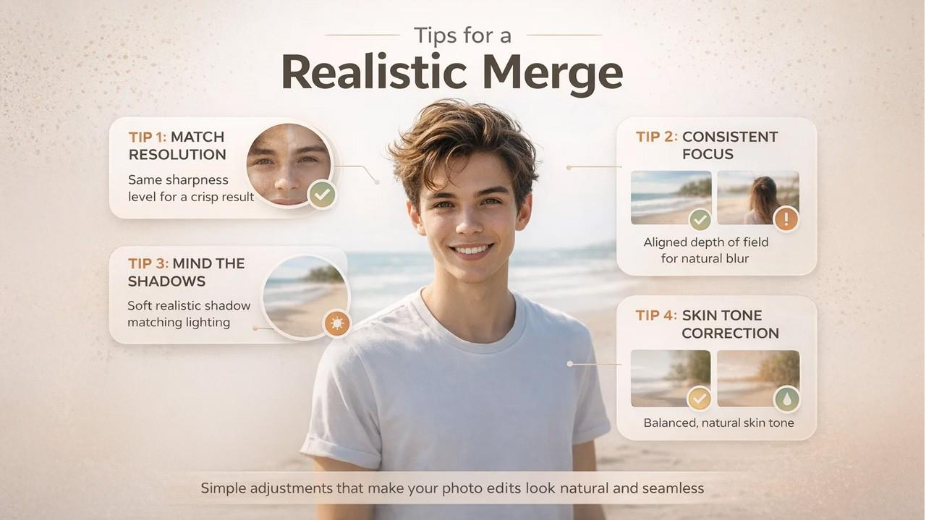
Even if you are not using Photoshop, a few simple tips can help make your final image look authentic.
Match the Resolution
If you merge a high-resolution photo with a low-resolution one, the difference will show. Use photos with similar quality.
Consistent Focus
If the background is blurry, the person you insert should have a slight blur too. Sharp subject with a sharp background often looks fake.
Mind the Shadows
Check the ground in your background photo. If there are shadows, your inserted person should cast one in the same direction. Many AI tools now handle this automatically.
Skin Tone Correction
Warm sunlight and cool office lighting do not mix. Use a color correction tool to adjust skin tones so they match the scene.
Why You Don’t Need Photoshop Anymore
Adobe Photoshop is still the industry standard, but for simple merges, it is more than most people need. To get a decent result, you have to learn:
- Layer masks
- Feathering
- Clone stamps
- Curves
That is a lot of work just to combine two people in photos.
Modern AI tools have changed things. They use neural networks trained on millions of images to understand what a human looks like and how light interacts with skin. So something that used to take a professional twenty minutes can now be done by a beginner in about thirty seconds.
With a dedicated tool for combining two people into one photo, you skip the technical complexity entirely. You upload your images. The AI handles the masking and lighting. Then you download a finished, high-resolution composite.
Conclusion
You don't need Photoshop to combine two people into one photo. It's actually pretty simple now.
Maybe you need a holiday card at the last minute. Or you're putting together a tribute photo for a friend. Whatever the reason, the tools out there today make it easy to get professional-looking results. No complicated software to learn. No expensive subscriptions to pay for.
A couple of things help, though. Start with good source photos. If the lighting is similar between them, the final image will look way more natural. Then just pick the method that works for you. A dedicated AI tool gives the best quality. A mobile app is good if you want something convenient. An online tool works fine for quick edits.
Either way, it only takes a few clicks to bring anyone into any photo and have it look convincing.
%201.png)

%201.png)

%201.png)