


Database corruption is one of the common issues that SQL server users frequently encounters. The SQL database files, like MDF and NDF, get corrupted due to different reasons. When you try to open a corrupted database file, it shows different errors and stops you from accessing the data. So, it is critical to fix corruption in the database as soon as possible. This post will help you repair corrupt database files by providing some do-it-yourself methods. It will also mention a reliable SQL file repair tool for quick database repair and recovery.
Understanding Corruption in SQL Database
When working on the SQL server, you can experience different errors caused by corruption in database files. Corruption in the SQL database can occur due to faulty storage device, application bug, sudden power outage, or sudden system shutdown. Similar database connectivity issues can also arise in other database management environments, requiring administrators to troubleshoot and Fix phpMyAdmin Error HY000/1045 to restore database access and functionality. However, various methods are available to fix SQL database corruption issues. Before moving towards troubleshooting methods, first, you need to understand if the SQL database file is corrupt. Some common signs of corruption are:
• Error messages appear when trying to open or work on database
• You might fail to open objects (tables, forms, queries, or records) in the database.
• Application or file repeatedly crashes.
• You may fail to create backup of the database.
How to Fix SQL Database Corruption?
Follow the methods below to restore and repair corrupt SQL data files:
1: Restore corrupt SQL database from Backup
If you have a readable backup file then you can use it to restore the database. To prevent restoring errors, make sure you have all permissions on it. To do so, follow the steps below:
- In your SSMS and connect to the instance of SQL Server.
- Go to Object Explorer and click the Server Name to expand the Server tree.
- Click Databases and then open the database you want to restore in SQL Server.
- Right-click the Database and then click Restore Database.
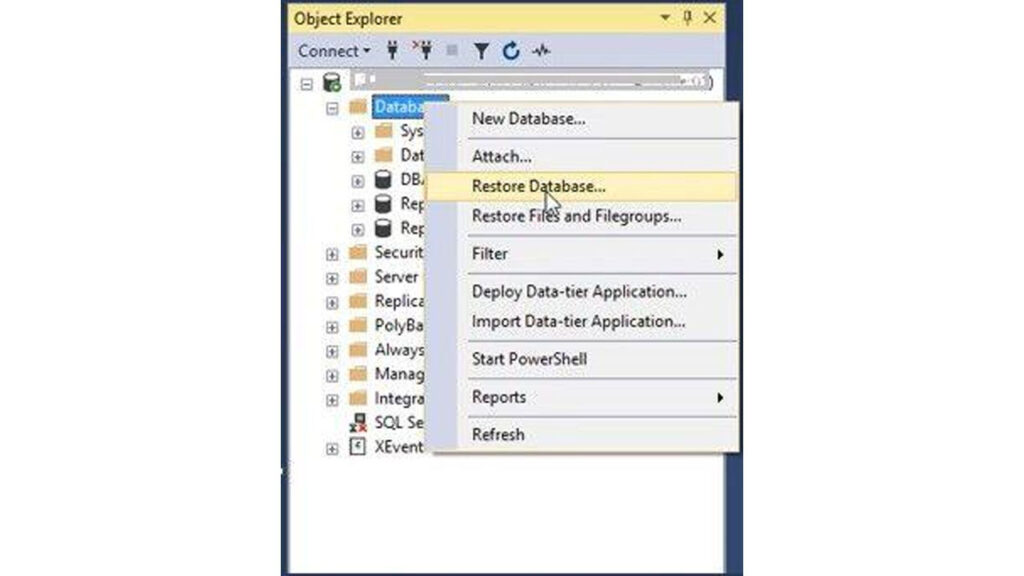
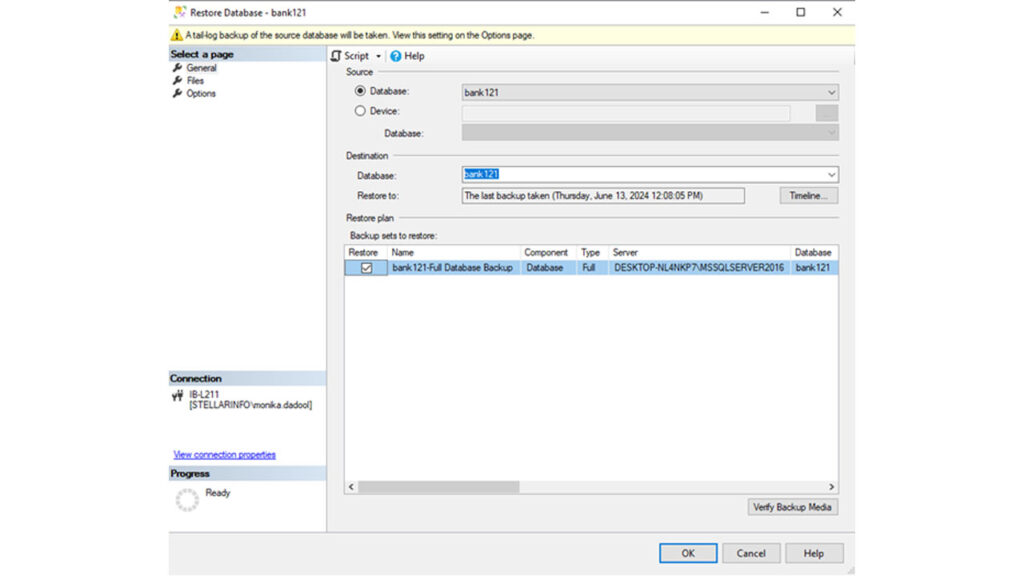
- The Restore Database window is displayed. Under General page's source section, select any of following options:
- Select the Database option and then select the database you want to restore from the dropdown list.
- Select the Device option and then click the ellipses (…) to find your backup file.
- From the 'Select backup devices' window, choose File as backup media, and then click Add.
- Locate and select the. BAK file you want to restore and then click OK.
- When the “Restore of database completed successfully’’ message pops up, click OK.
You can also use the T-SQL commands to restore bak file in SQL server.
2- Use DBCC CHECKDB command
In SQL Server, you can even use the DBCC CHECKDB command to resolve all the issues related to the SQL database. You can even use it to safeguard your database as it helps to check the database for errors. You can use its REPAIR_REBUILD or REPAIR_ALLOW_DATA_LOSS command to repair your database. To use them, set the file into single-user mode. Here's how:
• In an SSMS-connected instance, under Object Explorer, right-click on the corrupt database and then click Properties.
• In the Database Properties window, click Options.
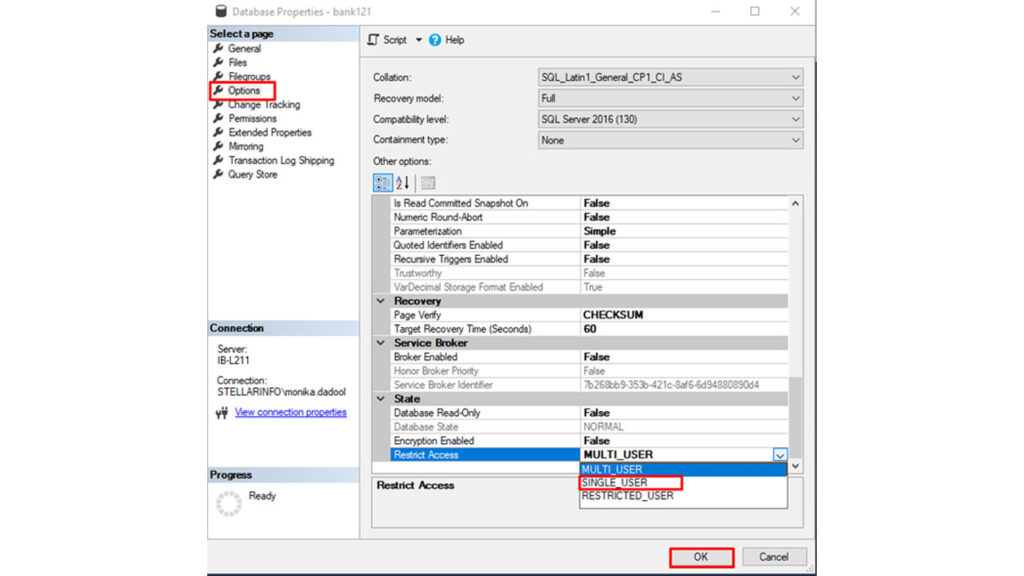
- Under Options, scroll down to State and under it, click the Restrict Access option, select SINGLE_USER, and click OK.
- Next, execute the following commands one by one.
DBCC CHECKDB (GroceryDeliveryDB, REPAIR_REBUILD ) WITH ALL_ERRORMSGS, NO_INFOMSGS;
GO
It is used to rebuild minor corrupted SQL database.
- To run the DBCC CHECKDB command with the REPAIR_ALLOW_DATA_LOSS option to repair a severely damaged database:
DBCC CHECKDB (bank121, REPAIR_ALLOW_DATA_LOSS) WITH ALL_ERRORMSGS, NO_INFOMSGS;
GO
- Next, run the following query to reset the database state:
ALTER DATABASE Dbtesting SET MULTI_USER
DBCC CHECKDB can help you resolve all reported corruption errors and issues but has some limitations due to which you can consider it as a last resort. Major limitation is it does not guarantee the complete recovery of the database as it may delete rows or pages during repair. And to use it, you need to open the database in a single-user mode that is sometime not possible.
Method 3: Use a third-party SQL repair tool
If you want to repair a corrupt SQL database quickly and without data loss, opt for an advanced SQL repair tool. The Stellar Repair for MSSQL is one such advanced tool that can repair damaged or corrupted MS SQL database (MDF/NDF) files and save all data to a new SQL database file. It easily resolves all database errors reported by the DBCC CHECKDB command. Also, it supports the selective recovery of database objects and allows you to recover their deleted records.
Conclusion
SQL database corruption may occur due to multiple reasons. Using the above-discussed methods, you can restore or repair corrupted database files. These methods include backup restore, DBCC CHECKDB command, and an advanced SQL database repair tool. If the backup is not available and you want to repair a severely damaged database quickly and with complete integrity, then using Stellar Repair for MS SQL is an optimal solution. It can repair and recover all database objects with ease.
%201.png)

%201.png)

%201.png)