

Hosting bottlenecks can disrupt CRM automation performance without taking your CRM completely offline. CPU saturation, memory pressure, slow database operations, and overlapping scheduled jobs may delay data syncs, reports, notifications, and follow-up workflows while the dashboard still appears usable.
That makes the problem easy to misdiagnose. A slow automation may come from the CRM, an integration, an external API, or the server underneath them. You need to separate those layers before you change workflows, add resources, or move to a larger hosting plan.
Hosting Problems Often Look Like CRM Problems
Most CRM automation performance depends on several components. A trigger starts a workflow, the CRM reads or writes database records, an integration may call an external service, and a scheduled process handles work in the background. Your hosting environment supplies the computing resources for much of this activity.
When those resources become constrained, the symptom appears inside the CRM. A report takes too long, an import stops midway, or a scheduled email goes out late. The delay may still have started at the server level.
Hosting is not the only possible cause: Poorly designed queries, misconfigured schedulers, API limits, network errors, and conflicting extensions – all can produce similar symptoms. Effective troubleshooting connects each CRM event to the server activity occurring at the same time.
Hosting Limits That Disrupt CRM Automation Performance

CPU Saturation Delays Workflow Execution
Imports, reports, dashboard calculations, and background workflows compete with normal user requests for processor time. When demand reaches the available CPU capacity, jobs take longer and new work may wait in a queue.
If automations run normally during quiet periods but fall behind during business hours, check whether CPU usage rises with the delay and whether several demanding jobs start together.
Memory Pressure Interrupts Long-Running Jobs
Large imports, complex reports, and bulk updates consume memory. A process that reaches its limit may slow down or stop before finishing, while the CRM shows only a generic timeout or incomplete result.
An inefficient extension, oversized batch, or poorly scoped report can also waste memory. Identify the process and test whether you can reduce its workload before upgrading.
Database Contention Slows Reads and Writes
CRM systems constantly read and update records. Several jobs working on the same database tables can compete for access, allowing slow queries and delayed writes to affect dependent workflows.
Review slow-query information, database activity, and job timing together. This helps you distinguish insufficient capacity from inefficient queries or excessive logging.
Overlapping Scheduled Jobs Create Queues
Scheduled jobs process campaigns, pull integration data, refresh reports, and run workflow rules. If one job takes longer than its interval, the next run may begin before it finishes.
Overlapping jobs raise CPU, memory, and database demand together. Stagger schedules, shrink batches, or prevent duplicate runs before adding capacity.
Common Symptoms and Their Possible Causes
The same symptom can point to different layers. Use the following comparisons as starting points, not final diagnoses.
| CRM symptom | Possible hosting cause | Possible non-hosting cause |
| Syncs slow down at busy times | CPU saturation or database contention | API rate limits or network latency |
| Scheduled workflows run late | Worker or process queue saturation | Scheduler misconfiguration |
| Reports time out | Memory pressure or slow database response | Inefficient query or excessive report scope |
| Imports stop partway through | Execution, memory, or storage limits | Invalid records or weak batch handling |
| Record updates become slow | Database contention | Extension or integration conflict |
| Large batches fail repeatedly | Server resource ceiling | Missing retry logic or oversized batches |
Patterns matter. If several unrelated features slow down together, shared hosting resources become a stronger suspect. If only one integration fails, inspect that integration and its external service first.
A Practical Process for Finding the Bottleneck

A structured troubleshooting process can help you determine whether hosting resources, CRM configuration, integrations, or scheduled jobs are responsible for poor CRM automation performance.
Map the Complete Workflow
Record the trigger, CRM actions, identifiable database work, external API calls, and expected finish time. This gives you a timeline for comparing application and server records.
Reproduce the Failure Consistently
Run the workflow with a known batch size and record when it starts, slows, and finishes. Establish this baseline before changing settings.
Check CRM and Integration Logs
Look for timeouts, rejected API calls, database errors, and incomplete jobs. Logs show where a workflow stopped, although they may not explain the underlying slowdown.
Correlate Server Metrics With the Timeline
Compare the failure period with CPU load, memory use, database performance, process queues, and error rates. A spike that repeatedly aligns with the workflow is stronger evidence than an unrelated high reading.
Reduce One Variable at a Time
Lower a batch size, move one scheduled job, or test without one extension or integration. Rerun the same workload so the result remains easy to interpret.
Repeat the Test Under Controlled Load
Repeat the workflow with realistic user and background activity. Track response times, job completion, and errors as demand rises.
Take HostScore's hosting performance methodology for reference: It combines server-response monitoring with load testing because a one-off speed result does not show how a server behaves under sustained demand. You can apply the same principle to CRM troubleshooting. Test consistent workloads, observe the point where performance degrades, and base your decision on repeated measurements.
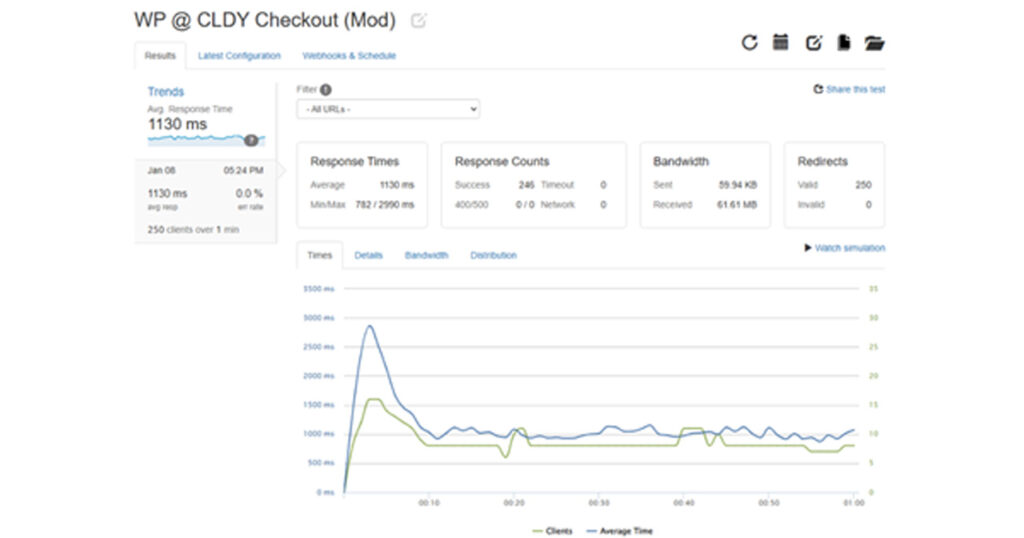
Example HostScore load-test result showing how response time and request failures change as concurrent demand increases. Similar testing can reveal when server capacity begins delaying CRM syncs, reports, and scheduled workflows.
Choosing Between a Hosting Upgrade and CRM Optimization
Signs That You Need More Hosting Capacity
Hosting upgrade for a CRM is reasonable when repeatable tests show normal workloads exhausting available resources across several well-configured processes. Database performance may fall as concurrency increases, or queues may keep growing after you stagger jobs and use sensible batches.
Confirm what the upgrade changes. More storage will not solve CPU saturation, and a higher plan label does not guarantee greater database or process capacity.
Signs That You Should Fix the CRM First
Optimize the CRM when one workflow causes disproportionate load, queries scan unnecessary data, jobs run too frequently, or failed requests retry without control. More capacity may hide these problems temporarily without removing them.
Start with the smallest change that addresses the evidence. Reduce report scope, divide imports into batches, stagger scheduled jobs, archive unnecessary data, or correct retry behavior. Test again before purchasing more capacity.
Preventing Future Automation Failures
Set baselines while the CRM is healthy. Record normal job duration, response time, queue length, error rate, and resource use during quiet and busy periods.
Schedule heavy reports, imports, and maintenance tasks so they do not all start together. Use manageable batch sizes and controlled retries. Review slow queries and failed jobs regularly instead of waiting for users to report missing updates.
Test after major changes to the CRM, integrations, or hosting environment. A change may behave differently when users and background jobs compete for resources.
Reliable CRM Automation Requires Both Layers
Reliable CRM automation performance depends on an efficient CRM configuration and hosting capacity that matches the workload. You cannot confirm either one from a single speed test or a generic error message.
Map the workflow, reproduce the issue, correlate CRM logs with server metrics, and test one change at a time. That process shows whether you need to optimize the application, adjust job scheduling, increase hosting resources, or address an external service. It also gives you evidence to verify that the fix holds when demand returns.
%201.png)

%201.png)

%201.png)