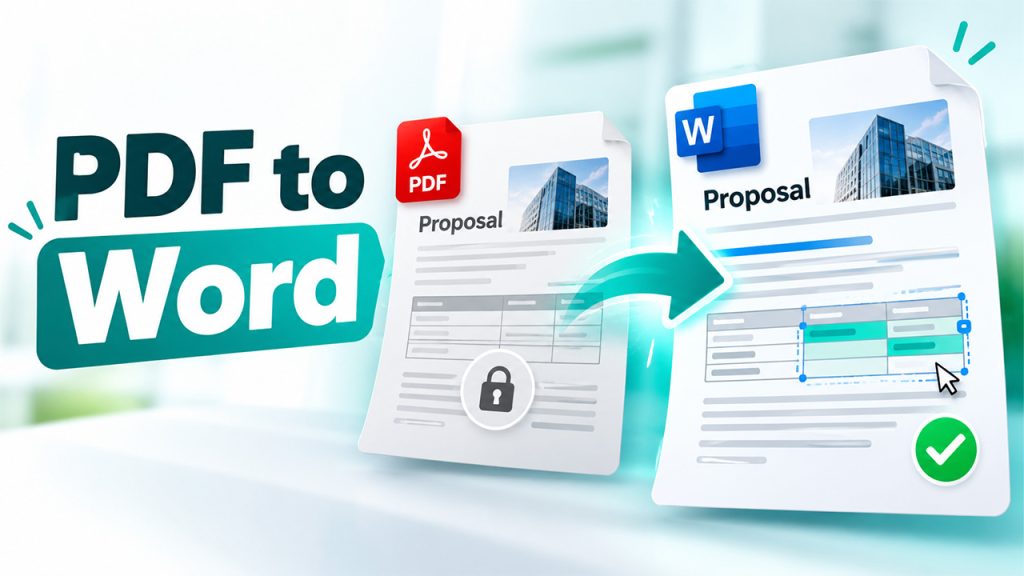
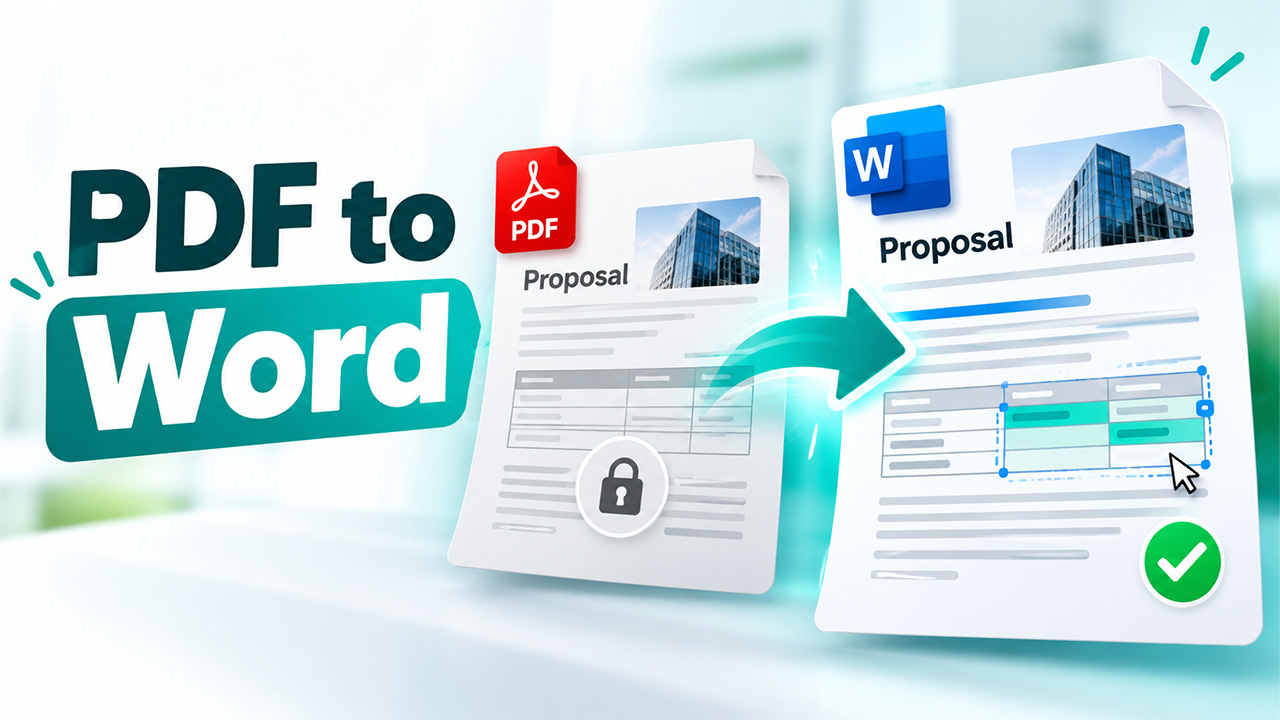

A prospect asks for a revised proposal: remove one service, increase the user count, and move delivery to the following month. The account manager has the PDF sent last week, while the original authoring file sits with an unavailable colleague. Recreating it from scratch risks introducing inconsistencies.
A PDF to Word converter gives the team an editable starting point. PDF-to-Word.io supports browser-based conversion and OCR for scanned PDFs. Once downloaded, the document needs a controlled revision process so the updated scope, pricing, and customer record remain aligned.
Confirm Which Proposal You Are Revising
Start with the exact PDF the customer received. Check the sent email or the attachment stored against the opportunity, then record its filename and issue date.
Ask for the original Word file before converting. If it is available, use it. Conversion is useful when the editable source is missing or inaccessible.
Keep the issued PDF unchanged and create a separate working document. A filename such as Acme_Proposal_v03_DRAFT.docx makes its status clear. Preserve signed agreements as records; handle subsequent changes through the organization’s amendment process. Using CRM for sales teams can help organize proposals, track approvals, and keep sales activities connected to customer records.
Before uploading customer material to any PDF to Word converter, confirm that the service meets your company’s file-handling requirements
Turn the Customer’s Request Into a Revision Record
Write down each requested change before editing. An email asking for “the smaller package with a later start” leaves several details unresolved.
Confirm the package, quantities, delivery date, and any effect on pricing. Record the request against the opportunity using the CRM’s available notes or tasks.
| Requested change | Detail to confirm | Person responsible |
| Remove a service | Scope, exclusions, and revised price | Account manager |
| Increase users | Quantity, pricing tier, and support entitlement | Sales operations |
| Delay delivery | New date and resource availability | Delivery lead |
| Change payment terms | Approved schedule and conditions | Finance |
| Update customer details | Correct entity name and billing information | Account owner |
Resolve unclear instructions before preparing the next customer-facing version. This reduces repeated revisions and gives reviewers a concrete record to check.
Steps to Inspect the Converted Structure Before Editing
Step I
Open the PDF and the output from your PDF to Word converter side-by-side. Review the pricing table, scope, schedule and terms.
Step II
Paragraph test. Add a sentence. If the text blends with another section or it remains trapped within a minuscule text box, modify that section, before attempting to restructure the paragraph.
Step III
Check that the descriptions, quantities, and amounts are in the correct rows, for example, in the pricing tables. The table may look similar to this, but is actually stored as several text boxes that are hard to update reliably.
Step IV
If it takes longer to reword than to replicate the damaged area in a template version approved, replicate that area. Copy the quote, and check the replacement against the PDF that you have been given.
Recalculate Pricing Outside the PDF to Word Converter Document

Treat converted prices as values requiring verification. Changing a quantity in Word does not necessarily update a subtotal, discount, or tax amount.
Use the approved pricing spreadsheet or quoting system to calculate the revised offer. Transfer the confirmed figures into the proposal, then check currency, decimal separators, discount conditions, and payment milestones. A structured CRM document management process can help teams keep proposals and pricing sheets organized and linked to the right sales deals.
For example, increasing a subscription from 20 to 35 users might trigger a different pricing tier. Multiplying the original per-user rate by 35 could produce the wrong quote.
Check consistency across the PDF to Word converter document. The executive summary, pricing table, implementation section, and payment schedule should describe the same offer.
Differentiate Commercial Modifications From Conversion Maintenance
Turn on Track Changes when you do the revision. Include comments to make clear adjustments for which you are seeking agreement, such as a different delivery promise.
Always keep your review focused on the content. Fix broken paragraphs and major formatting issues before saving a working version, then proceed with commercial edits. Reviewers can evaluate scope and pricing more easily when these differences are clear and formatting issues have already been resolved. Using an AI PDF editor can help streamline document editing and correct formatting issues before the final review.
More text verification is required for scanned proposals. OCR mistakes can seem realistic for product codes, dates and account names. Spot check these details against the source PDF.
Conversion also produces a new working file. You should never use existing signatures or approval marks as evidence of authorization for the new version.
Give Reviewers Clear Ownership and Deadlines
Assign approval according to the change. The account manager checks customer requirements, finance reviews commercial figures, and the delivery lead confirms dates and commitments.
Record a named owner and deadline in the CRM task or review message. “Finance approval needed by 15:00 UTC” is more actionable than “please review soon.”
Before release, complete one check:
- Scope and exclusions match the confirmed request.
- Quantities, prices, discounts, and totals match the approved calculation.
- Dates and delivery commitments have the relevant approval.
- Customer names and reference numbers are correct.
- The exported PDF has no clipped text or misplaced table rows.
- The filename and document status identify the approved version.
Resolve outstanding comments before generating the customer copy. Follow the organization’s process for removing internal review information from the file being shared.
Return the Approved Version to the Customer Record
Export the approved document to PDF and inspect it once more. Keep the editable source in the approved document location.
Manually attach the final PDF, or add its approved storage link, to the relevant opportunity using the CRM’s available features. Record the version, issue date, approver, and a brief change summary. A CRM for agencies can help streamline document collection, approval workflows, and client-related processes.
Retain the previous issued version with its history. Mark which proposal is current so another account manager can identify the offer during a handover.
PDF to Word converter handles one step in this process. Clear revision records and approval ownership keep the resulting offer consistent with the customer conversation.
Frequently Asked Questions
Yes. It converts PDFs to Word converter documents and supports OCR for scanned files. Check the converted structure and commercial details before revising.
Do not assume it will. Recalculate through the approved pricing system and verify the figures transferred into Word.
Treat conversion and CRM filing as separate steps. Save the approved proposal against the correct customer or opportunity using your CRM’s existing workflow.
Preserve the signed document. Follow the organization’s amendment and approval process for any subsequent change.
%201.png)

%201.png)

%201.png)